Compliance
Compliance calendar and action centre
See every dated compliance obligation on one calendar with saved views and noise filters, and work the tasks that need a person in the action centre.
Walkthrough The compliance calendar2 screenshots
- Everything due, in one calendar
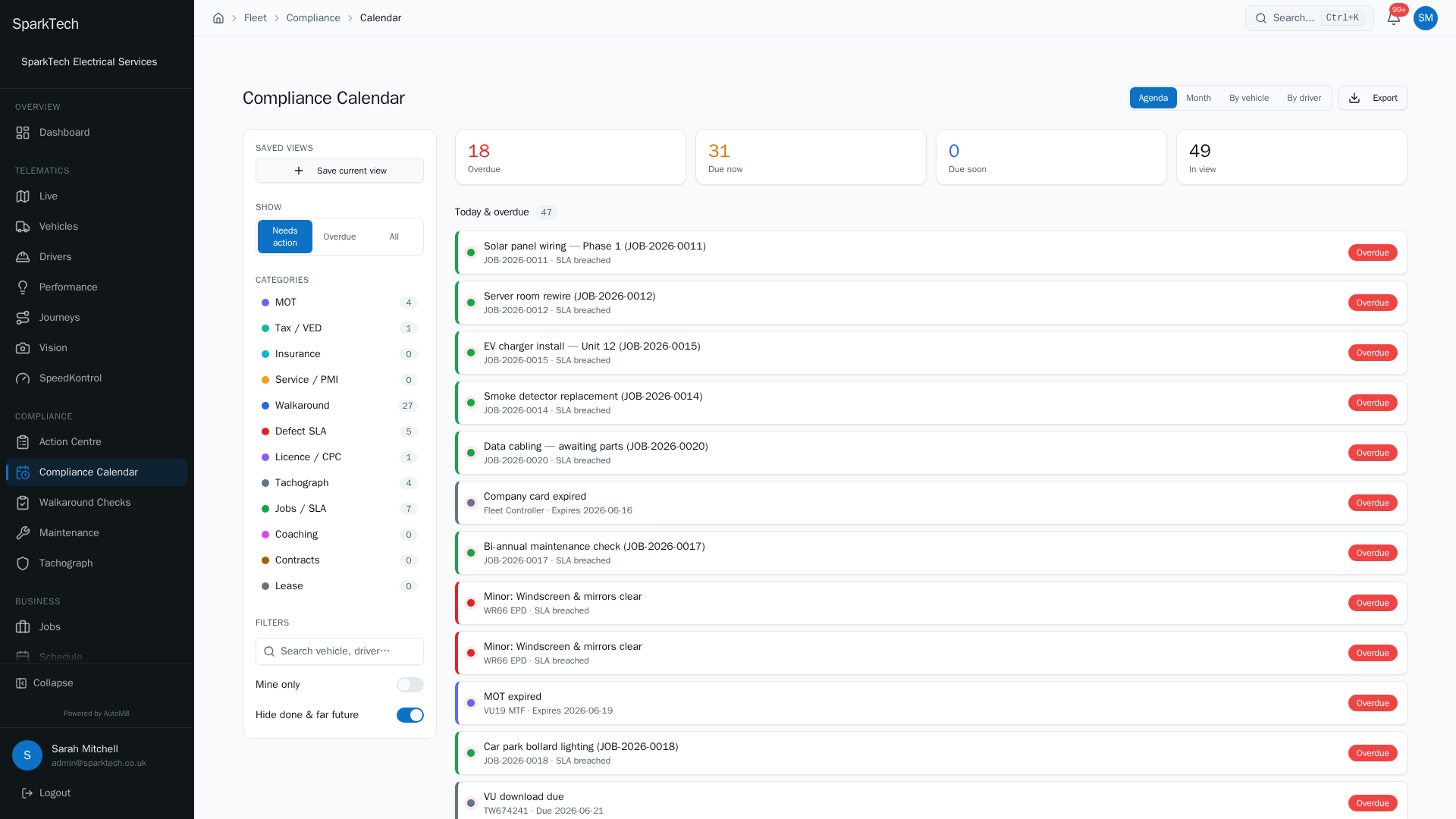
Open Compliance then Compliance Calendar. MOT, tax, insurance, walkaround, defect and tachograph deadlines are pulled together, grouped by what needs action, is due now or is coming up.
- See the month ahead
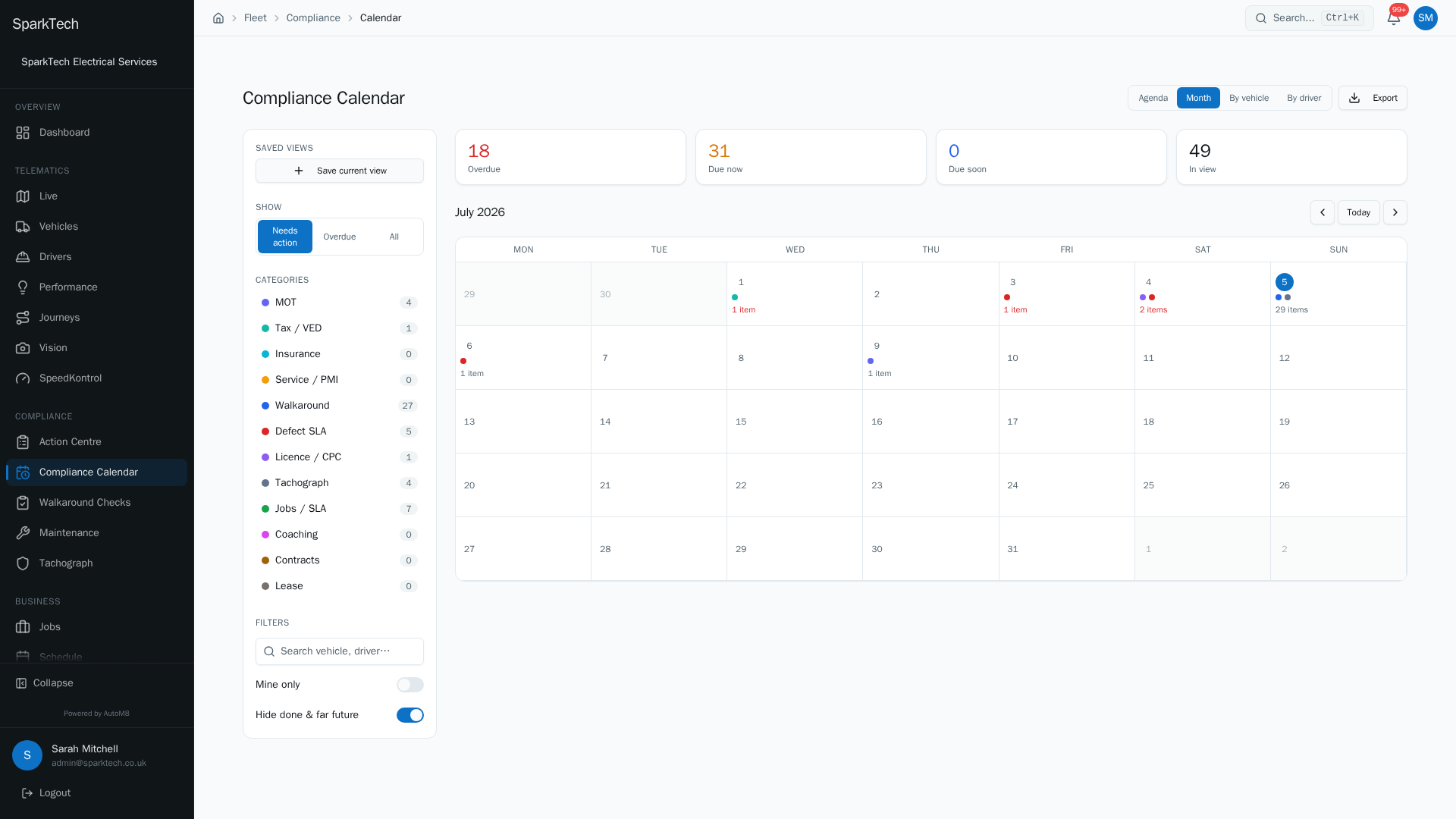
Switch to the month view to see deadlines laid out across the calendar, so you can plan ahead and never miss a renewal.
The compliance calendar puts every dated obligation across your fleet in one view, and the action centre turns the things that need doing into an assignable worklist.
Permissions. Seeing the calendar and action centre needs a compliance View permission (for example Tachograph View or Vehicles View, in the FMS (Fleet Management) group), and you only ever see the categories you have permission for. Assigning and managing tasks in the action centre needs a compliance Manage permission - any one of Vehicles Manage, Maintenance Manage, Defects Manage, Drivers Manage, Coaching Manage or Tachograph Manage (all in the FMS group), because the board spans every compliance area. Administrator and Manager include these by default.
The compliance calendar
Go to Compliance > Compliance Calendar.
The calendar brings every dated compliance obligation into one place. Above it, a KPI strip counts what is overdue, due, due soon and in view, so you can see the pressure at a glance.
Views
Switch the main area between four views:
- Agenda - a pinned “today and overdue” section, then upcoming items grouped by day.
- Month - a traditional month grid.
- By vehicle - the same events grouped into a lane per vehicle.
- By driver - grouped into a lane per driver.
You can Export the current view to CSV.
Categories
The left rail lists the categories the calendar covers. Toggle any of them on or off to filter instantly:
| Category | Covers |
|---|---|
| MOT | MOT test due dates. |
| Tax / VED | Road tax (VED - vehicle excise duty) expiry. |
| Insurance | Insurance expiry. |
| Service / PMI | Service and periodic maintenance inspection (PMI) due dates. |
| Walkaround | Walkaround checks due. |
| Defect SLA | Defect fix deadlines. |
| Licence / CPC | Driver licence and CPC (certificate of professional competence - a qualification professional lorry and coach drivers must hold) expiry. |
| Tachograph | Card and download due dates. |
| Jobs / SLA | Job service-level deadlines. |
| Coaching | Coaching follow-ups. |
| Contracts | Contract dates. |
| Lease | Lease dates. |
Drivers’ hours and infringements are not on the calendar - they are a live status, not a dated event, and live in the tachograph area.
Noise filters
The left rail also has filters to cut the calendar down to what matters now:
- A status toggle: Needs action, Overdue or All. It opens on Needs action.
- A mine toggle - show only items assigned to you.
- Hide done - hide items already dealt with (on by default).
- A search box.
Saved views
Once you have the filters, categories and view set how you like, save them as a named saved view so you can reapply the same setup in one click. You can mark one saved view as your default, and it is applied automatically each time you open the calendar.
The action centre
Go to Compliance > Action Centre.
The action centre is a To do / In progress / Done board of everything across compliance that needs a person to act - defects, upcoming expiries (MOT, tax, insurance, service), missed walkaround checks, coaching follow-ups, and manual tasks you add yourself.
Who can assign: any role with a compliance Manage permission - Vehicles, Maintenance, Defects, Drivers, Coaching or Tachograph Manage (FMS group).
- Assign an item to a member of your team; they get an in-app notification. A banner shows how many items still need an owner.
- Move items between To do, In progress and Done as the work progresses. On desktop you drag a card between the three columns; on mobile you switch lanes with a segmented control.
- Add your own manual tasks with New task, and delete them when done.
Filter the board by ownership (Assigned to me, Unassigned, Everyone, or By person), by category, and by how far ahead to look (30 days up to all upcoming), plus a search box. Unassigned items are visible to all of your admins until someone takes them on.