Reports
Running reports
Run reports across your fleet, compliance, jobs, finance and stock in AutoM8, export them to CSV, Excel or PDF, and schedule regular email deliveries.
Walkthrough Running reports3 screenshots
- A library of ready-made reports
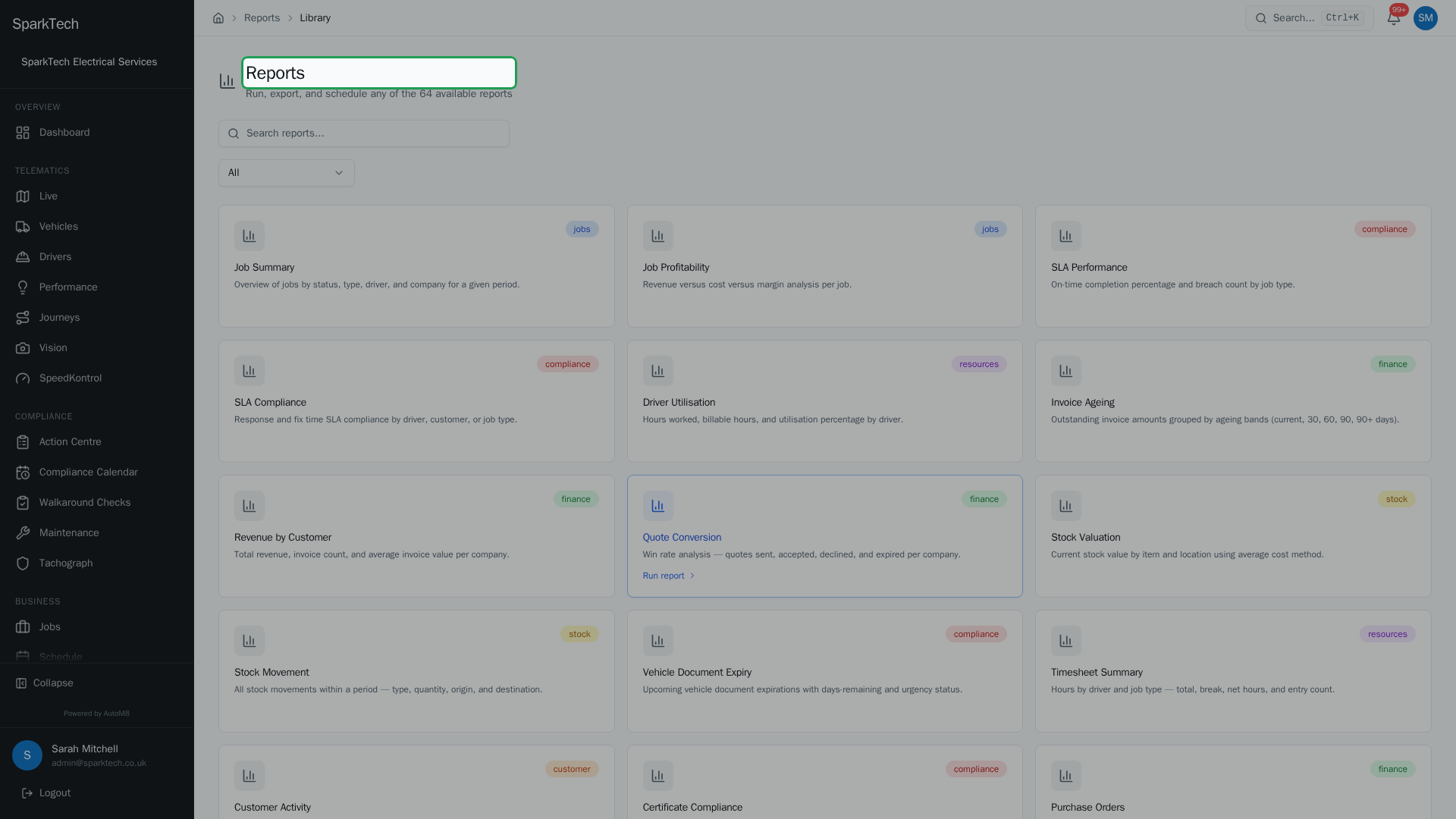
Open Business then Report Library. Reports are grouped by area - fleet, compliance, jobs, finance and stock - so you can find the one you need and open it.
- Set a date range and read the results
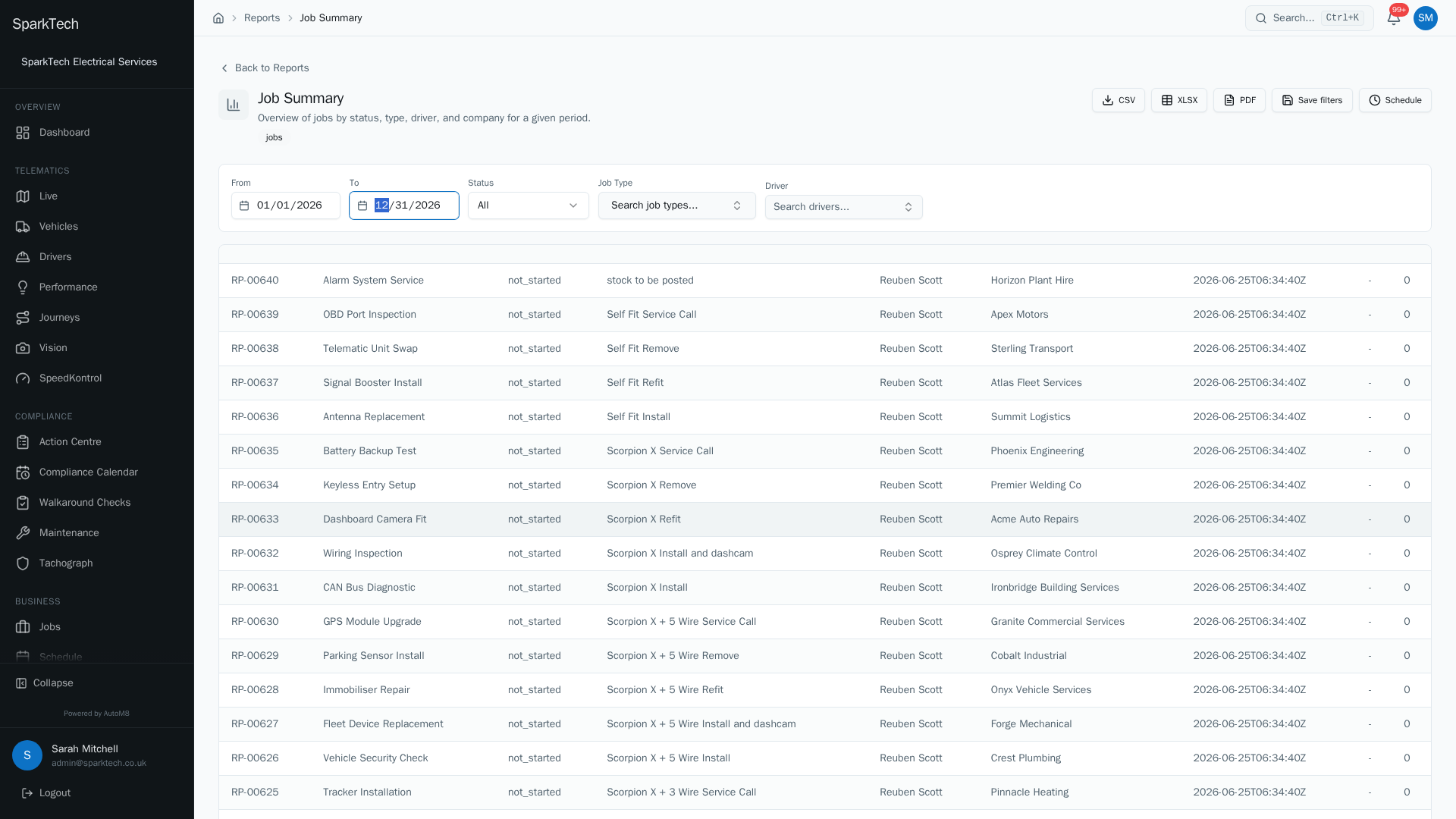
Every report takes a date range and filters for what it is about. The results appear in a table you can page through.
- Export it or have it emailed on a schedule
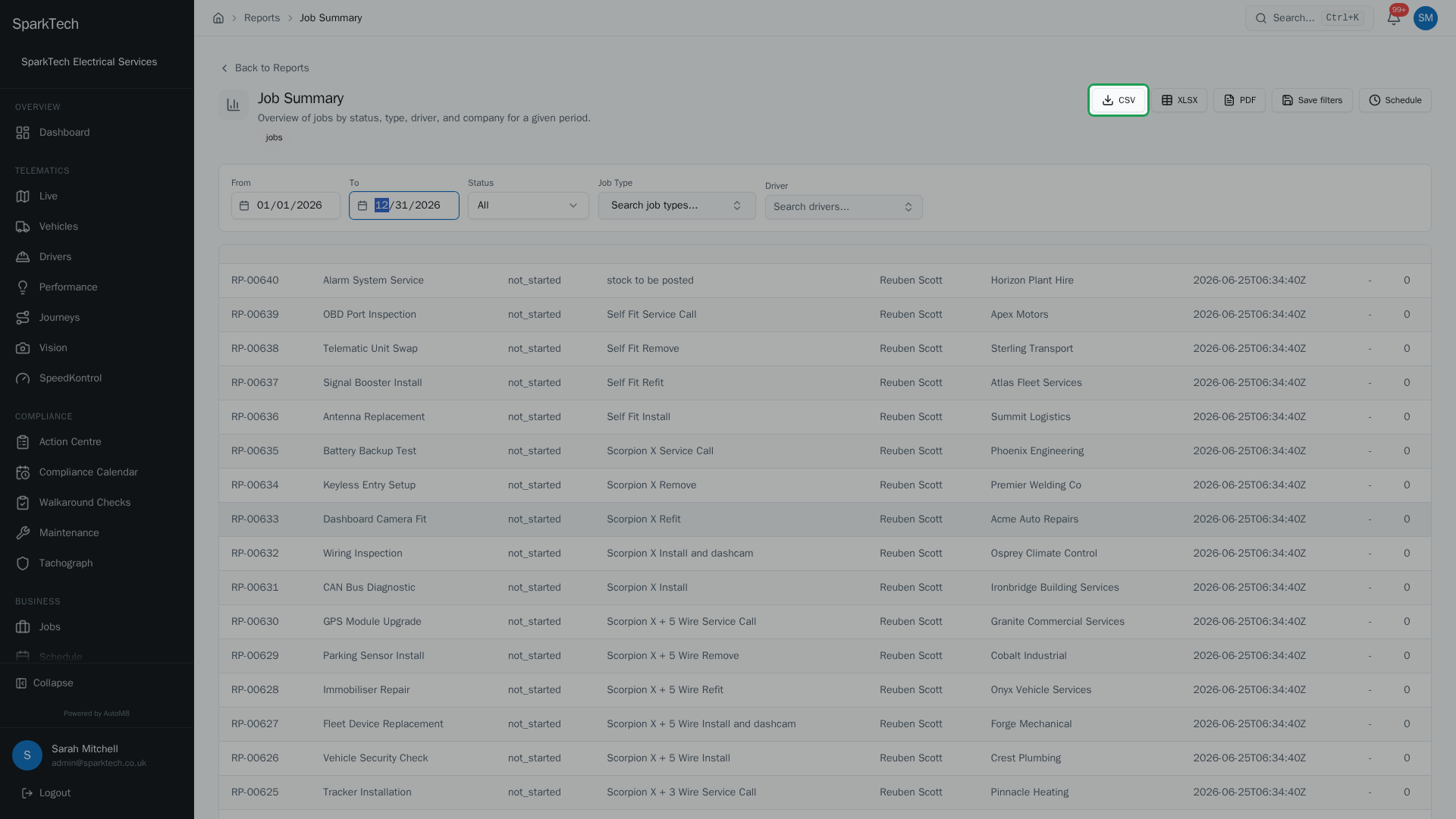
Download any report as CSV, Excel or PDF, or set up a schedule to have it emailed to your team daily, weekly or monthly.
AutoM8 has a library of reports covering your fleet, compliance, jobs, finance, stock and customers.
Permissions. Reports live under Business > Report Library. In the Reports group: View to run reports, Export to download them, Schedule to set up regular deliveries, and Dashboard to customise your dashboard. Administrator and Manager include them by default.
You reach it at Business > Report Library.
The report library
Who can do this: anyone with View in the Reports group.
Browse the reports as cards, or search by name. A category filter narrows the list:
- All, Fleet, Blue Light (emergency-services vehicles), Amber (amber-beacon vehicles such as recovery or highways), Compliance, Jobs, Finance, Resources, Customer and Stock.
Pick a report to open it and run it.
Running a report
Who can do this: anyone with View in the Reports group.
Every report takes a date range (From / To). Most also offer filters that match what the report is about, and each is a proper searchable picker rather than a plain box:
- a driver, vehicle, company, supplier, geofence or job type, and
- for stock reports, a stock location or stock item.
Set your filters and the results appear in a table below, paged if there are many rows.
Fleet reports need their own permission
The Fleet, Blue Light and Amber category reports are gated by a separate permission from the rest of the library, so plain Reports View does not run every report:
- To run a fleet, blue-light or amber report you need View in the Fleet Reports group.
- To export or schedule one you need Export in the Fleet Reports group, on top of the normal Reports Export or Schedule permission.
Every report also enforces its own permission besides these - for example a tachograph report needs the tachograph permission - so someone can have full Reports access and still be blocked from a report whose subject they are not permitted to see. Administrator and Manager include these by default; if a fleet report will not run or export for someone, this Fleet Reports permission is usually why.
Saved presets
Who can do this: anyone with View in the Reports group.
Once you have a set of filters you use often, choose Save filters, give the preset a name, and it appears in a Load preset dropdown on that report so you can bring the same filters back with one click.
Exporting
Who can do this: anyone with Export in the Reports group.
Export the results of any report to CSV, XLSX (Excel) or PDF using the buttons at the top of the report.
Scheduled deliveries
Who can do this: anyone with Schedule in the Reports group (fleet-category reports also need Export in the Fleet Reports group).
You can have a report emailed out on a regular basis. Create a schedule from the Schedule button on a report, or from the Report Schedules screen. A schedule needs the report, how often it runs - daily, weekly or monthly - the format (CSV, XLSX or PDF) and one or more recipient email addresses.
Managing your schedules
The Report Schedules screen lists every schedule as well as letting you create one. Each row shows:
- the schedule name and which report it runs,
- its Frequency and Format,
- the Recipients,
- the Next delivery date and when it was Last delivered (or “Never” if it has not run yet), and
- an Active toggle.
From the list you can:
- Pause or resume a schedule with the Active toggle - a paused schedule stays set up but stops sending until you switch it back on,
- Edit a schedule to change its name, frequency, format or recipients, and
- Delete a schedule you no longer need (this is permanent).
Dashboard widgets
Your dashboard’s report widgets give you the headline figures at a glance. Use Customize to choose which appear.
Troubleshooting
Why can’t I run a fleet report? The Fleet, Blue Light and Amber category reports need the View permission in the Fleet Reports group, which is separate from the ordinary Reports permission. Exporting or scheduling one of these reports needs Export in the same Fleet Reports group as well.
Why did my scheduled report not arrive? Check the Report Schedules screen: the schedule may be paused (its Active toggle is off), or the recipients or format may be wrong. The Last delivered column shows whether it has ever run.
Why is a report blocked even though I have Reports access? Each report also enforces the permission for its own subject - for example a tachograph report needs the tachograph permission - so full Reports access does not open a report whose subject you are not permitted to see. See the general troubleshooting page for permission and plan-tier causes.
Related
- Your dashboard.
- Invoices and payments.
- Reporting spans every part of AutoM8’s field service software.