Finance
Quotes
Create and send quotes in AutoM8, share an acceptance link for the customer to sign, and turn an accepted quote into a job.
Walkthrough Quotes2 screenshots
- Quote for the work, win it, turn it into a job
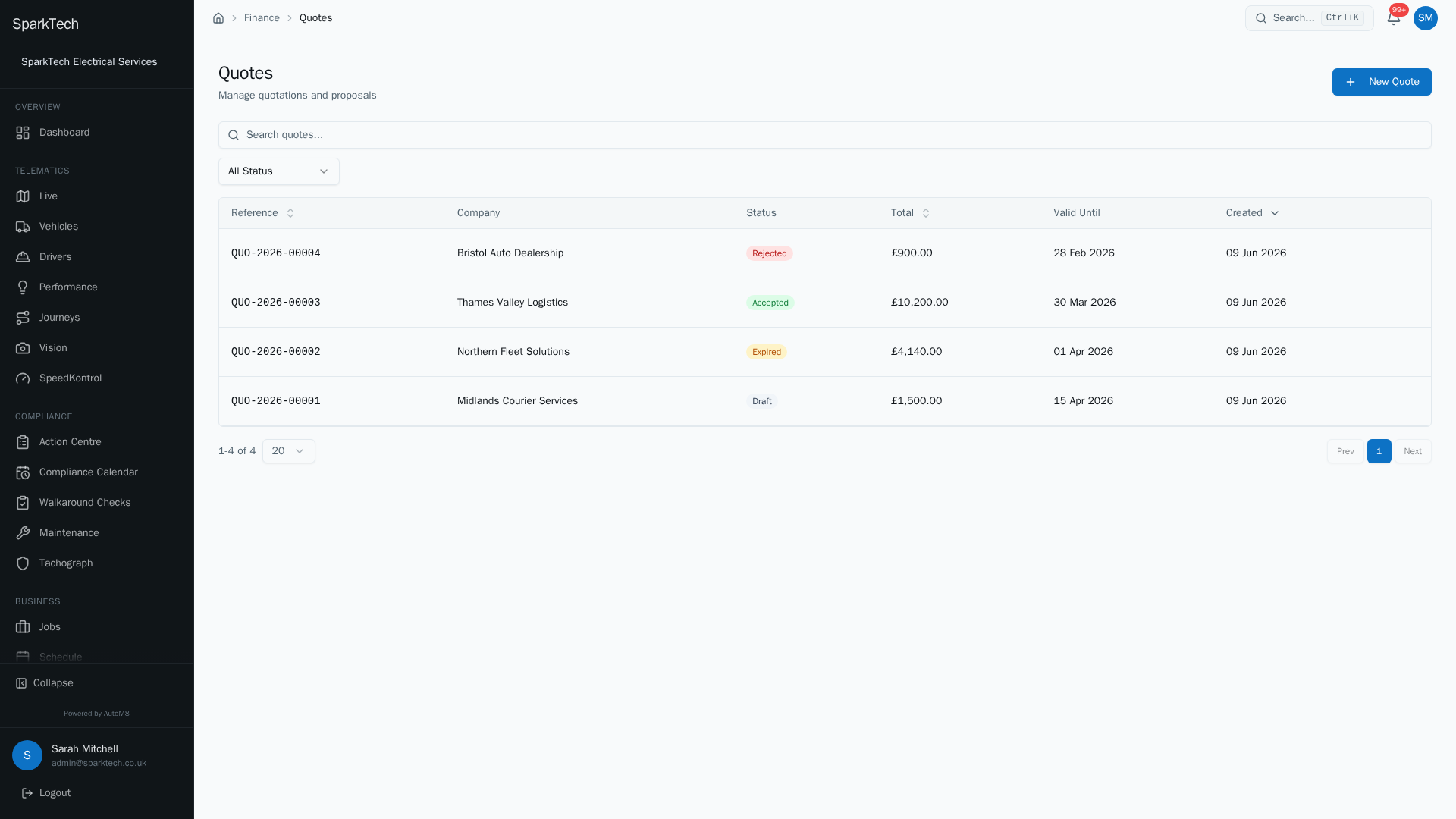
Open Business then Quotes. Each quote shows the customer, its status and total. An accepted quote can be turned straight into a job.
- The quote, line by line
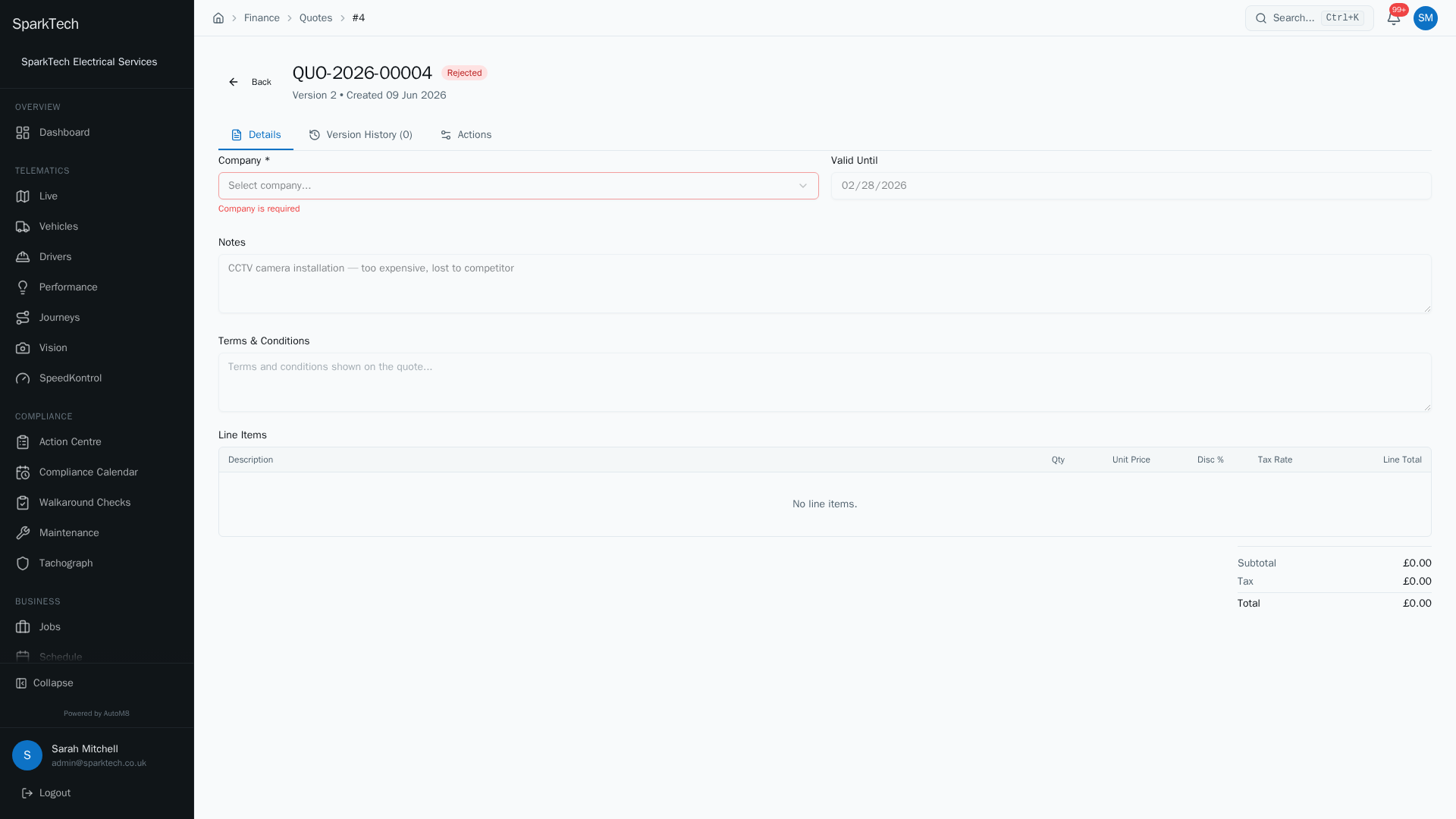
Open a quote to see its line items and total, and to send it, accept it or convert it into a job once the customer says yes.
Quote for work, send it to the customer, and turn an accepted quote into a job.
Permissions. Quotes live under Business > Quotes. Creating, editing and sending a quote all need the Quotes permission in the Financial group. Converting an accepted quote to a job additionally needs Jobs Create. Administrator and Manager include these by default.
You reach it at Business > Quotes. The list shows each quote’s reference, company, status, total and validity date; a Status filter narrows it down.
The quote lifecycle
A quote moves through a set life:
| Status | What it means |
|---|---|
| Draft | Being written. This is the only status you can edit - company, dates, terms and line items are all locked once a quote leaves draft. |
| Sent | Sent to the customer, waiting on them. |
| Accepted | The customer has accepted (and signed, if you asked for a signature). |
| Rejected | Turned down - either the customer declined, or you marked it rejected. |
| Expired | Passed its “valid until” date without a decision. |
Creating and sending a quote
Who can do this: anyone with the Quotes permission.
Before you start: the customer must already exist in your CRM. If the Company list is empty, add the customer first (see Customers, sites and contacts).
- From the quotes list choose New Quote.
- Pick the Company, set an optional Valid Until date, and add any Notes and Terms and Conditions (the terms print on the quote).
- Add line items (the individual things you are charging for - parts, labour, a call-out fee). Each line has a description, quantity and unit price, and can carry a discount % and a tax rate; AutoM8 works out the line and quote totals.
- Save Draft, then Send to Customer.
Version history
Who can do this: anyone with the Quotes permission.
Quotes are versioned. The Version History tab lists each saved version with its date and a snapshot of the total, so you have a record of how a quote changed over its life.
The acceptance link
Once a quote is Sent, AutoM8 creates a shareable acceptance link. The customer opens it to review, accept and sign the quote - no login needed. On the quote’s detail page (and its Actions tab) there is a Copy button so you can send the link however you like. A customer who uses your customer portal can accept quotes there instead.
Rejecting a quote
Who can do this: anyone with the Quotes permission.
If a customer turns a sent quote down, open it and choose Mark as Rejected (on the Actions tab). You are asked to confirm, and the quote moves to Rejected.
Turning a quote into a job
Who can do this: anyone with both the Quotes permission and Jobs Create.
Once a quote is Accepted, choose Convert to Job. A dialog asks you to pick a job type (and, optionally, a job title). AutoM8 creates an unscheduled job, carries the quoted total across, and links the two records.
This is safe to repeat: if the quote has already been converted, choosing Convert to Job simply opens the existing job rather than creating a second one.
Troubleshooting
Why can’t I edit this quote? Only a Draft quote can be edited - once you send it, the company, dates, terms and line items are all locked. To change a sent quote, create a new one (its version history keeps the record).
Why can’t I convert it to a job? Converting an accepted quote needs the Jobs Create permission as well as the Quotes permission. If the quote has already been converted, choosing Convert to Job reopens the same job rather than making a second one.
Why can’t I see or run something on the quotes screen? Quotes follow the same access rules as the rest of the app, so check permissions, visibility scope and plan tier in that order. See the general troubleshooting page.
Related
- Invoices and payments.
- Creating and managing jobs.
- Quoting is built into AutoM8’s field service software.