Users and roles
Roles and permissions
Control what each person can do in AutoM8 with roles and permissions - use the ready-made roles, duplicate one, or build your own from the grouped permission list.
Walkthrough Roles and permissions1 screenshots
- A role is a set of permissions
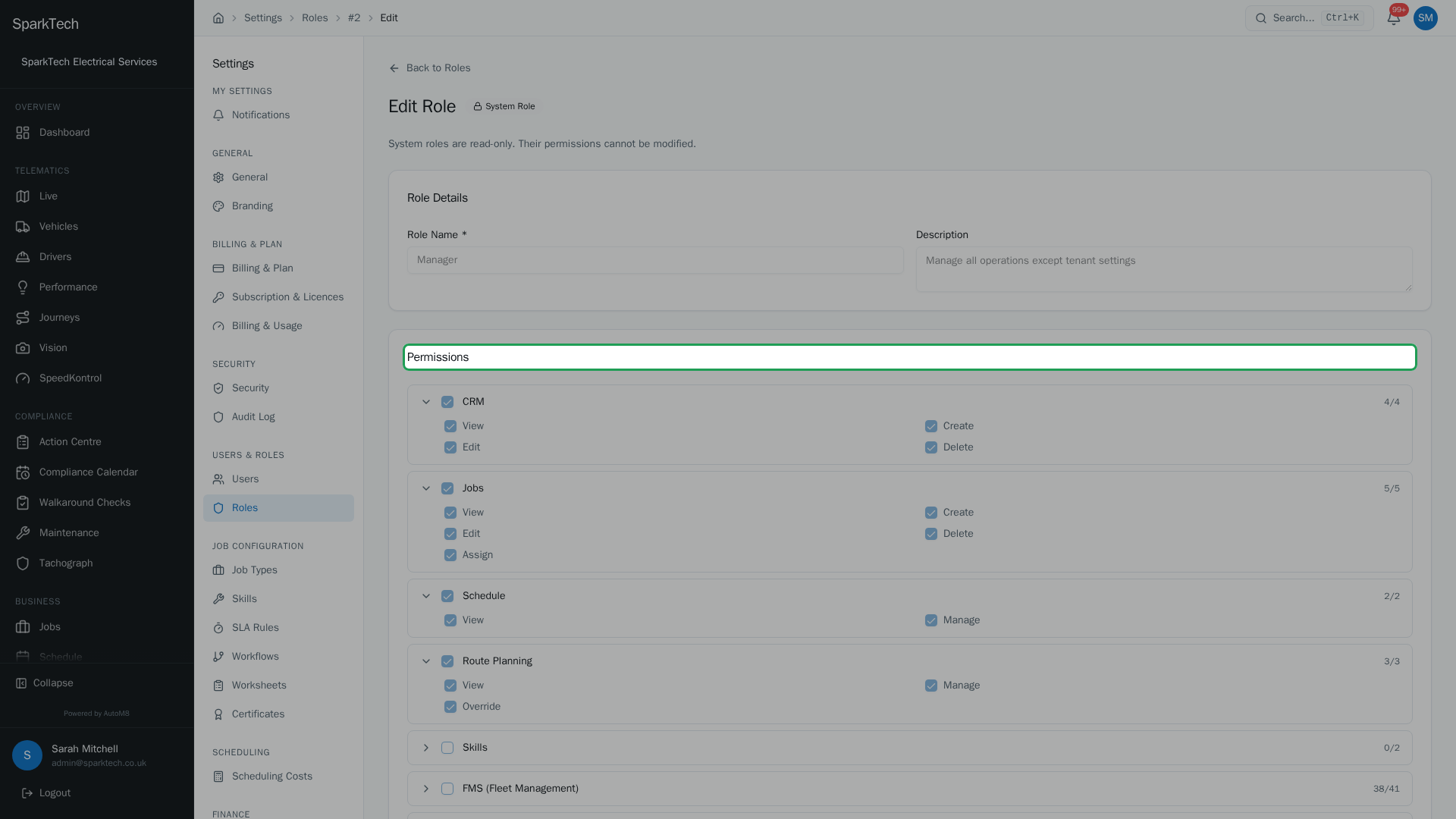
Open Settings then Roles and open a role. Permissions are grouped by module - Jobs, Schedule, Financial, Fleet and more - and each is a simple on or off, with a select-all for the whole module.
A role is a set of permissions - the things a person is allowed to do. Every user has one role.
Permissions. Seeing roles needs the View permission in the Roles group; creating and changing roles needs Manage.
You reach it at Settings > Roles.
Ready-made roles
AutoM8 comes with a set of ready-made roles you can use straight away - from full administrator access, through operational and finance roles, down to a view-only role and a self-service driver role. These carry a System badge and are read-only: you cannot change their name or permissions directly. To base your own role on one, Duplicate it (below).
Each role in the list shows how many permissions it holds (for example “24 permissions”), so you can see at a glance how broad it is.
Creating your own role
Who can do this: any role with the Manage permission (Roles).
- Create Role to build a role from scratch: give it a name and tick the permissions it should have.
- Duplicate a ready-made (or existing) role to start from a sensible set of permissions, then adjust it. This opens an editable copy you can rename and save.
You can only grant permissions that you hold yourself. If you try to give a duplicated role a permission you do not have, the save is refused.
How permissions work
Permissions are grouped by module - Jobs, Schedule, Financial, FMS (Fleet Management), CRM, Stock / Inventory, Reports and so on - and each is a simple on or off. For example, in the FMS group, Vehicles View lets someone see vehicles and Vehicles Manage lets them change them. Throughout this guide, each task names the permission it needs.
Each module in the role editor has its own select-all checkbox: tick it to grant every permission in that module, clear it to remove them all. When only some of a module’s permissions are ticked, its checkbox shows a partial (indeterminate) state, and a small count next to it (for example “3/8”) tells you how many of that module’s permissions are on.
Troubleshooting
Why can’t a user see a page even though I gave them the permission? A permission is not the only gate. The user may also be limited by their visibility scope - if their account is restricted to certain vehicle groups, they only see those vehicles even with the right permission. Check their scope on their user record. See Managing users.
Why can’t I edit a role? It is a System role. Ready-made roles are read-only - you cannot change their name or permissions. Duplicate it first, then edit the copy.
Why won’t a permission save on a duplicated role? You can only grant permissions that you hold yourself. If the save is refused, the role includes a permission you do not have - remove it, or ask an administrator who holds it to add it.
When a change to a role does not seem to take effect, Why can’t I see something? covers what else limits access.
Related
- Managing users.
- Two-factor authentication and security.
- Roles govern access to every module of AutoM8’s field service and fleet software.