Vehicle hardware
Speed control
Limit the speed a vehicle can travel at in different areas with SpeedKontrol, and keep each controller in sync.
Walkthrough Speed control2 screenshots
- Group your speed zones, then assign vehicles
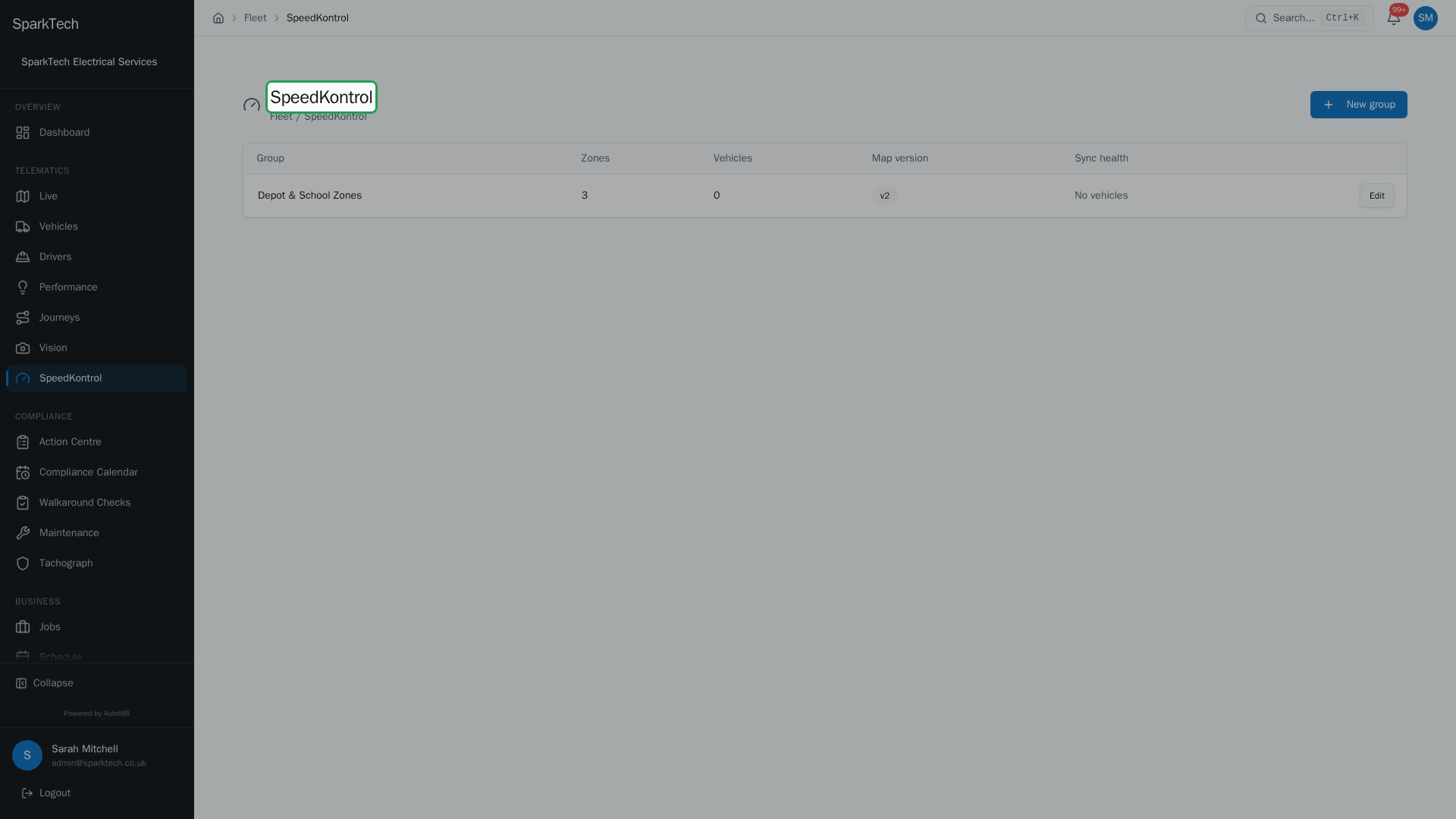
Open Telematics then SpeedKontrol. Each group gathers a set of speed zones and the vehicles they apply to, and shows the map version and whether every controller is in sync.
- Draw the zones and set each speed
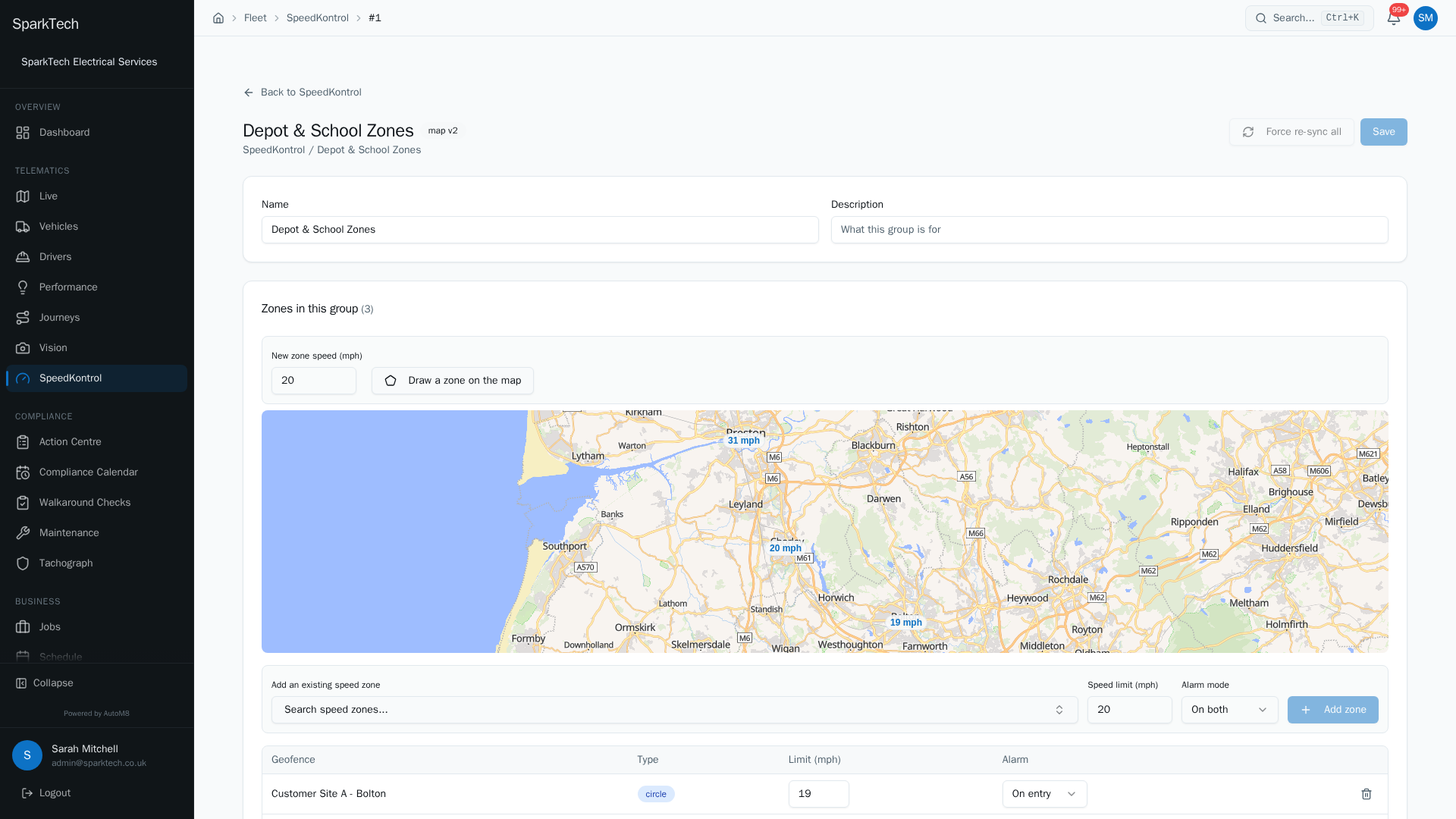
Inside a group, draw a zone on the map and set its limit in mph, or add a speed-zone geofence you already have. SpeedKontrol holds each vehicle to the limit while it is inside.
SpeedKontrol limits the speed a vehicle can travel at. It is a limiter, not an alert: it holds the vehicle at or below the set speed rather than telling you afterwards that it went too fast. That means there are no “breaches” to review.
Hardware required. Speed control needs a speed limiter fitted to the vehicle by your installer. No plan upgrade is needed - it is available on your plan once the hardware is fitted.
Two kinds of limiter
What you can do depends on the unit that is fitted, and the two are not interchangeable.
| Fitted hardware | What you get |
|---|---|
| A zone-capable limiter linked to a tracker | Speed zones. The vehicle is held to the limit of whatever zone it is in, and to its own maximum outside them. |
| A fixed-maximum limiter | One maximum speed everywhere. No zones. |
Open a vehicle and go to SpeedKontrol to see which is fitted. A fixed-maximum unit shows its maximum and says the unit does not use speed zones; a zone-capable one shows the zones it is enforcing.
A tracker on its own is not enough. The tracker carries the zones to the limiter, so a vehicle with a tracker but no limiter recorded has nothing holding its speed, and it will not appear in the zone-group vehicle picker.
Permissions. Permissions live in Settings > Roles and Permissions. Viewing speed control needs the View permission and managing it needs the Manage permission (both in the FMS (Fleet Management) group - they are the speed-zone View and Manage boxes). Administrator and Manager include these by default.
How it works
You define zones (areas with a speed limit) and gather them into a group, then assign vehicles to that group. The zones are sent to each vehicle’s controller, which holds the vehicle to the set speed inside each zone.
You manage groups at Telematics > SpeedKontrol. The list shows each group’s zones, vehicles, map version and sync health. Use New group to create one.
Two things change what the list shows:
- If no vehicle in the fleet can enforce zones, the page shows “No vehicles fitted with SpeedKontrol”. A vehicle counts once it has a tracker and a zone-capable limiter linked to it, so a fleet of fixed-maximum limiters sees this message.
- If vehicles are fitted but you have not created any groups yet, it shows “No speed zone groups yet” with a New group button to get started.
Adding zones to a group
Who can do this: any role with the speed-zone Manage permission (in the FMS (Fleet Management) group).
Open a group. There are two ways to add a zone:
- Draw a zone on the map - click Draw a zone on the map, set the New zone speed (mph), then click to add points and double-click to finish. AutoM8 creates the zone at that speed.
- Add an existing speed zone - pick a speed-zone geofence you already made and set its speed limit (mph).
Each zone has both:
- a speed limit (in mph - stored in km/h and converted for you), and
- an alarm option: Off, On entry, On exit or On both.
The group map shows every zone labelled with its mph limit. Any change to the zones bumps the group’s version number; controllers pick up the new zones on their next check-in.
You can also edit each zone in the list at any time: change its speed limit (mph) in place, change its alarm mode, or remove it from the group with the bin icon on its row. Removing a zone also bumps the version.
Changing a vehicle’s maximum speed
Who can do this: any role with the speed-zone Manage permission (in the FMS (Fleet Management) group).
Open the vehicle, go to SpeedKontrol, then use Change next to Maximum speed. Enter the new maximum in mph and Save.
This records the maximum you want. It is not sent to the unit, so the change is not in force until an engineer sets it on the vehicle and confirms it. Saving a new maximum clears the previous confirmation for that reason, and the row shows Not confirmed until someone checks it on the unit.
Confirmed on the unit shows the limit an engineer read back off the limiter at the fit. A maximum that has never been confirmed, or one changed since, is shown as unconfirmed rather than as fact.
Renaming or describing a group
Who can do this: any role with the speed-zone Manage permission (in the FMS (Fleet Management) group).
A group has a name and an optional description. Edit them at the top of the group page, then use Save - the button is only active once you have made a change.
Assigning vehicles
Who can do this: any role with the speed-zone Manage permission (in the FMS (Fleet Management) group).
Add vehicles to the group so the zones are pushed to their limiters. The vehicle picker only lists vehicles that can actually enforce zones: a tracker fitted and a zone-capable limiter linked to it. A vehicle with only a fixed-maximum limiter, or with a tracker and no limiter recorded, is left out and cannot be assigned.
Each assigned vehicle row shows its last check-in, its box version (the version on the in-vehicle controller, confirmed on last contact) and a sync status comparing that against the group’s current version. You can:
- expand a row to inspect the exact zones on that controller with an on-device map inspector,
- Re-sync a single vehicle, or use Force re-sync all in the group header to push the latest zones to every vehicle at once, and
- remove a vehicle from the group with the bin icon on its row - the zones are no longer pushed to that controller.
Troubleshooting
Why is a zone not taking effect on a vehicle? A limiter only holds the vehicle to a zone once the latest zones have synced to it. Check the vehicle’s row in the group: if its sync status is behind the group version, use Re-sync on that row (or Force re-sync all) and wait for the next check-in. Make sure the vehicle is actually in the group, since zones are only pushed to assigned vehicles.
Why can I not add a vehicle to a group? Its hardware cannot take zones. Open the vehicle and check SpeedKontrol: you need a tracker and a zone-capable limiter linked to it. A fixed-maximum limiter has a maximum speed and no zones, and a vehicle with no limiter recorded has nothing enforcing anything - ask your installer or account manager which unit is on the vehicle.
Why is a sync stuck? A controller picks up new zones on its next check-in, so a vehicle that is off, parked out of signal, or slow to report will show as out of sync until it next connects. Check the vehicle’s last check-in on its row. If it has checked in recently but is still behind, use Re-sync to push the latest version again.
For permission, scope or licence causes, see Troubleshooting.
Related
- Creating and using geofences - zones are areas on the map, like geofences with a speed limit.
- Fitting a speed limiter - what your installer does at the vehicle.
- Live map.
- Speed control pairs with AutoM8 vehicle tracking.