Drivers
Skills, certifications and job types
Record what a driver is qualified to do, with automatic skill-gap warnings on the job types they can take.
Walkthrough Skills, certifications and job types1 screenshots
- Record what each driver is qualified to do
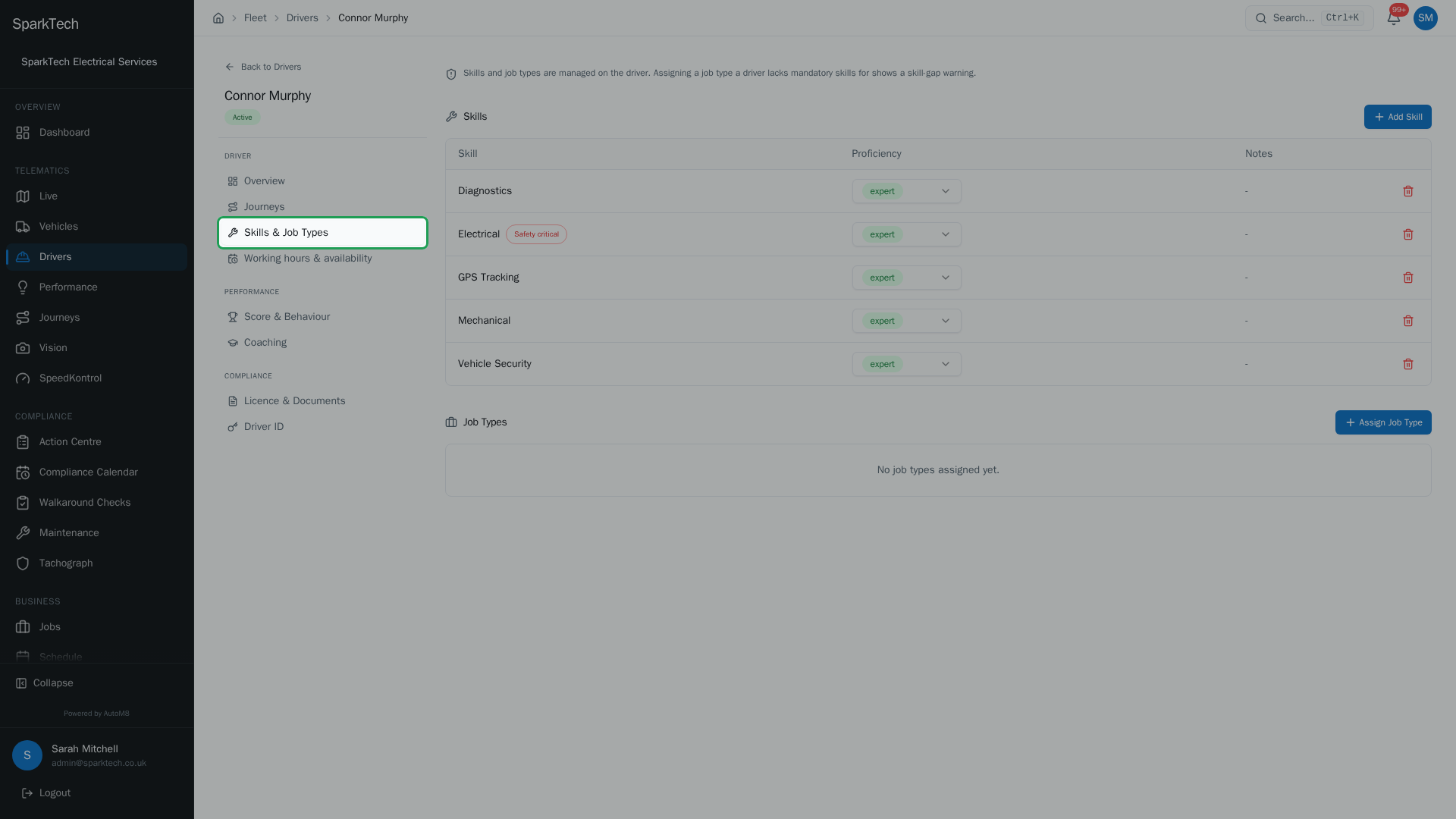
On a driver, open Skills & Job Types to record the skills they hold, each at Trainee, Competent or Expert. AutoM8 uses them to match the right person to the right job.
AutoM8 records what each driver is qualified to do - their skills, their certifications and the job types they can be given - so the right person is matched to the right work.
Permissions. Skills, certifications and job types are read with Drivers View and changed with Drivers Manage (FMS group). The lists of skills and job types your business uses are managed in Settings.
Skills
Who can do this: anyone with Drivers Manage - Administrator and Manager have it already.
On a driver’s Skills & Job Types tab, record the skills they hold:
- Open the driver and go to Skills & Job Types.
- Click Add Skill, choose the skill, and set the proficiency: Trainee, Competent or Expert. Add a note if it helps.
The skill picker only lists skills the driver does not already hold, so you cannot add the same one twice. You can change a driver’s proficiency, shown as a coloured badge, at any time. Skills marked safety critical show a red badge. The list of skills your business uses is managed in Settings > Skills.
Certifications
Who can do this: anyone with Drivers Manage - Administrator and Manager have it already.
A driver’s certifications (each with an expiry date and an uploaded document) live on the Licence & Documents tab, in the Certifications section. AutoM8 warns you before a certification expires. Examples might be First Aid, IPAF or a Gas Safe registration.
Job types and skill-gap warnings
Who can do this: anyone with Drivers Manage - Administrator and Manager have it already.
On the Skills & Job Types tab you also set the job types a driver can carry out:
- Click Assign Job Type and pick from your active job types. As with skills, the picker only lists job types the driver does not already have.
- Each assigned job type shows whether the driver meets its required skills: a green All required skills met badge, or an amber warning listing the skills they are Missing.
The warning is driven only by a job type’s mandatory skills - skills marked as required on the job type. A driver can still be assigned a job type they have a gap in; the warning is there so you can see the gap, not to block you. These checks recalculate as you add skills, so the picture is always accurate. The list of job types, and which skills each one requires, is managed in Settings > Job Types.
Job types and skills are what the scheduler uses to match drivers to jobs. Complete plan required for scheduling and dispatch, but you can record skills and job types on any plan.