Compliance
Daily walkaround checks
Set up daily walkaround checks drivers do before they drive, assign them to vehicles, and review the results and defects they raise.
Walkthrough Walkaround checks2 screenshots
- Daily checks and open defects at a glance
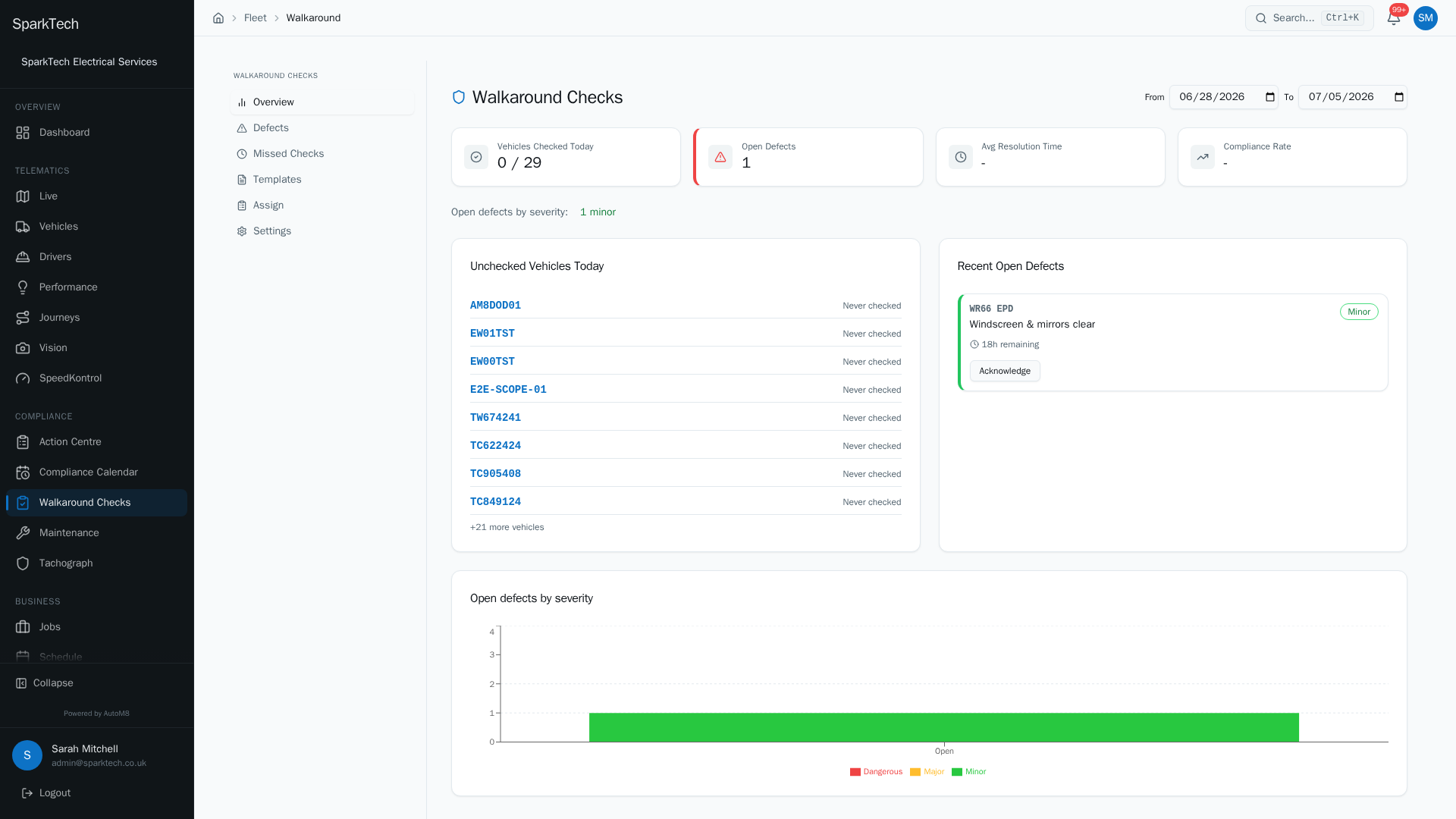
Open Compliance then Walkaround Checks. The cards show how many vehicles are checked today, how many defects are open and your compliance rate, with the latest open defects alongside.
- Track every defect to resolution
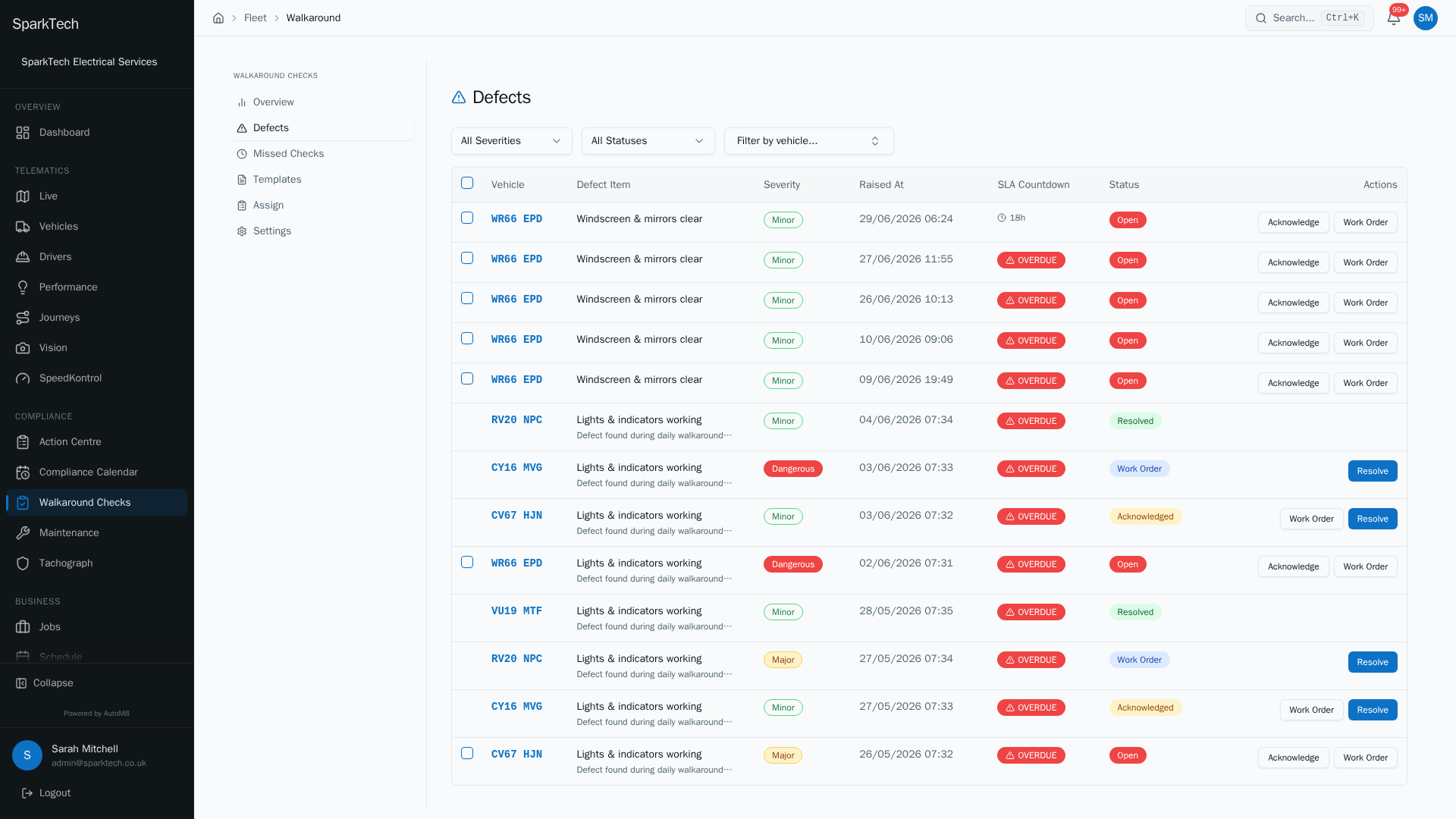
The Defects view lists every fault raised by a check, its severity and its SLA, so you can prioritise repairs and clear dangerous defects first.
Walkaround checks are the daily inspections a driver does before using a vehicle. AutoM8 lets you decide what each check covers, send it to the right vehicles, and see the results and any faults in one place.
Permissions. Setting up and reviewing checks needs Vehicles View to see and Vehicles Manage to configure and assign (in the FMS (Fleet Management) group). A driver submitting a check needs the Walkaround Submit permission. Acting on the defects that checks raise needs Defects Manage.
You reach it at Compliance > Walkaround Checks. The hub has a left menu with six tabs: Overview, Defects, Missed Checks, Templates, Assign and Settings.
Overview
Who can do this: anyone with Vehicles View.
The Overview tab is your daily picture: how many vehicles have been checked today out of the fleet, how many open defects there are (with the split by severity), the vehicles not yet checked today, and the most recent open defects. A From / To date range at the top lets you look at any window.
Defects
Who can do this: Vehicles View to see; Defects Manage to act.
The Defects tab lives here, in the walkaround hub. A failed check item automatically raises a defect, and this tab is where you work them - acknowledge, raise a work order, and resolve. It has its own filters and SLA countdowns. See the full Defects page.
Missed Checks
Who can do this: anyone with Vehicles View.
The Missed Checks tab lists checks that were due but not done, so you can chase them.
Templates
Who can do this: any role with the Vehicles Manage permission.
The Templates tab is where you build the check itself (also reachable at Settings > Fleet > Check Templates). A check is a set of sections (the areas to inspect), each with items. For each item you set:
- the default severity if it fails - Minor, Major or Dangerous,
- whether a photo is required,
- whether the item must be answered, and
- where on the vehicle it is.
A template also has a type (Daily Walkaround, Weekly Check, Pre-Journey or Custom), a frequency (for example daily) and the vehicle types it applies to.
Assign
Who can do this: any role with the Vehicles Manage permission.
The Assign tab is where you send a check to work. Pick a template and apply it to a single vehicle or a whole vehicle group. Drivers then only see the checks assigned to their vehicle. Your current assignments are listed below, and you can remove any of them.
When a vehicle has no template explicitly assigned, it falls back to a sensible default for its body type, so a vehicle is never left with no check at all.
How a driver does a check
A driver runs their assigned check from the AutoM8 app (or the My Driving area on the web), working through each item and marking it pass or fail. If an item fails, they record how serious it is, add a note, attach a photo where the item requires one, and flag whether the vehicle is unsafe to drive. Checks work offline and upload when the driver is back in signal.
Settings
Who can do this: Administrator or Manager.
The Settings tab controls what happens when a defect is found (also at Settings > Fleet > Walkaround Settings).
Dangerous defect behaviour. Choose one:
“Off road” and “roadworthy” are vehicle statuses. See Creating and managing vehicles for the full list of roadworthy statuses.
- Hard block (vehicle off road) - the vehicle’s roadworthy status is set to off road immediately. Drivers see a red banner and cannot start a journey.
- Soft warning (alert only) - the fleet manager is alerted, but the vehicle stays roadworthy until someone marks it off road by hand.
SLA thresholds. Set the maximum time to fix a defect - the SLA (service level agreement), meaning the deadline you have set to act - in hours, per severity - one figure each for Dangerous, Major and Minor. AutoM8 counts down to each deadline (the default minor figure is 168 hours, which is 7 days). See Defects for how the countdown behaves.
Troubleshooting
Why did a vehicle go off the road or drop out of scheduling after a check? A check that found a Dangerous defect, with your account set to Hard block (vehicle off road), sets the vehicle to off road automatically - so it stops being available for journeys and work. It returns to roadworthy once the dangerous defect is resolved. Switch to Soft warning in the Settings tab if you would rather be alerted without the vehicle being blocked.
Why can’t a driver submit a check? A driver needs the Walkaround Submit permission, and can only see and complete checks that are assigned to their vehicle - use the Assign tab to send a template to that vehicle or its group.
Why isn’t a template showing on a vehicle? A vehicle with no template explicitly assigned falls back to a default for its body type, so check the vehicle’s body type is set (set on the vehicle record - see Creating and managing vehicles), or assign a template directly from the Assign tab.
Why can’t I see or configure the hub? A missing permission, a narrow visibility scope or a frozen licence are the usual causes. The general troubleshooting page lists the others.
Related
- Defects.
- Compliance calendar and action centre.
- Fleet settings.
- Walkaround checks keep your fleet roadworthy within AutoM8’s fleet management software.