Devices
Managing devices and trackers
Monitor the tracking hardware on your vehicles, register and import devices, check connection and firmware, assign devices, and retire ones no longer in use.
Walkthrough Managing devices and trackers4 screenshots
- Every tracker on your fleet
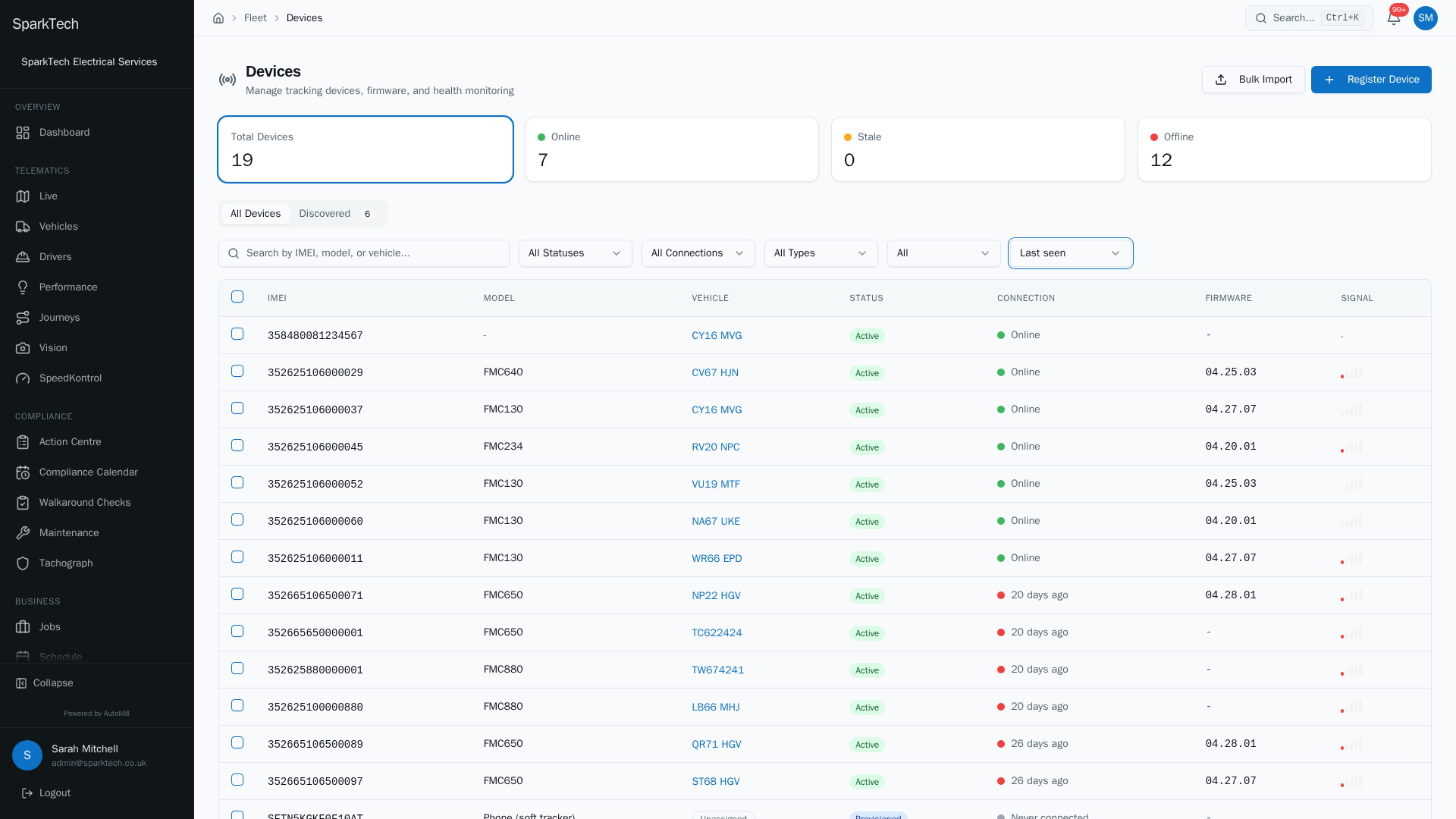
Open Settings then Fleet then Devices. The cards summarise total, online, stale and offline units, and each row shows the IMEI, model, the vehicle it is fitted to, its status and signal.
- Select "Register Device" to add one
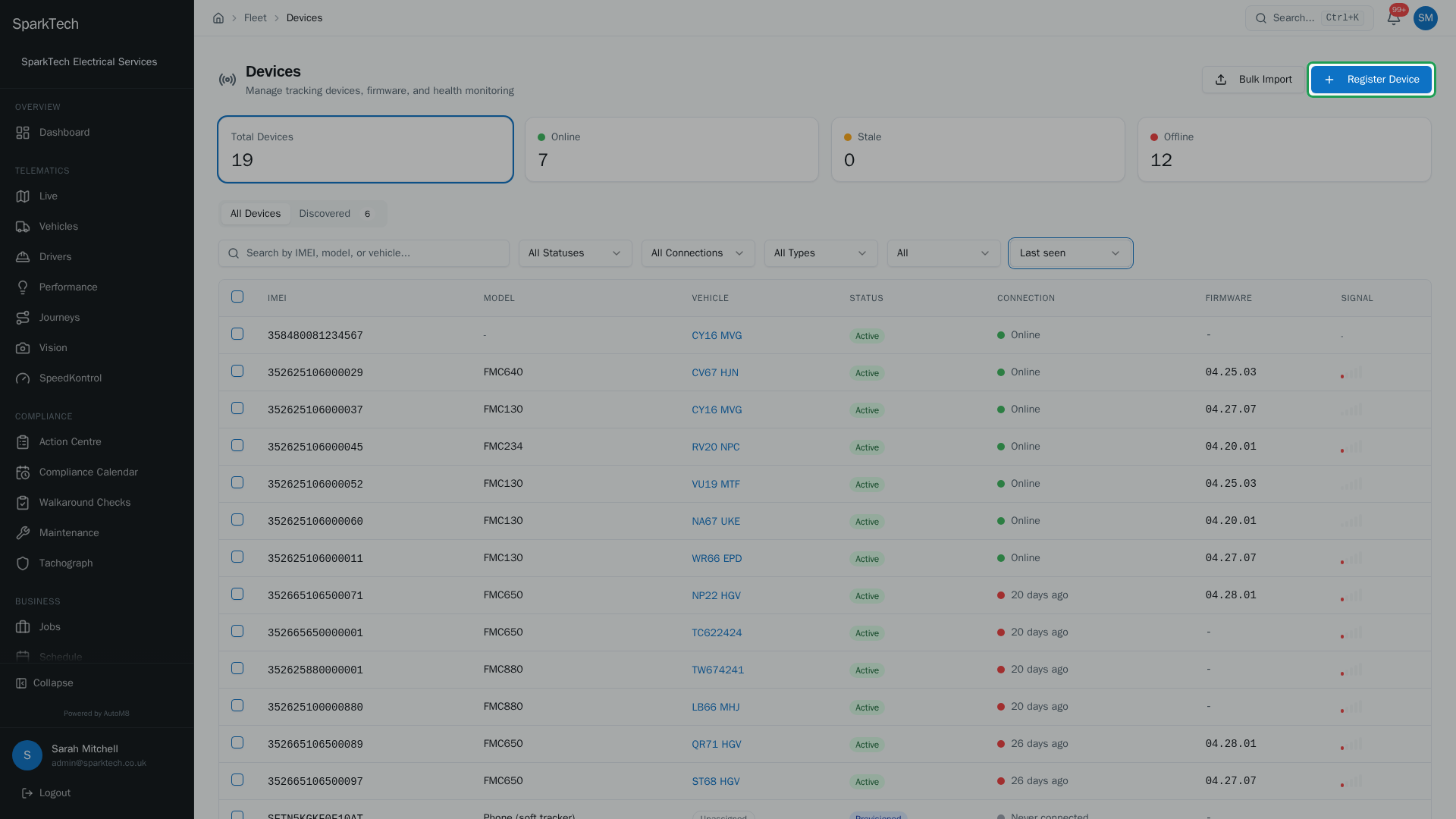
To add a single device by hand, select Register Device. You need the Devices Manage permission.
- Enter the IMEI and device details
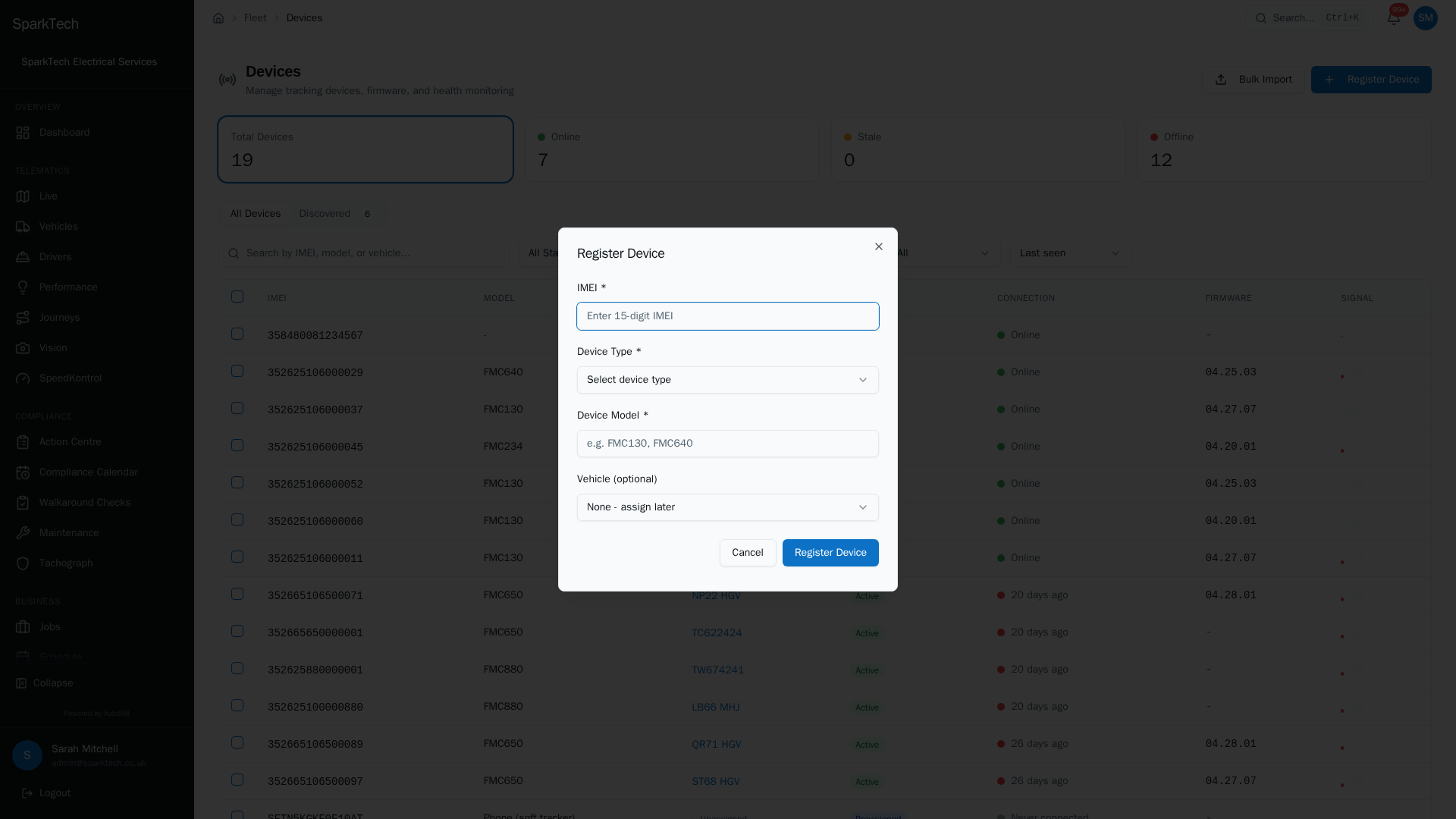
Enter the 15-digit IMEI. If it matches a known prefix the device type is detected for you. Add the model and optionally assign a vehicle now.
- The device detail page
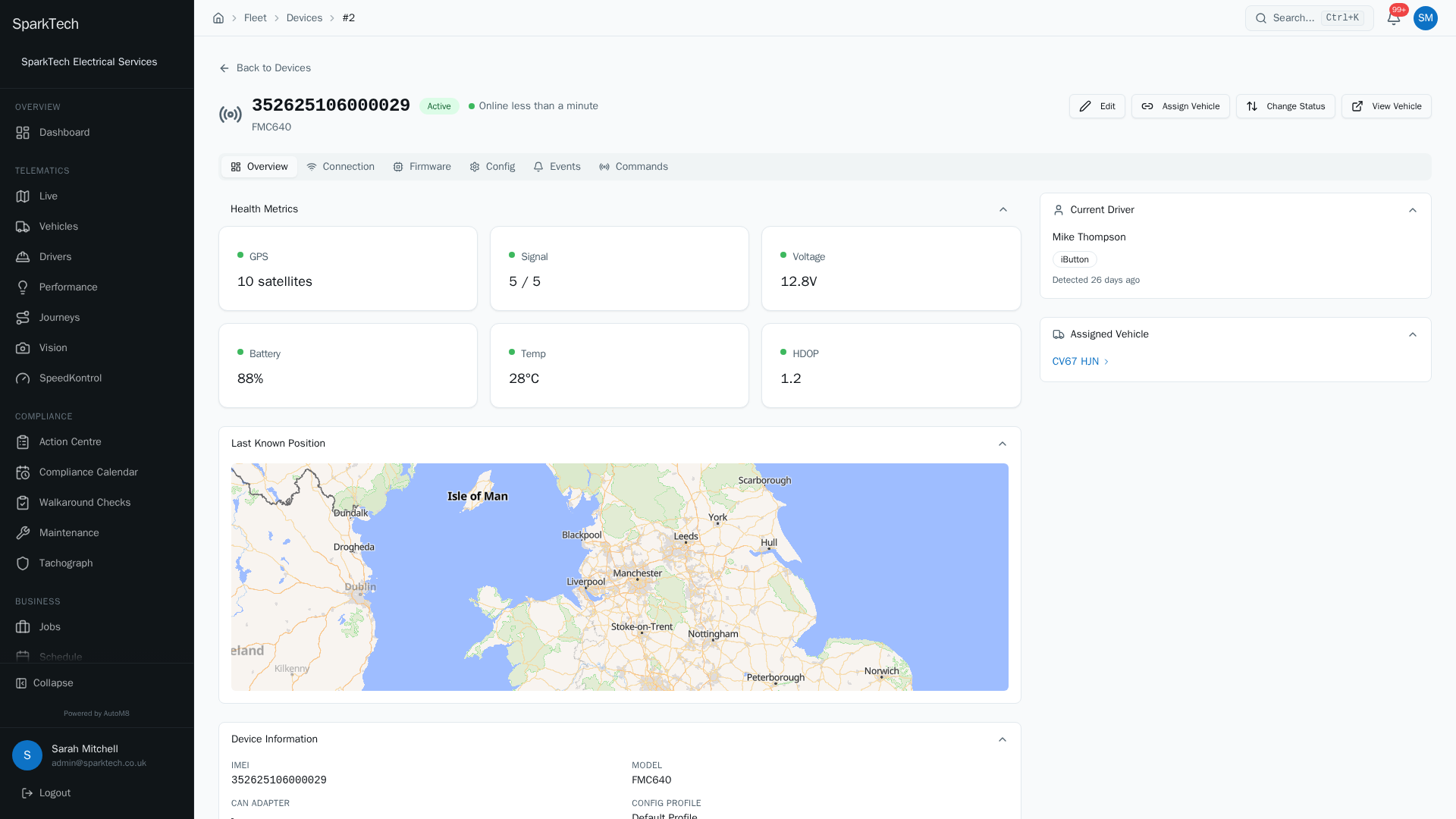
Open a device to see its health, its last-known position, and tabs for its connection history, firmware, configuration and lifecycle events.
The Devices area is where you monitor the tracking hardware fitted to your vehicles, register new units, keep an eye on their health, and manage which vehicle each device belongs to.
New to devices? Start with Types of tracking device to choose the right kind for each vehicle.
Permissions. Monitoring devices needs Devices View (in the FMS (Fleet Management) group). Registering, importing, editing, assigning a device or changing its status needs Devices Manage. Controlling wired outputs (such as an immobiliser) needs Devices Output Control. Administrator and Manager include these by default. Permissions live in Settings > Roles and Permissions.
You reach the device list at Settings > Fleet > Devices (/fleet/devices). Opening a device takes you to its detail page (/fleet/devices/:id), where the assign, status and edit actions live.
What you see
Who can do this: anyone with the Devices View permission.
Four cards at the top summarise Total Devices, Online, Stale and Offline. Each card is clickable and filters the list to that connection state.
The list has two tabs:
| Tab | What it shows |
|---|---|
| All Devices | Every device registered to your account. |
| Discovered | Devices that have connected but are not yet registered. A count badge shows how many are waiting. |
On the All Devices tab, each row shows the device’s IMEI, model, the vehicle it is fitted to (or Unassigned), its status, its connection and when it was last seen, its firmware version, and its signal strength as a set of bars.
You can search by IMEI, model or vehicle, and filter and sort:
| Control | Options |
|---|---|
| Status | Active, Provisioned, Suspended, Decommissioned. |
| Connection | Online, Stale or Offline (based on when it last reported). |
| Type | Filter by device type. |
| Assignment | Assigned or Unassigned. |
| Sort by | Problems first (offline devices at the top), Last seen, IMEI, Vehicle or Status. |
You can also set how many rows show per page (25, 50 or 100) and page through the list.
A device can be in one of these states:
| Status | Meaning |
|---|---|
| Active | Fitted to a vehicle and reporting. |
| Provisioned | Owned by your account but not yet live on a vehicle. |
| Suspended | Temporarily stopped (for example when a vehicle is Frozen). |
| Decommissioned | Retired for good. |
Where newly-detected devices appear
A device that connects to your account before it has been registered shows on the Discovered tab, with when it was first and last seen and how many times it has connected. If you were expecting a new unit and cannot find it in All Devices, check here. Registering a device is covered below.
Registering a device
Who can do this: any role with the Devices Manage permission.
To add a single device by hand, use Register Device at the top of the list.
- Enter the IMEI (15 digits). It is checked as you type; an invalid IMEI is flagged.
- Choose the Device Type. If the IMEI matches a known prefix, the type is auto-detected for you, but you can change it.
- Enter the Device Model (for example FMC130).
- Optionally pick a Vehicle to assign the device to now, or leave it as None - assign later.
- Select Register Device. On success you can Register Another or close.
Fitting a brand-new device usually happens during installation - your installer fits the unit and registers it against the vehicle. See Taking a vehicle live. Registering by hand here is for devices already in your possession.
Importing devices in bulk
Who can do this: any role with the Devices Manage permission.
To add many devices at once, use Bulk Import at the top of the list. It works from a CSV file.
- Select Download template to get a CSV with the right columns: IMEI, device_type, device_model, vehicle_registration (the vehicle is optional).
- Fill in one row per device, then drag the file onto the upload area or browse for it. A file can hold up to 1000 rows and be up to 5MB.
- Review the validation preview. Each row shows a status: Valid, Duplicate, Invalid IMEI or Missing Field, with the reason. Valid rows are ticked for import; untick any you want to leave out.
- Select Import to add the ticked rows. A summary then shows how many were added, how many duplicates were skipped and how many were excluded.
Only rows that pass validation are imported. Fix and re-upload any that failed.
Bulk actions on the list
Who can do this: see each action below.
Tick the checkbox on one or more rows to open the bulk actions toolbar. It shows how many are selected. Use the checkbox in the header to select every device on the page.
| Action | What it does | Who can do this |
|---|---|---|
| Change Status | Move all selected devices to Active, Provisioned, Suspended or Decommissioned in one go. | Devices Manage |
| Export CSV | Download the selected devices (IMEI, model, status, vehicle, firmware, signal, last seen) as a CSV file. | anyone with Devices View |
The device detail page
Who can do this: anyone with the Devices View permission.
Open a device to see its full detail. The header shows the IMEI, model, status and live connection state, with Edit, Assign Vehicle and Change Status actions (and View Vehicle when one is assigned). Below that are these tabs:
| Tab | What it shows |
|---|---|
| Overview | Health metrics, the last-known position on a map, device information (model, CAN adapter, config profile, created and updated dates), the current driver and the assigned vehicle. |
| Connection | An availability bar with an uptime percentage, and a log of connect/disconnect events, over 24 hours, 7 days or 30 days. |
| Firmware | The current firmware and any target version, the firmware status, the update history, and a manual firmware update. |
| Config | The device’s configuration profile (and, for cameras, channel and device settings). |
| Events | Device lifecycle events - status changes, assignments and firmware updates. |
GPS trackers also have a Commands tab for sending device commands.
Editing a device
Who can do this: any role with the Devices Manage permission.
Use Edit on the device detail page to update the device model and the CAN adapter it uses, then Save.
Updating firmware
Who can do this: any role with the Devices Manage permission.
The Firmware tab shows the current firmware version and its status:
| Status | Meaning |
|---|---|
| Up to date | Running the target firmware. |
| Update available | A newer target version is set for the device. |
| Unknown | The firmware status has not been determined. |
If a target version is set and it differs from the current one, it is shown as Target:
To record a firmware change, enter the version (and optional notes) under Manual Firmware Update and apply it.
For Teltonika GPS trackers, an Open FOTA WEB button opens the Teltonika FOTA management portal for that device in a new tab, where firmware updates are managed over the air. This button only shows for device types that support it.
Assigning a device to a vehicle
Who can do this: any role with the Devices Manage permission.
A vehicle only tracks once a device is assigned to it. Open the device and use Assign Vehicle to link it to a vehicle. The vehicle also needs an active licence to start tracking - see Taking a vehicle live. To move tracking from one vehicle to another, just reassign the device.
Fitting a brand-new device happens during installation - your installer fits the unit and assigns it to the vehicle. See Taking a vehicle live.
Changing a device’s status
Who can do this: any role with the Devices Manage permission.
Use Change Status on the device detail page to move a device through its lifecycle. Only the moves that make sense from the current status are offered:
| From | You can move it to |
|---|---|
| Provisioned | Active, or Decommissioned |
| Active | Suspended, or Decommissioned |
| Suspended | Active, or Decommissioned |
| Decommissioned | (nothing - this is final) |
A newly discovered device starts as Discovered and becomes Provisioned when it is registered.
Retiring a device
Who can do this: any role with the Devices Manage permission.
To take a device out of service, change its status to Decommissioned. This is final. To move a device to a different vehicle instead, just reassign it (above).
Troubleshooting
Why does a device show offline? A device shows as Offline or Stale when it has not reported recently - it may have no power or no mobile signal, or its status may not be Active or Provisioned (a Suspended or Decommissioned device does not track). Open the device and check its status and its Connection tab for the last connect/disconnect events.
Why can’t I change a device’s status or assign it? Changing status and assigning a device to a vehicle both need the Devices Manage permission (in the FMS (Fleet Management) group). If those actions are missing on the device page, your role does not include it - ask an administrator. Note also that only the status moves that make sense from the current one are offered.
Why is a newly fitted device not tracking? A device only tracks once it is assigned to a vehicle and that vehicle has an active licence. A registered but unassigned device, or one on a vehicle with no active licence, will not report positions. Assign the device to the vehicle and check the vehicle’s licence - see Taking a vehicle live.
For permission, scope or licence causes, see Troubleshooting.
Related
- Types of tracking device.
- Taking a vehicle live.
- Live map.
- Fleet settings.
- Devices are the hardware behind AutoM8 vehicle tracking.