Scheduling and dispatch
Contractors
Set up the subcontractors you dispatch work to - their daily capacity, job-type costs, regions and working patterns - so they appear alongside your own drivers in the slot finder.
Walkthrough Add a contractor6 screenshots
- Enter the contractor's details
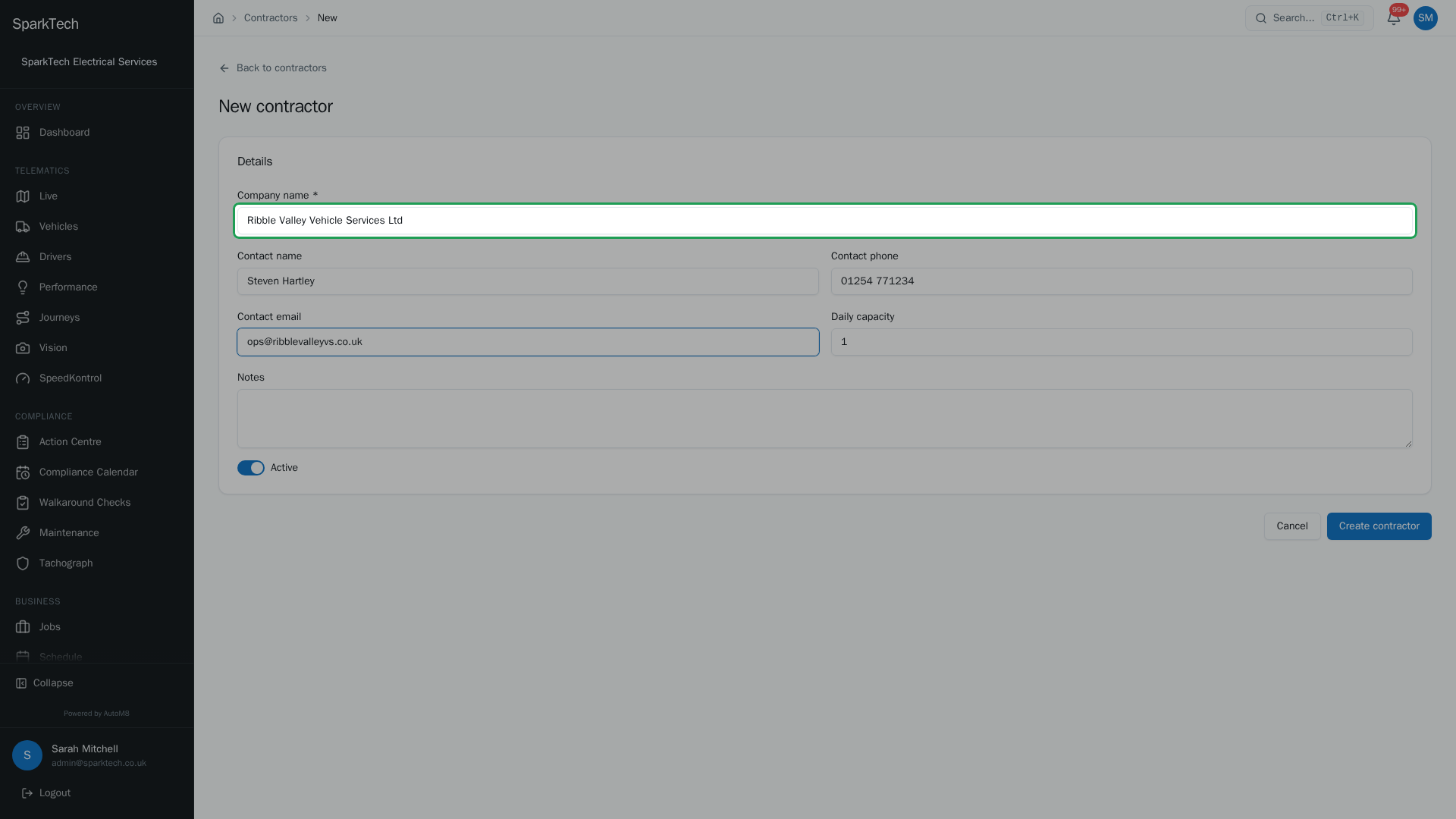
Open Business > Contractors, choose New contractor, then fill in the details. Only the company name is required.
- Set their daily capacity
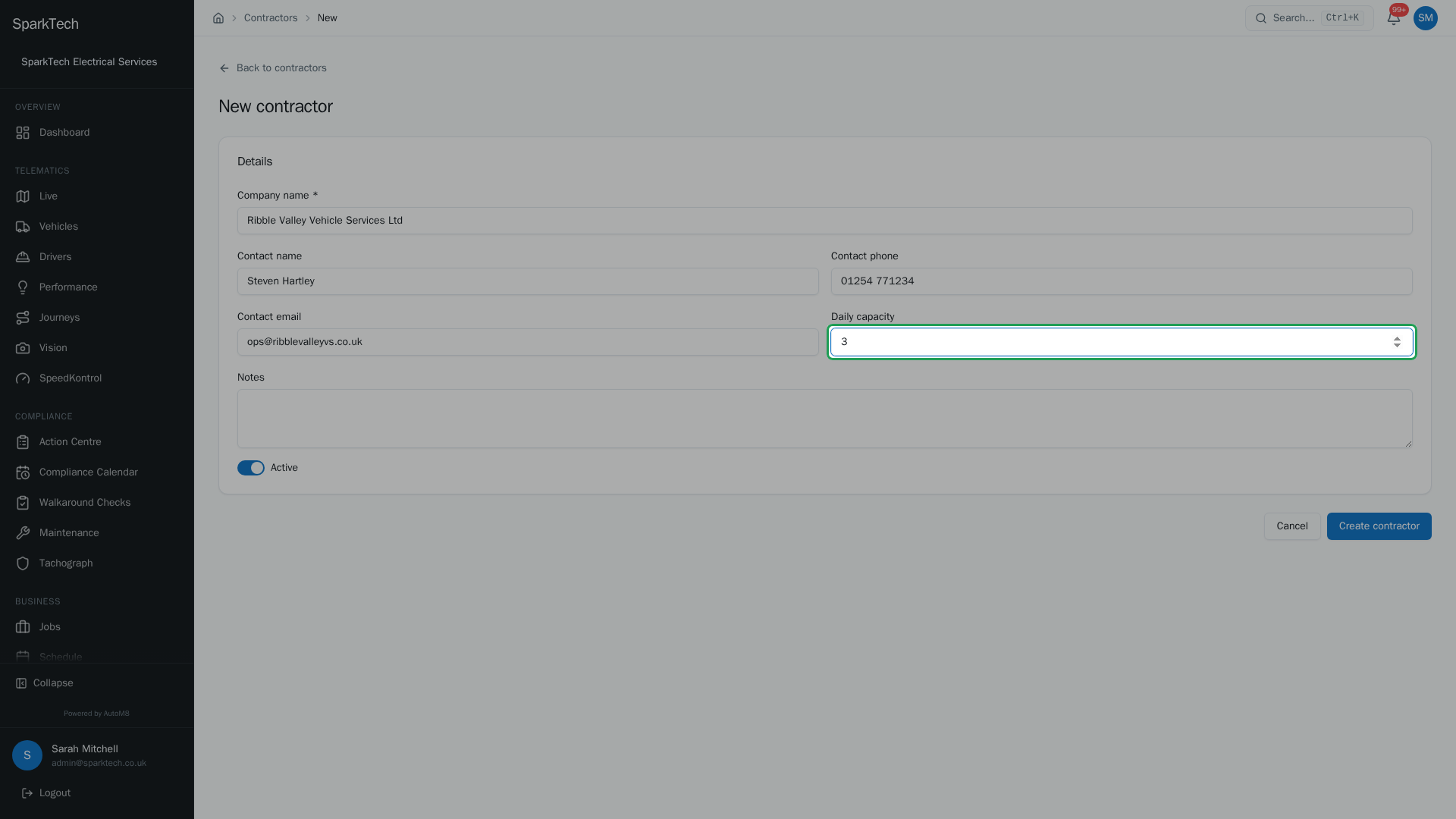
Daily capacity is how many jobs they can take in a day. The slot finder uses it to stop you overbooking them.
- Save the new contractor
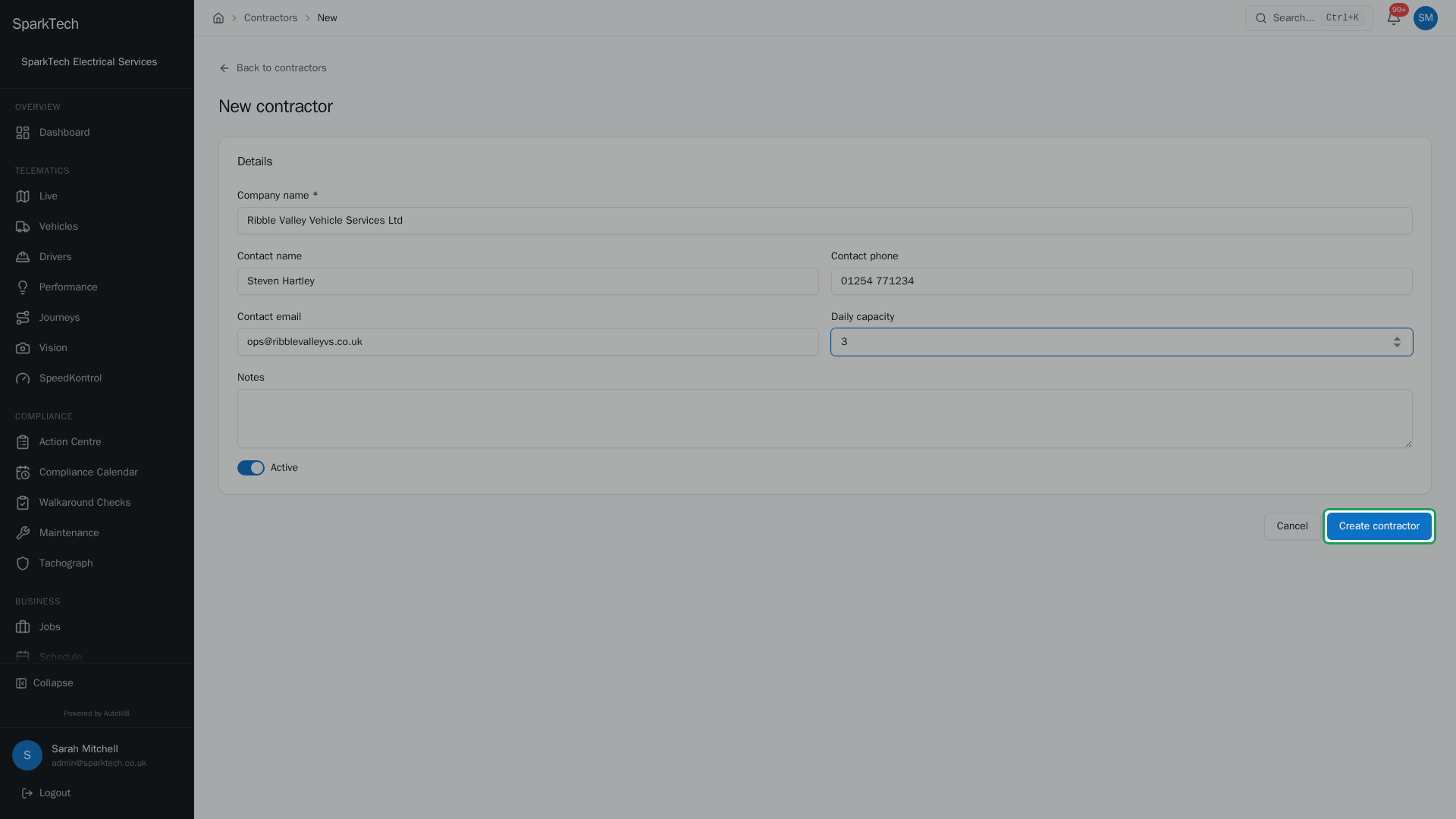
Choose Create contractor. The rest of the setup then appears on the same page.
- The contractor is saved
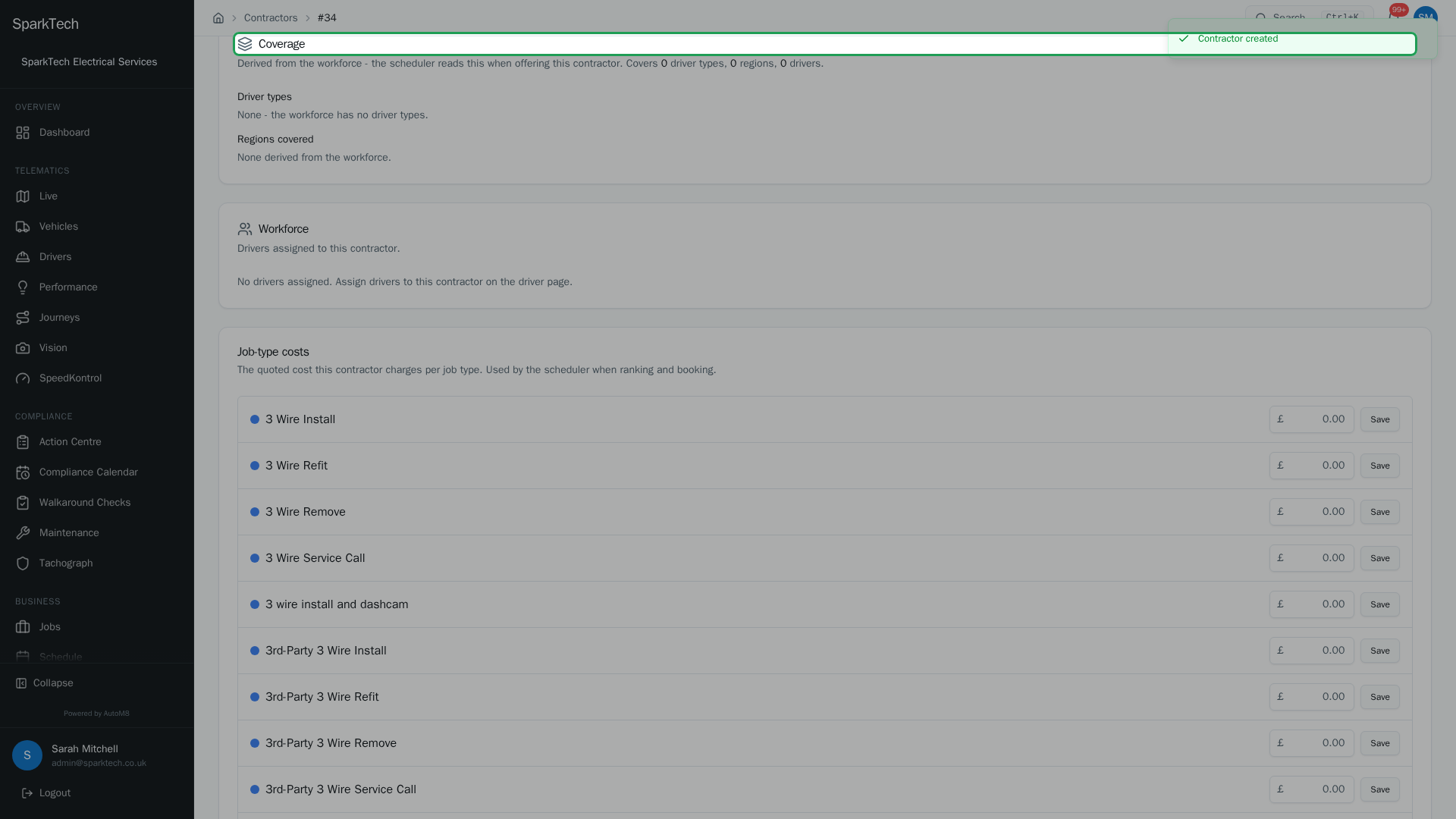
Once saved, the setup sections appear. Coverage and Workforce are read-only summaries the scheduler reads when it offers the contractor for a job.
- Set what they charge per job type
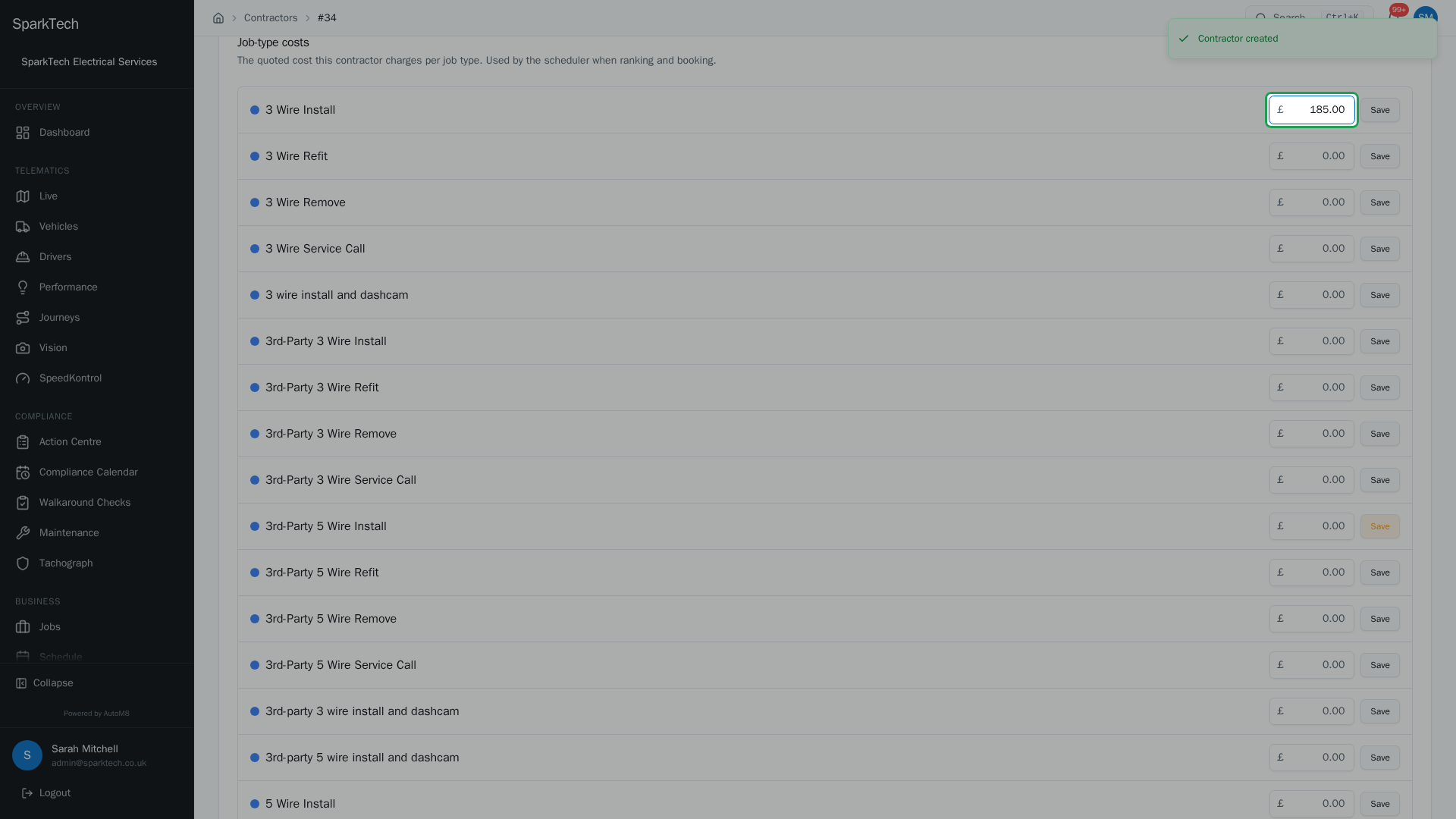
Enter the contractor's price for a job type, then Save. The slot finder uses it to rank and cost options when you dispatch.
- Set their normal working week
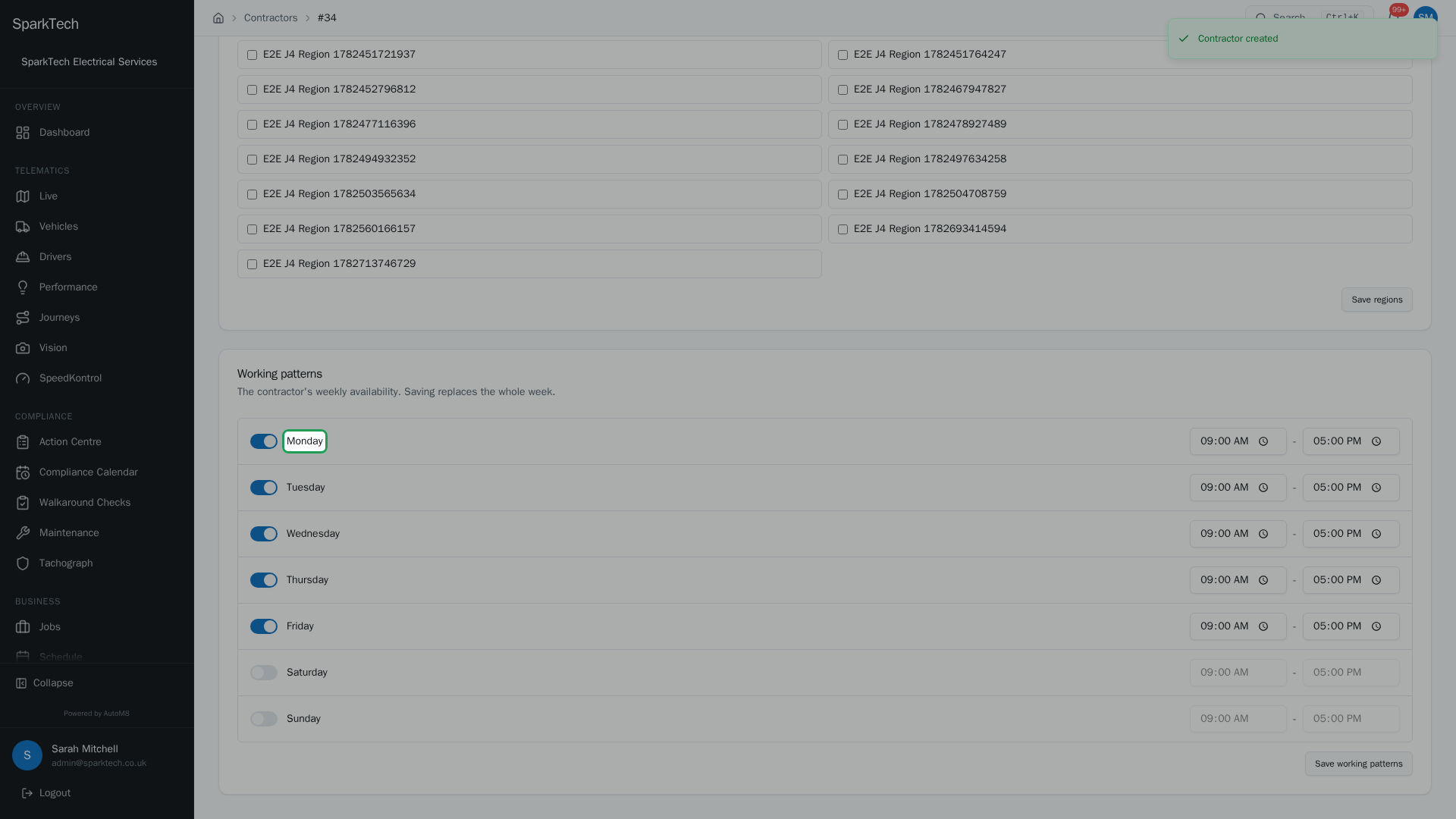
A contractor starts on a standard Monday to Friday week. Adjust the days and times, then Save working patterns.
A contractor is an outside company you send work to. Once set up, a contractor appears alongside your own drivers when you dispatch a job, so you can compare cost, capacity and coverage in one place and book the best option.
Permissions. Contractor actions live under Settings > Roles and Permissions, in the Contractors group: View to see them, Create to add one, Edit to change one, and Delete to remove one. Administrator and Manager include these by default.
You reach contractors at Business > Contractors, which opens the list of the companies you have set up.
Adding a contractor
Who can do this: any role with the Create permission (in the Contractors group).
- Go to Business > Contractors.
- Choose New contractor.
- Fill in the Details:
| Field | What it is |
|---|---|
| Company name | The contractor’s business name. Required - it is the only field you must fill in. |
| Contact name | Your day-to-day contact there. Optional. |
| Contact phone | A phone number for them. Optional. |
| Contact email | An email address for them. Optional. |
| Daily capacity | How many jobs they can take in a single day. Defaults to 1. The slot finder uses this to stop you overbooking them. |
| Notes | Any free-text notes for your own reference. Optional. |
| Active | On by default. Turn it off to retire a contractor without deleting it - an inactive contractor is not offered when you dispatch. |
- Choose Create contractor.
Once saved, the rest of the contractor’s setup appears on the same page as a set of sections you can fill in - job-type costs, regions and working patterns, described below. You can come back and change any of them at any time; the save button then reads Save changes.
Before you go further. Two of the sections below rely on lists you set up elsewhere. To enter job-type costs you first need your job types (set up in Settings > Job Types - see Work and job setup). To tick the regions a contractor covers, those regions must first exist in your scheduling settings.
Setting job-type costs
Who can do this: any role with the Edit permission (in the Contractors group).
The Job-type costs section is the price a contractor charges you per kind of work. The slot finder uses it to rank and cost options when you dispatch, so it is worth keeping up to date.
- On the contractor, find the Job-type costs section. It lists each of your active job types.
- Enter the cost for a job type in its £ box.
- Choose Save on that row.
Each saved cost shows as a badge next to the job type. To change one, type a new figure and Save again; to clear one, use its delete (bin) control. If the section says there are no job types yet, add them in Settings > Job Types first.
Setting the regions a contractor covers
Who can do this: any role with the Edit permission (in the Contractors group).
The Regions section is where a contractor declares the areas they work in. It is a simple tick list of the regions you have set up.
- Find the Regions section on the contractor.
- Tick each region the contractor covers.
- Choose Save regions.
If the section says no regions are defined, set your regions up in your scheduling settings first, then come back and tick them here.
Setting a contractor’s working patterns
Who can do this: any role with the Edit permission (in the Contractors group).
The Working patterns section is the contractor’s normal weekly availability, Monday to Sunday. A new contractor starts on a standard week of Monday to Friday, 09:00 to 17:00.
- Find the Working patterns section.
- For each day, use the switch to turn the day on or off, and set the start and end time for the days they work.
- Choose Save working patterns.
Saving replaces the whole week, so set every working day before you save, including the ones you did not change.
What the Coverage and Workforce sections show
Who can do this: any role with the View permission (in the Contractors group).
Two sections on the contractor are read-only summaries rather than things you edit:
- Coverage - a plain-English summary of what the contractor can take on (the driver types and regions they cover). The scheduler reads this when deciding whether to offer the contractor for a job.
- Workforce - the drivers who work for that contractor, each shown with their driver type.
Removing a contractor
Who can do this: any role with the Delete permission (in the Contractors group).
If you no longer work with a contractor, you can remove them. In most cases it is better to turn their Active toggle off instead - that stops them being offered when you dispatch while keeping their record and history. Removing is for contractors added in error.
How contractors are used when you dispatch
Everything set up above feeds the slot finder: the regions and working pattern decide whether a contractor can take the job, the daily capacity decides when they are full, and the job-type cost is the figure you compare. Booking itself is covered in Dispatching jobs.
Related
- Dispatching jobs - where contractors appear when you book work.
- Work and job setup - set up the job types you cost per contractor.
- The schedule board.
- Contractors are part of AutoM8’s all-in-one field service software.