Settings
Work and job setup
Set up the building blocks of your field service - job types, skills, workflows, worksheets and certificates.
Walkthrough Work and job setup1 screenshots
- Set up the kinds of work you do
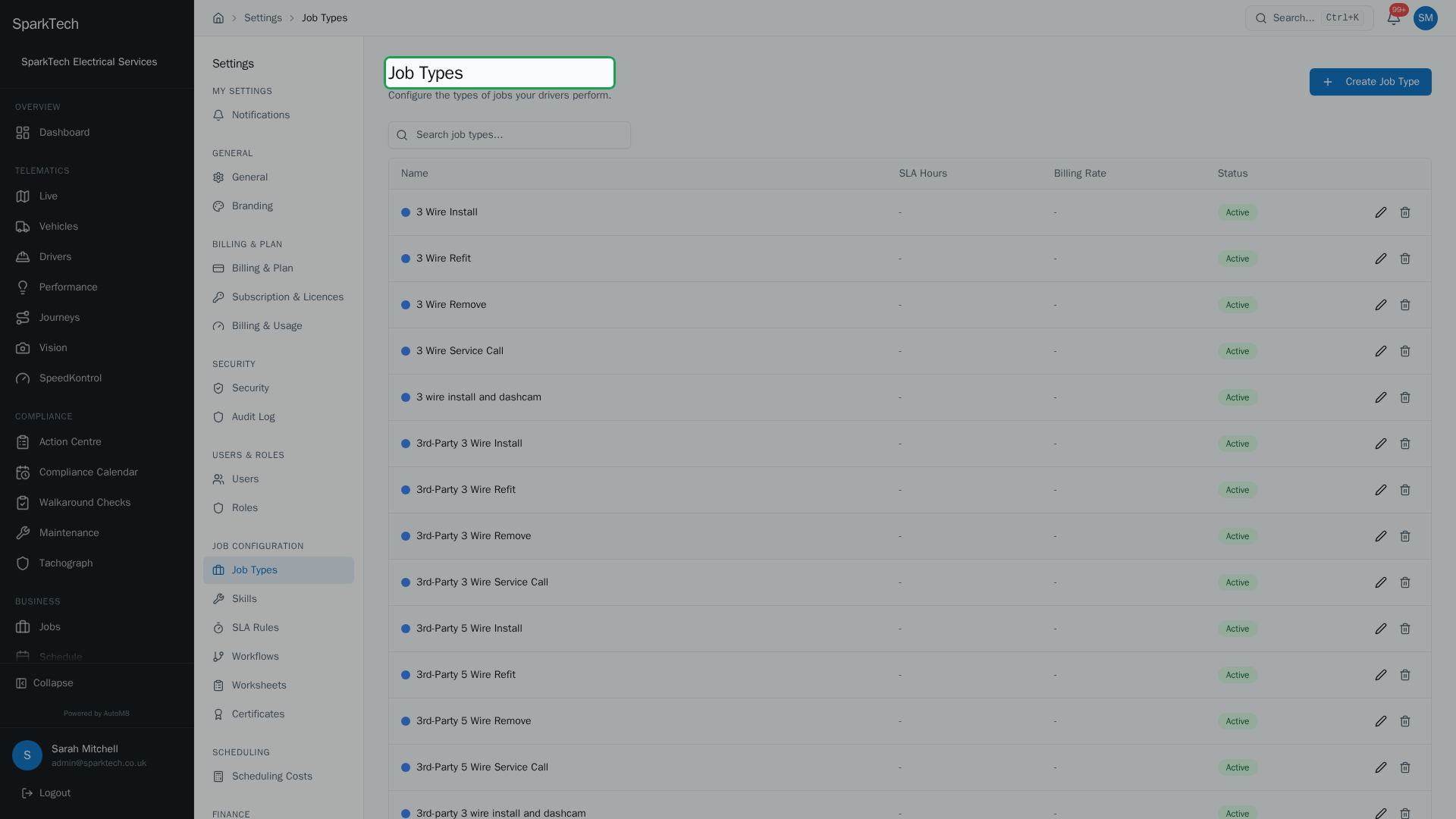
Open Settings then Job Types. Each type has a colour, a target time and the skills a driver needs, so AutoM8 colour-codes jobs and offers them only to qualified drivers.
Before you run jobs, it is worth setting up the building blocks they use: the types of work you do, the skills your drivers hold, the statuses a job moves through, and the forms and certificates completed on site. You configure these once and reuse them on every job.
Permissions. These live in Settings > Roles and Permissions. Viewing job types and workflows needs View (in the Jobs group); viewing skills needs View (in the Skills group). Creating, editing or deleting any of these - job types, workflows, skills, worksheets and certificates - needs Manage (in the Settings group). Administrator and Manager include these by default.
Job types
Who can do this: view with View (in the Jobs group); create, edit or delete with Manage (in the Settings group).
A job type is a kind of work you do (for example Installation, Service, Repair). Setting them up lets AutoM8 colour-code jobs, apply the right skills and set default targets. Each type has:
| Setting | What it does | When to set it |
|---|---|---|
| Name | The label your team sees. | Always. |
| Colour and Icon | How the type looks on the schedule and calendar. | To tell types apart at a glance. |
| SLA Hours | A default turnaround target when no SLA rule matches. | If this kind of work has a standard target time. |
| Billing Rate | The standard charge-out rate for this type. | If you price this work at a set rate. |
| Required driver type | Restricts the job to a single category of driver, so only drivers of that type are offered it. Leave it as Any driver type for no restriction. | Only when a job must go to one specific category of driver. If in doubt, leave it as Any driver type. |
| Required Skills | The skills a driver must (or should) have. Each is Mandatory or Optional. | To make sure only qualified drivers are offered the job. |
| Active | Turn a type off without deleting it. | To retire a type you no longer use. |
Mandatory skills are a hard rule - a driver without them is never offered the job. Optional skills are preferred but not required.
A job type with active jobs on it cannot be deleted. Turn it inactive instead - that retires it from new jobs while leaving existing jobs untouched.
Skills
Who can do this: view with View (in the Skills group); create or edit with Manage (in the Skills group).
Skills are the competencies and qualifications your drivers hold (for example Gas Safe, Electrical, Plumbing). You attach them to job types (above) and to drivers, and AutoM8 uses them to match the right person to the right job.
- Name and an optional Description.
- Safety Critical - a hard constraint. A driver without a safety-critical skill is never assigned a job that requires it, no matter what. Use it for legally required competencies.
- Active - retiring a skill keeps existing assignments but hides it from new ones.
See Skills and job types for how skills sit on drivers.
Job workflows
Who can do this: view the workflow with View (in the Jobs group); add, edit or delete statuses and transitions with Manage (in the Settings group).
A workflow is the set of statuses a job moves through and the transitions between them (for example New, In Progress, Complete). There is a Global Default that applies to every job type, and you can give a specific job type its own workflow. Pick which one you are editing from the Workflow selector at the top.
The editor is a visual drag canvas: statuses appear as nodes, and you create a transition by dragging from one status node to another. Click a node to edit its status, or a connector to edit that transition.
For each status you set a display label, an internal name, a colour, a sort order, and whether it is the initial status (where jobs start) or a terminal status (a finished/closed state). The internal name is a slug (lowercase letters, numbers and underscores only, no spaces - for example in_progress). Marking a status as initial replaces whatever was the initial status before, so a workflow always has exactly one starting point.
For each transition you can require a permission to make the move, and attach auto actions that fire on the transition - such as sending a notification, creating a follow-on job, generating a certificate or generating an invoice.
Start from the Global Default. Only add a per-type workflow when a particular kind of job genuinely needs different statuses.
Worksheets
Who can do this: view templates with View (in the Settings group); build or edit them with Manage (in the Settings group).
Worksheets are the forms your drivers complete on a job - checklists, readings, photos and signatures. You build them in a drag-and-drop builder and see a live preview of how they will look on a phone.
Add fields of these kinds:
- Input - text, number, date, time or a longer text area.
- Choice - a dropdown, a multi-select or a checkbox.
- Media - a photo or a signature.
- Layout - a section header to group fields.
- Inspection - a Yes / No / Defect control for pass-fail checks.
For each field you set its label, whether it is required, and (for choice fields) its options. You can add conditional logic so a field only appears when an earlier answer matches - for example, show a “reason” box only when someone answers “No”.
Worksheets are versioned, and deleting a template keeps the worksheets already submitted against it. See Worksheets and job evidence.
Certificates
Who can do this: view templates with View (in the Settings group); create or edit them with Manage (in the Settings group). Issuing a certificate from a job needs Edit (in the Jobs group).
Certificate templates produce the PDF documents issued on a job - safety certificates, completion documents and the like. Templates are written in HTML (basic web markup), so you will need someone comfortable with that to set them up initially. Each template has a name, an Active toggle, and the HTML content that defines the layout, with merge fields written as {{field_name}} (for example {{job_reference}}) that AutoM8 fills in from the job. The template list shows which merge fields each one uses.
Certificates are authored in HTML rather than a visual editor, so this one is usually set up by whoever is comfortable with a bit of markup. Once a template exists, issuing certificates from a job is a click.
Related
- Creating and managing jobs
- Skills and job types
- Service rules and forms
- Settings overview
- These building blocks underpin the jobs side of AutoM8’s field service and fleet software.