Getting started
The setup wizard
The first time you sign in to a new account, AutoM8 walks you through a short Set up AutoM8 wizard - your goal, your modules, a starter pack and your first records.
Walkthrough Set up AutoM8 with the wizard4 screenshots
- Tell AutoM8 what you want to achieve
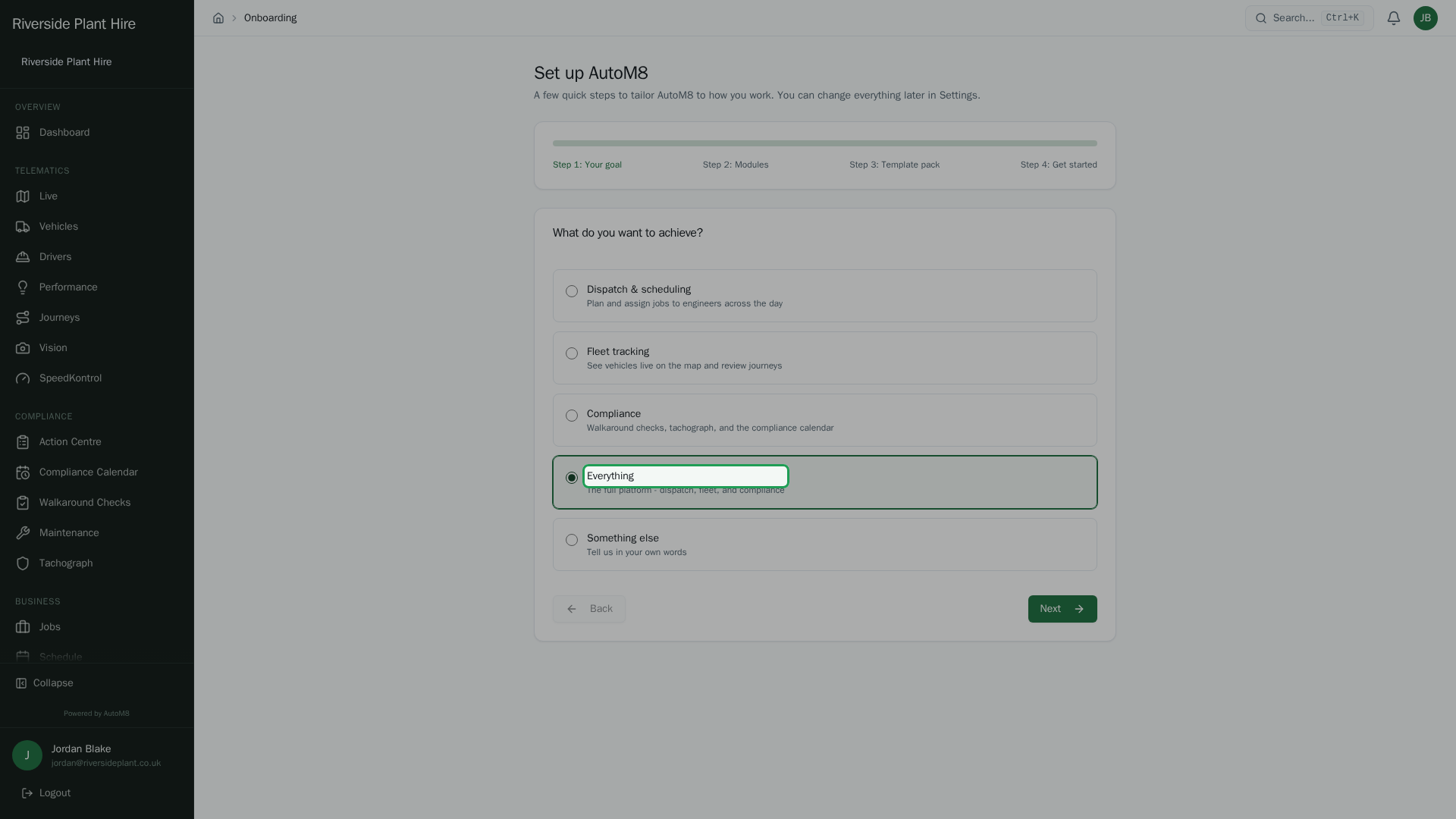
The wizard opens with your goal. Pick the outcome that fits, or describe your own, to tailor what follows.
- Choose your modules
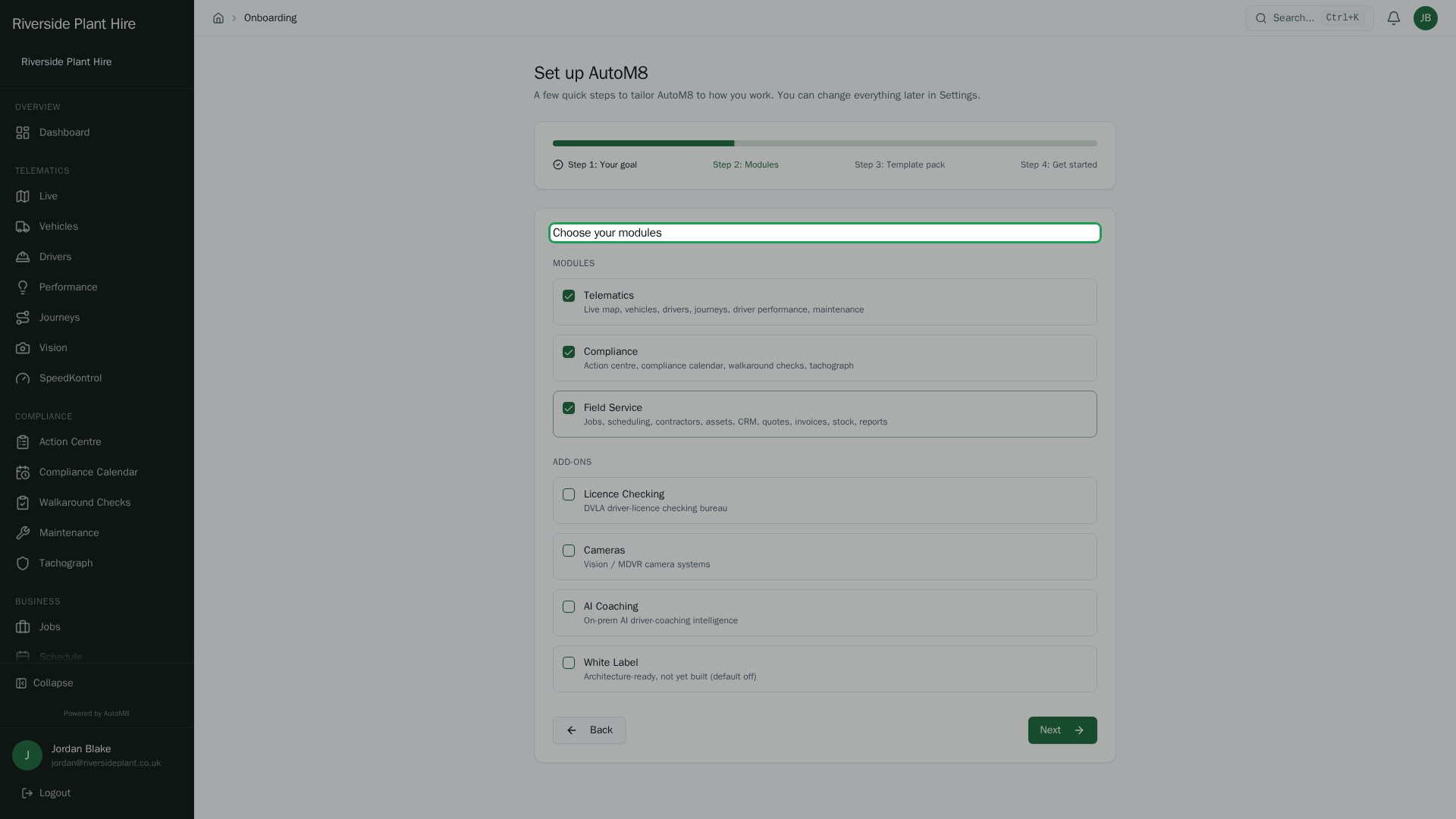
Turn on the modules you need - telematics, compliance, field service and any add-ons. Your plan is set from what you pick.
- Pick a starter pack
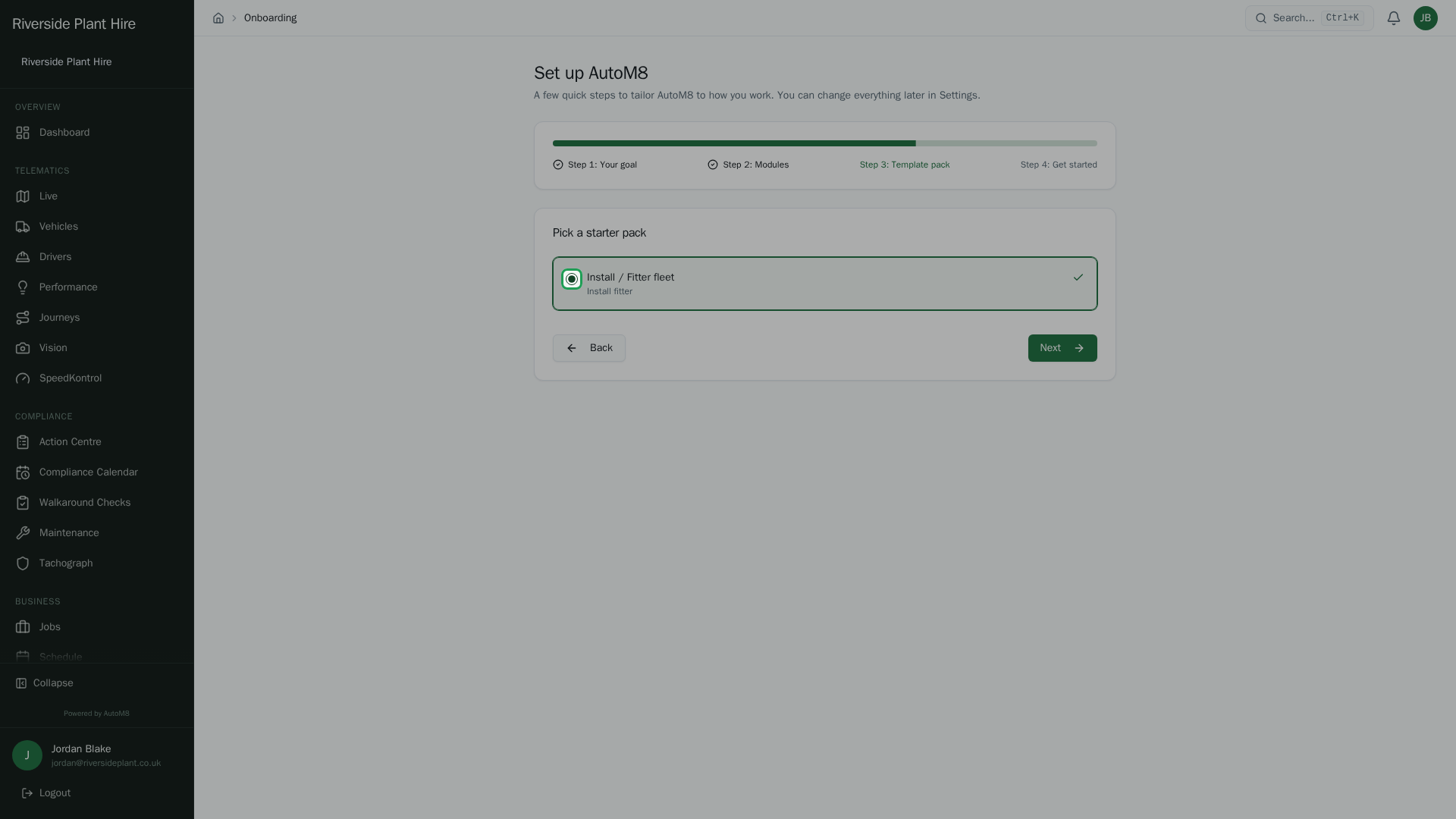
A starter pack pre-loads sensible job types and settings for your kind of work, so you are not starting from a blank page.
- Add your first records, or explore with sample data
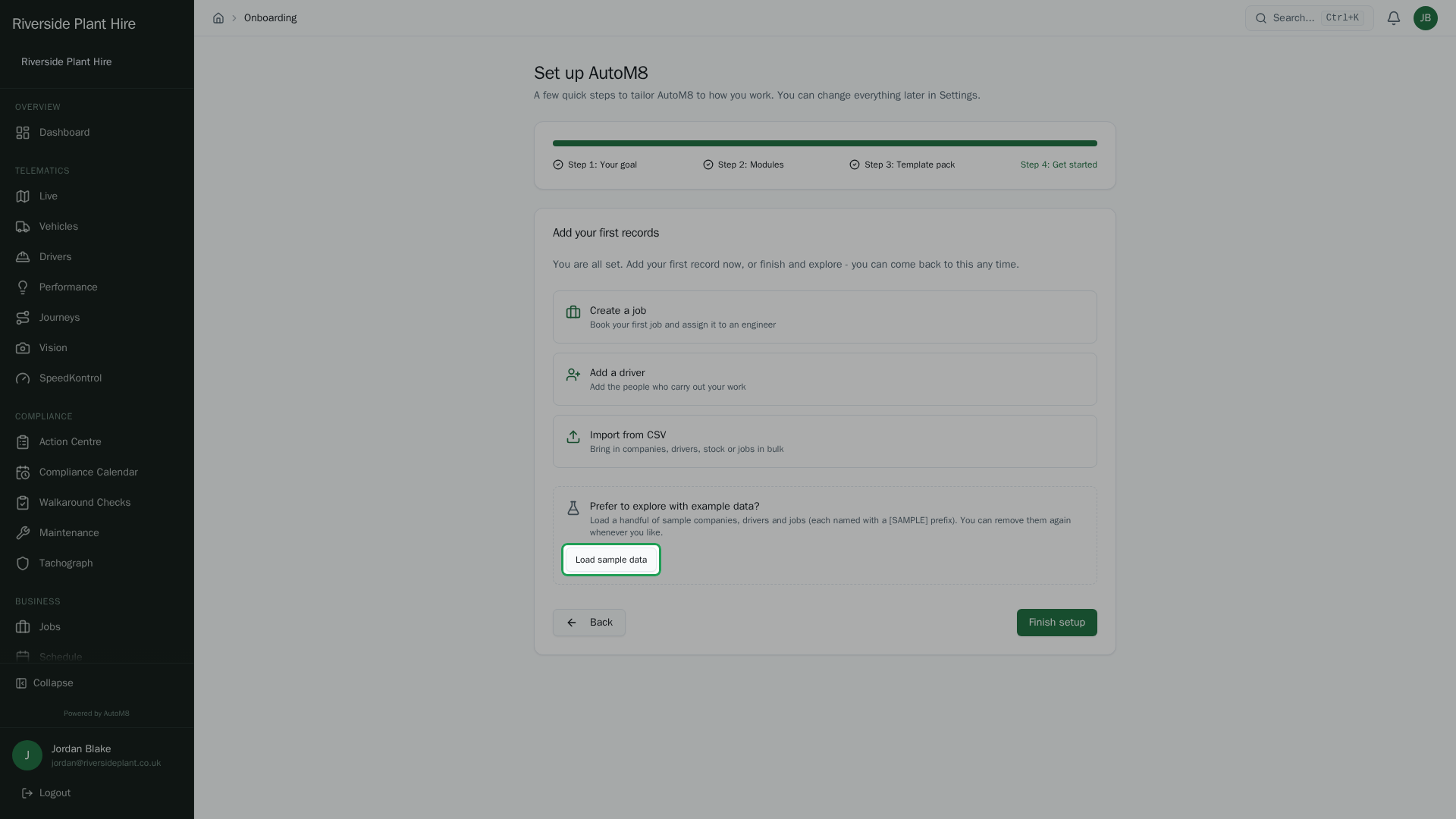
Finish by creating a job or driver, importing from a CSV, or loading clearly-marked sample data to explore first. Then choose Finish setup.
The first time someone signs in to a brand-new account, AutoM8 opens a short Set up AutoM8 wizard that tailors the system to how you work. It takes a few minutes, and you can change everything it sets up later in Settings.
Permissions. Only an administrator (with Settings Manage) can run the wizard. Anyone else who signs in before setup is finished sees a short note asking an admin to complete it. If our team set your account up for you, setup is already done and you go straight to your dashboard.
When the wizard appears
The wizard only appears on a new account that has not been set up yet. New users on such an account are taken straight to it when they sign in. Once setup is finished it does not run again - opening it later just shows that your account is already set up.
You move through it with Next (and Back), and finish with Finish setup. There is no way to skip a step, but most steps take only a moment.
Step 1 - Your goal
The first step, What do you want to achieve?, asks what you mainly want AutoM8 for. Pick one:
- Dispatch & scheduling
- Fleet tracking
- Compliance
- Everything
If none quite fits, choose Something else and describe your goal in your own words. This just helps tailor the rest of setup.
Step 2 - Your modules
Choose your modules is where you switch on the parts of AutoM8 you need. You tick the Modules you want:
- Telematics - the live map, vehicles, drivers, journeys, driver performance and maintenance.
- Compliance - the action centre, compliance calendar, walkaround checks and tachograph.
- Field Service - jobs, scheduling, contractors, assets, CRM, quotes, invoices, stock and reports.
There are also optional Add-ons (such as cameras and licence checking) you can include. Your choice here switches on the matching parts of AutoM8 and sets up your plan. You can change what is switched on later, so pick what you need to start with.
Step 3 - A starter pack
Pick a starter pack gives you a ready-made set of job types, skills and worksheets suited to your kind of work, so you are not staring at a blank system. Choose the pack offered and AutoM8 adds those items for you. Everything a pack adds is ordinary AutoM8 data - you can edit, add to or remove any of it afterwards.
Step 4 - Add your first records
The last step, Add your first records, gets you started with real data. You can jump straight into any of:
- Create a job - book your first job.
- Add a driver - add the people who carry out your work.
- Import from CSV - bring in companies, drivers, stock or jobs in bulk.
Explore with example data
If you would rather have a look around before adding your own records, choose Load sample data. AutoM8 adds a handful of example companies, drivers and jobs, each named with a [SAMPLE] prefix so they are easy to spot. When you are ready, choose Remove sample data to clear it out again - it only removes the examples, never your real records.
When you choose Finish setup, you land on your dashboard.
Related
- Quick start - the checklist of what to set up next.
- Signing in for the first time.
- Your dashboard.
- Settings overview.