Drivers
Creating and managing drivers
Add drivers, record their licence and CPC details, and deactivate them - the everyday driver record.
Walkthrough Creating and managing drivers4 screenshots
- Every driver in one list
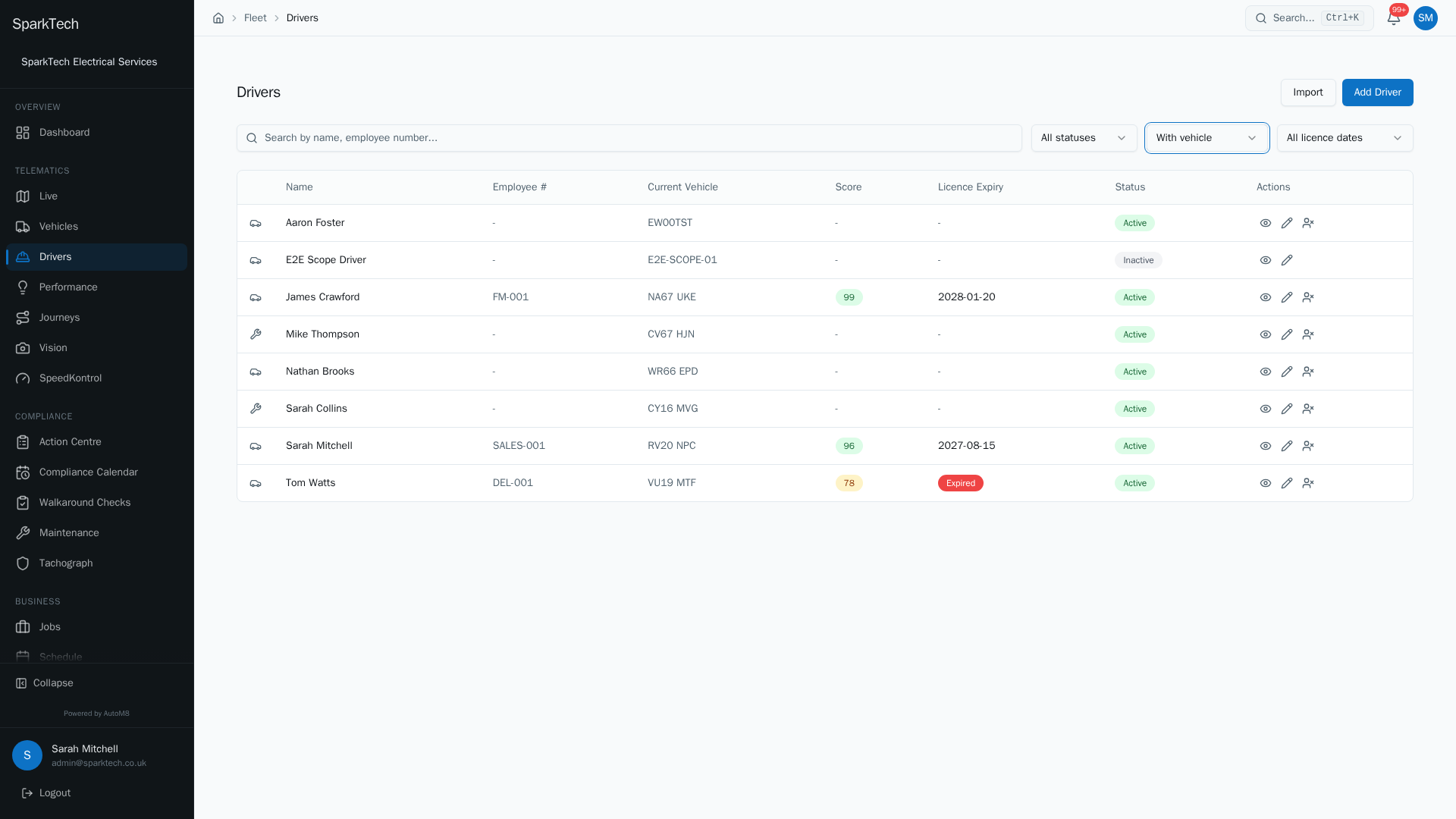
Open Telematics then Drivers. Each row shows the name, employee number, current vehicle, score and licence expiry. Search and filter to narrow the list.
- Select "Add Driver" to create one
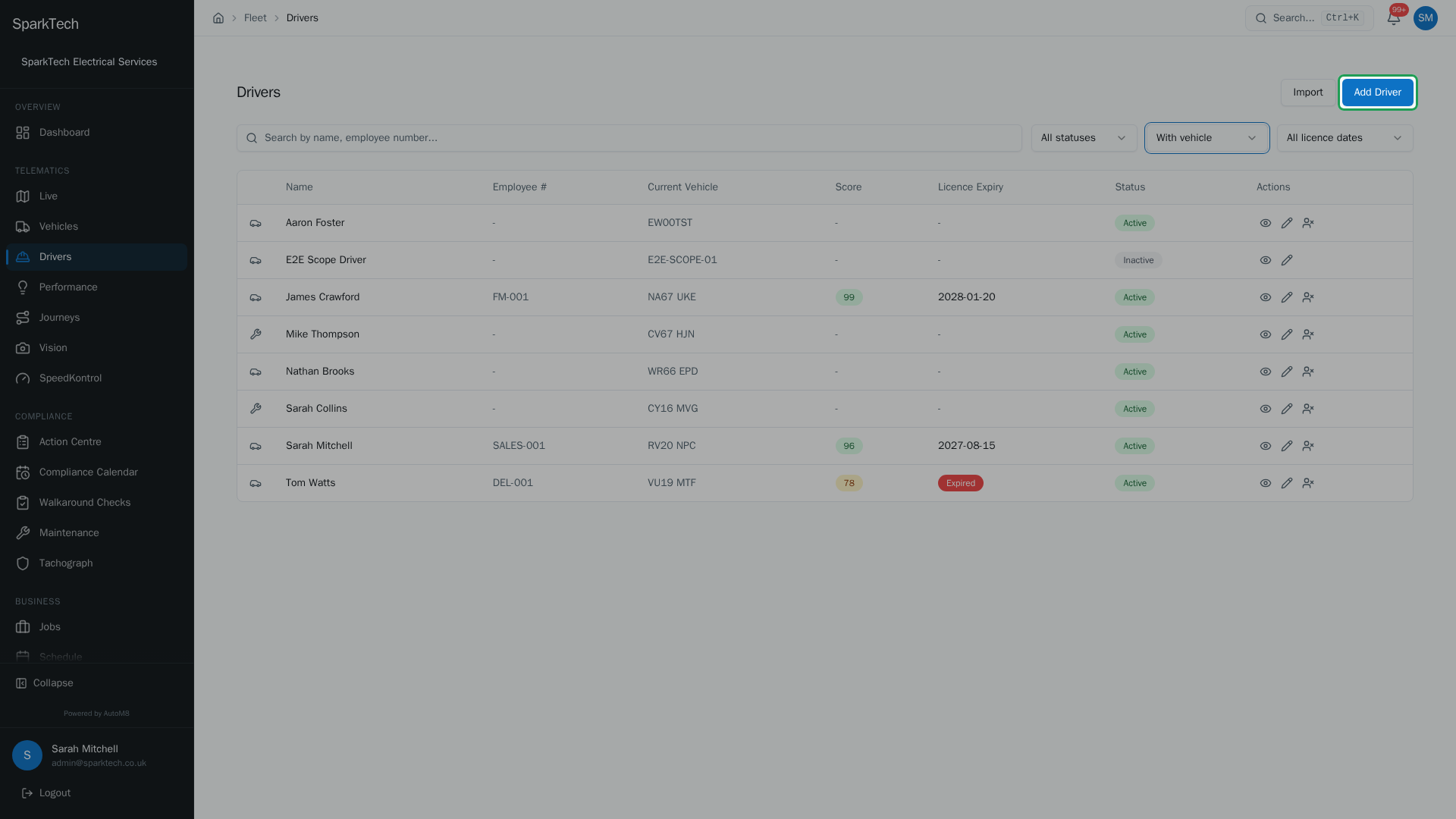
To add a driver, select Add Driver. You need the Drivers Manage permission.
- Link to a login, or create a standalone driver
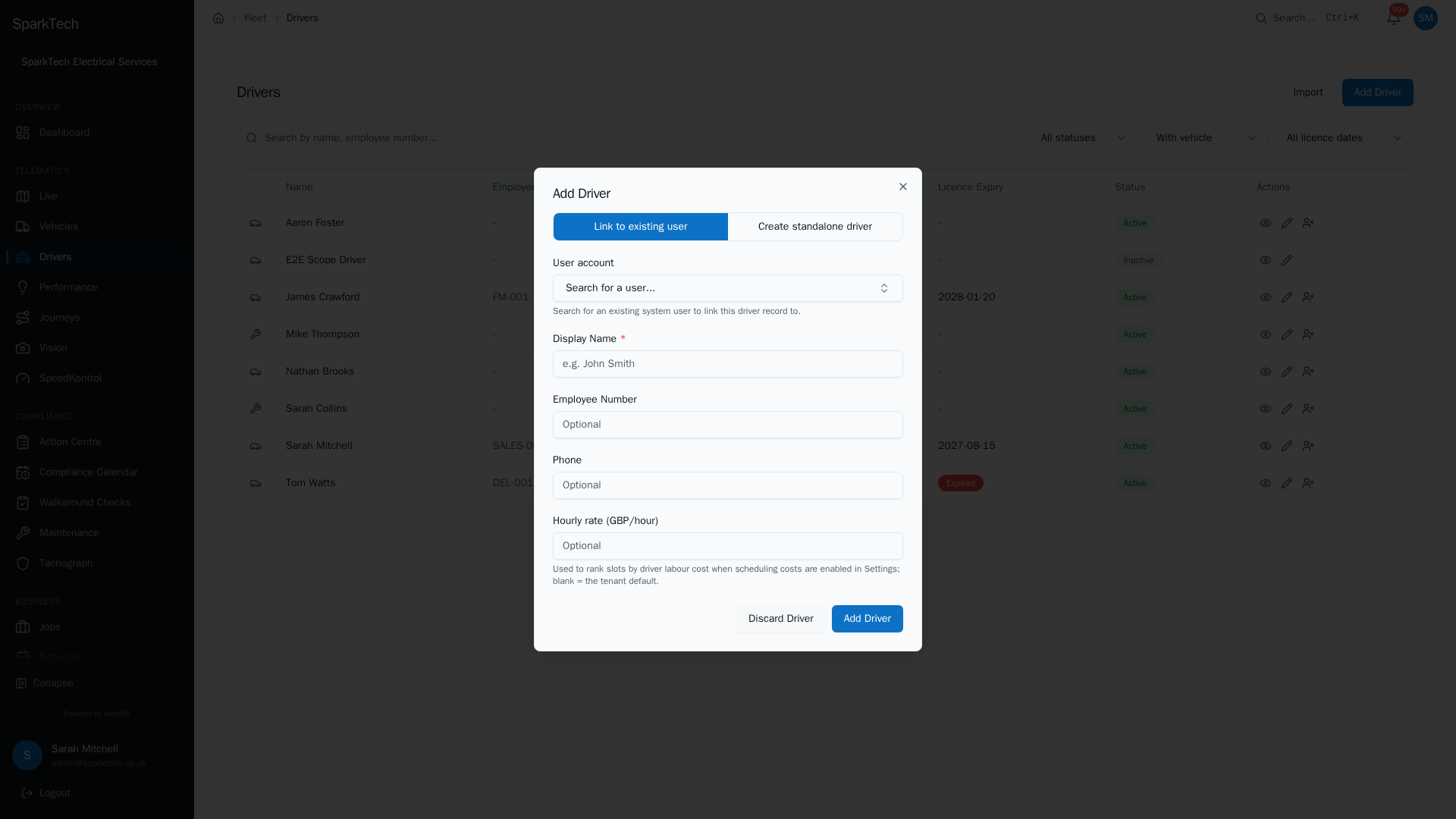
Choose whether the driver logs in to AutoM8 or only drives. The display name is the only required field.
- The driver detail page
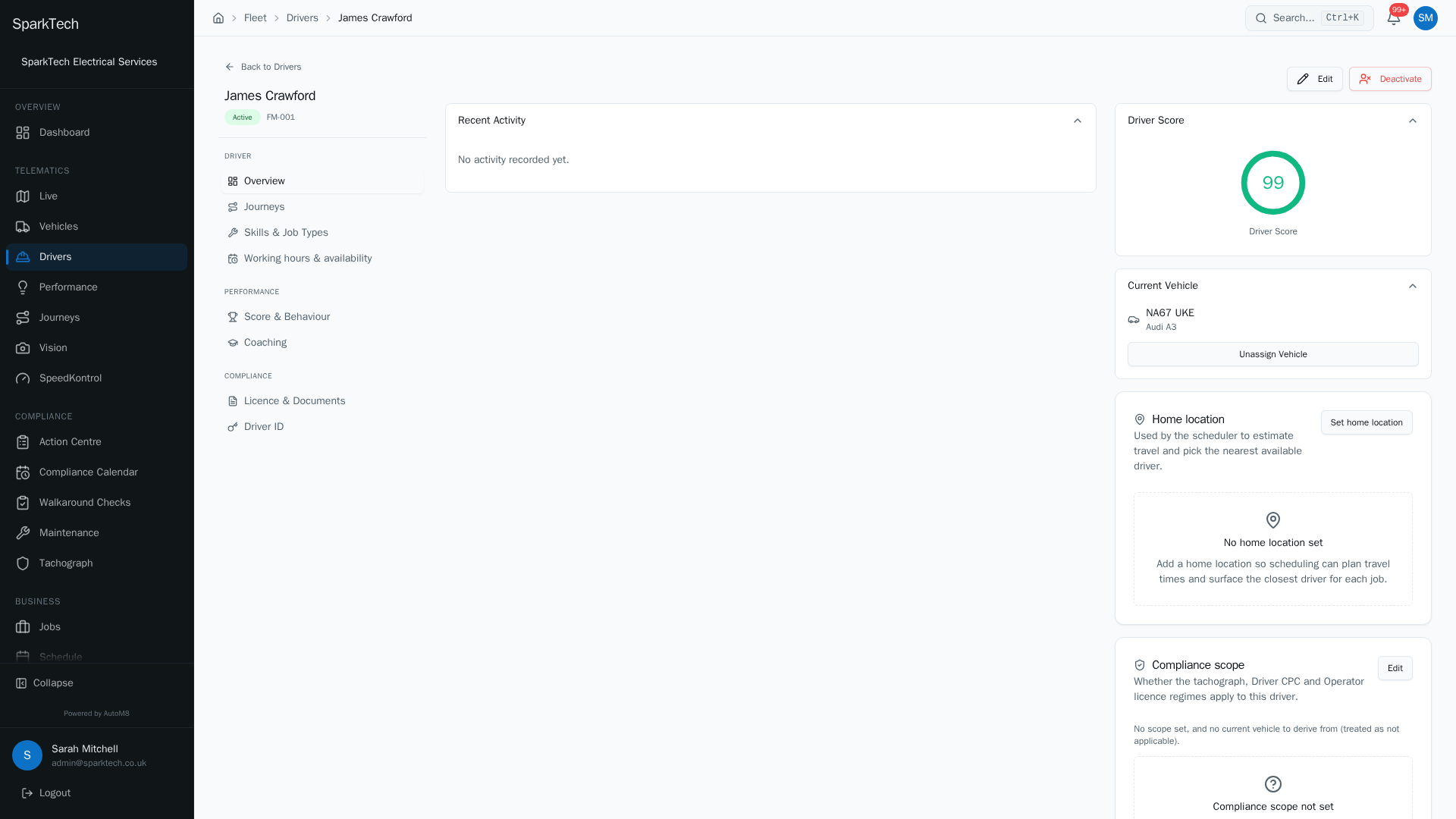
The Overview tab is the driver dashboard: recent activity, a driver score, the current vehicle, a home location and which compliance rules apply.
A driver is a person who operates one of your vehicles. A driver can exist with or without a login to AutoM8 - see Drivers, logins and vehicles.
Permissions. Driver actions are controlled per role in Settings > Roles and Permissions, under the FMS (Fleet Management) group. Seeing drivers needs Drivers View; adding, editing and deactivating them need Drivers Manage. Administrator and Manager include both by default.
Creating a driver
Who can do this: anyone whose role includes Drivers Manage, which covers Administrator and Manager. Before you start: nothing. Only a name is required.
- Go to Telematics > Drivers.
- Click Add Driver.
- Choose how to add them:
- Link to an existing user - for someone who will log in to AutoM8 (the dashboard or the mobile app).
- Create a standalone driver - for someone who only drives and does not log in.
- Enter the Display name (the only required field). Optionally add Employee number, Phone and an Hourly rate; a standalone driver can also take an address.
- Click Add Driver.
You can add licence, tachograph and CPC details now or later, on the driver’s Licence & Documents tab.
The drivers list
Who can do this: anyone with the Drivers View permission.
Telematics > Drivers lists every driver. You can:
- Search by name or employee number (the box matches both).
- Filter by status (active or inactive), by vehicle (with or without a vehicle assigned), and by licence expiry (due within 30 or 7 days).
- See each driver’s name, employee number, current vehicle, score, licence expiry and status at a glance. A type icon marks each row as a driver who logs in or a standalone driver.
Each row also has quick actions: View, and (with Drivers Manage) Edit and Deactivate.
To add several drivers at once, use Import (needs Drivers Manage). It opens a dedicated import dialog for bulk-adding drivers from a file.
Editing a driver and recording licence details
Who can do this: anyone whose role includes Drivers Manage, which covers Administrator and Manager.
Open a driver and use Edit. As well as their basic details you can record:
- Driving licence - number, category (standard UK categories such as B, C, C+E or D), expiry and country.
- Tachograph card - number and expiry.
- CPC - number and expiry.
AutoM8 uses these expiry dates to warn you before a licence, card or CPC runs out.
The driver’s Licence & Documents tab holds all of the above plus their certifications, and lets you upload a copy of each document. See Skills, certifications and job types for certifications.
What the driver detail page shows
Who can do this: anyone with the Drivers View permission.
Open any driver from the list to reach their detail page. A left-hand menu groups everything you can do with that driver into three sections. Each area is covered in full on its own guide page, so this table is a map rather than a repeat.
| Section | Tab | What it covers | Full page |
|---|---|---|---|
| Driver | Overview | The driver’s dashboard (see below). | This page. |
| Driver | Journeys | That driver’s trip history. | Journeys and replay. |
| Driver | Skills & Job Types | Skills, certifications and the job types the driver can take. | Skills, certifications and job types. |
| Driver | Working hours & availability | Working pattern, availability and home region. | Working hours, availability and regions. |
| Performance | Score & Behaviour | The driver’s scorecard, trend and driving events. | Driver scoring and coaching. |
| Performance | Coaching | That driver’s coaching cases. | Driver scoring and coaching. |
| Compliance | Licence & Documents | Licence, tachograph card, CPC, certifications and uploaded copies. | This page (above). |
| Compliance | Driver ID | The tag or key the driver uses for in-vehicle identification. | Drivers, logins and vehicles. |
The Overview tab
The Overview tab is the driver’s dashboard. It shows:
- A Recent Activity timeline of what has happened for this driver.
- A Driver Score gauge with the latest overall score (or a note if there is no score yet).
- A Current Vehicle card showing the assigned vehicle, with Unassign Vehicle, or Assign Vehicle if none is assigned.
- A Home location card - the driver’s home anchor, used for proximity and travel estimates.
- A compliance scope card showing which compliance rules apply to this driver.
With Drivers Manage, the Overview tab also carries the Edit and (for an active driver) Deactivate actions.
Deactivating a driver (you cannot delete one)
Who can do this: anyone whose role includes Drivers Manage, which covers Administrator and Manager.
Drivers are never deleted, so their history (journeys, scores, assignments) is always kept. Instead you deactivate them:
- Open the driver, or use the row action on the list.
- Choose Deactivate and confirm by typing DEACTIVATE.
Deactivating a driver also unassigns their current vehicle and removes them from the league table. To bring a driver back later, use Reactivate.
Troubleshooting
Why can’t I see a driver? If your view is limited to certain vehicle groups, you see a driver through their assigned vehicle’s group - a driver whose current vehicle is not in a group you can see, or who has no vehicle assigned, will not appear for you. Ask an admin to widen your scope. Seeing drivers at all also needs the Drivers View permission. See Why can’t I see something?.
Why are a driver’s hours or score empty? A driver’s hours only roll up once a driver card is linked to them (see Discovered Cards on the Tachograph page), and their score only appears once they have journeys to score. Tachograph hours are also a snapshot shown as of the latest download, not live, so a very recent journey may not show until the next download. See Why can’t I see something?.
Related
- Why can’t I see something? - visibility scope and empty figures explained.
- Drivers, logins and vehicles - give a driver app access and assign them a vehicle.
- Skills, certifications and job types.
- Driver scoring and coaching.
- See how managing drivers fits into AutoM8’s wider fleet management software.