Drivers
Drivers, logins and vehicles
How a driver relates to a login and to a vehicle - giving a driver app access and assigning them a vehicle.
Walkthrough Drivers, logins and vehicles1 screenshots
- Attribute journeys with a Driver ID tag
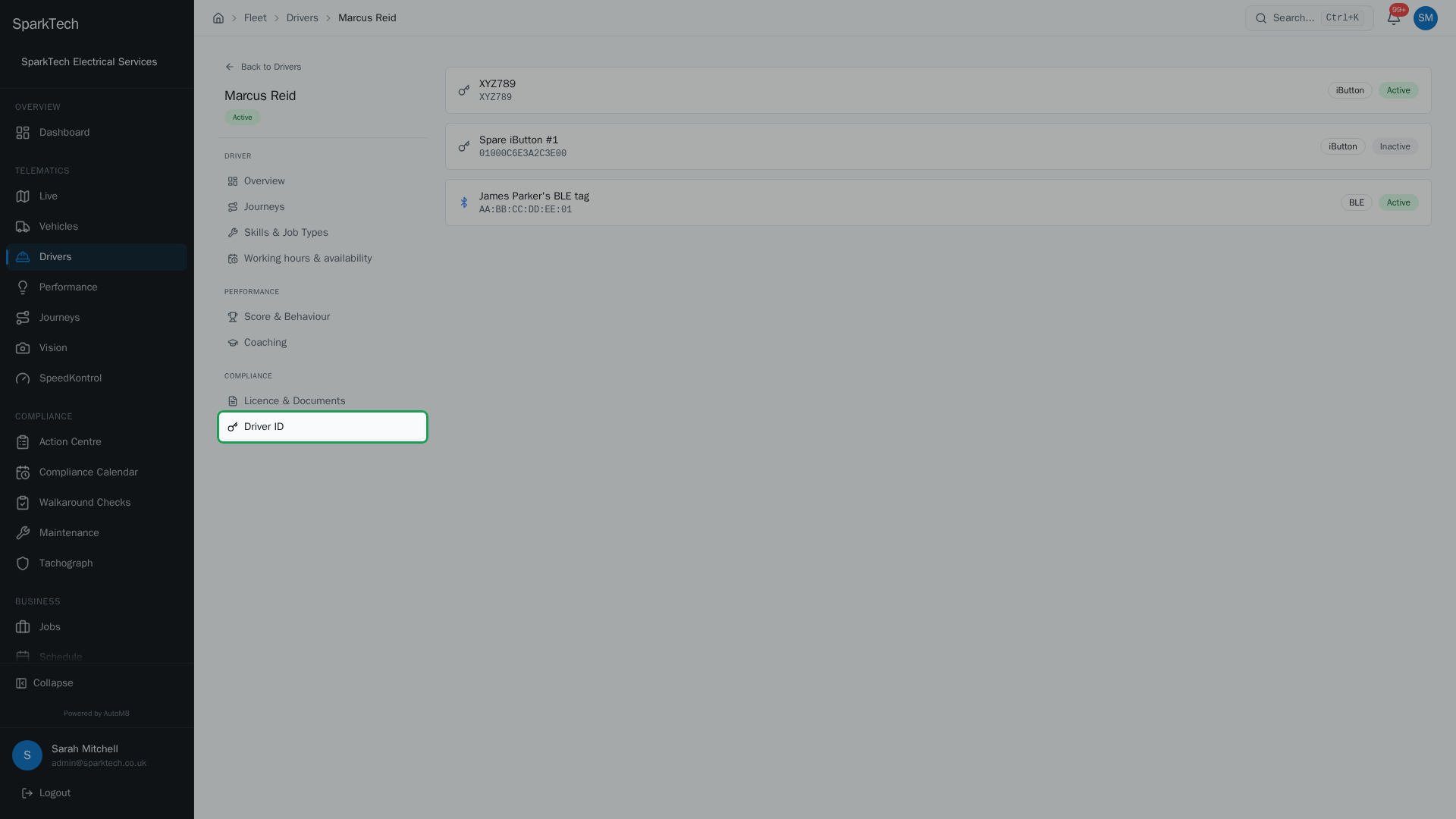
A driver does not need a login to be tracked. Issue them a Driver ID - a Bluetooth tag or an iButton key - and the tracker recognises them in the vehicle, attributing the journey and score to that person automatically.
Three ideas are easy to mix up:
- A driver is a person who operates a vehicle.
- A user account is a login for AutoM8 (the dashboard or the mobile app).
- A vehicle is the asset.
A driver does not need a login. You only give a driver a user account if they need to use the app.
Permissions. These actions need the Drivers Manage permission (FMS group). Assigning a vehicle from the vehicle side instead needs Vehicles Assign.
Giving a driver a login
Who can do this: Administrator or Manager - the Drivers Manage permission to link, and an administrator (Settings Manage) to set the user’s role.
A working driver login needs two things:
- A user account with the Driver role - this is what switches the person into the focused driver app.
- That user linked to their driver record - this is what fills the app with their own data.
Linking on its own is not enough: without the Driver role the person would see the full office dashboard instead of the driver view.
To set it up:
- If the person is not a user yet, invite them first with the Driver role. See Managing users.
- Open the driver and choose Edit, then use the linked-user field to link the driver to that user account.
- A user can be linked to only one driver. If the user is already linked to another driver, AutoM8 warns you and offers to move (reassign) them to this driver.
- Check the user’s role is set to Driver in Settings > Users, so they get the driver view rather than the full dashboard.
To remove app access from a driver, unlink the user.
For the full explanation of a driver login versus an office user, and what each can see, see Driver logins and standard users.
Assigning a vehicle to a driver
Who can do this: Administrator or Manager - Drivers Manage (or Vehicles Assign if you do it from the vehicle).
Each driver can have one vehicle at a time, and each vehicle can have one driver at a time.
- Open the driver.
- On the Overview tab, the Current Vehicle card shows the assigned vehicle. Use Unassign to remove it, or Assign Vehicle, which takes you to the vehicle list to choose one.
The full assign form (picking the vehicle for this driver) lives on the vehicle side - see Assigning a vehicle to a driver. Each driver has one vehicle at a time and each vehicle one driver; a new assignment ends the previous one on both sides, and the driver keeps a full assignment history.
Driver ID (tag or key)
Who can do this: Administrator or Manager, or any custom role granted Drivers Manage.
The driver’s Driver ID tab is where you issue and manage the tag or key a driver uses for automatic identification in a vehicle. It is a physical BLE tag (a Bluetooth key fob) or an iButton (a contact key). When the driver is in a vehicle fitted with a reader, the tracker recognises the tag and attributes the journey and driving score to that person, with no one having to log in.
For each Driver ID assigned to the driver, the tab lists:
- Its label (or the raw token value if no label is set).
- The token value itself (the tag’s raw identifier).
- A type badge - BLE or iButton.
- An active or inactive state.
The pool of tags for your business - the tags you can draw from and assign - is managed separately in Settings > Fleet > Driver IDs.
Managing the pool needs a different permission. Issuing or assigning a Driver ID on the driver’s tab is a Drivers Manage action, but the Settings > Fleet > Driver IDs pool is gated by the Devices Manage permission (FMS group) - not Drivers Manage. Administrator and Manager include both by default; a custom role that manages drivers may still need Devices Manage added before it can open the pool.
A Driver ID is separate from a login. It is for in-vehicle identification, not for the app - a driver still needs a linked user account (above) before they can use the mobile app.
Related
- Creating and managing drivers.
- Creating and managing vehicles.
- Linking drivers, logins and vehicles is part of running AutoM8 as your fleet management software.