Settings
General settings and branding
Set your company details, regional settings and menu preferences, and apply your brand to AutoM8.
Walkthrough General settings and branding1 screenshots
- Apply your brand across the platform
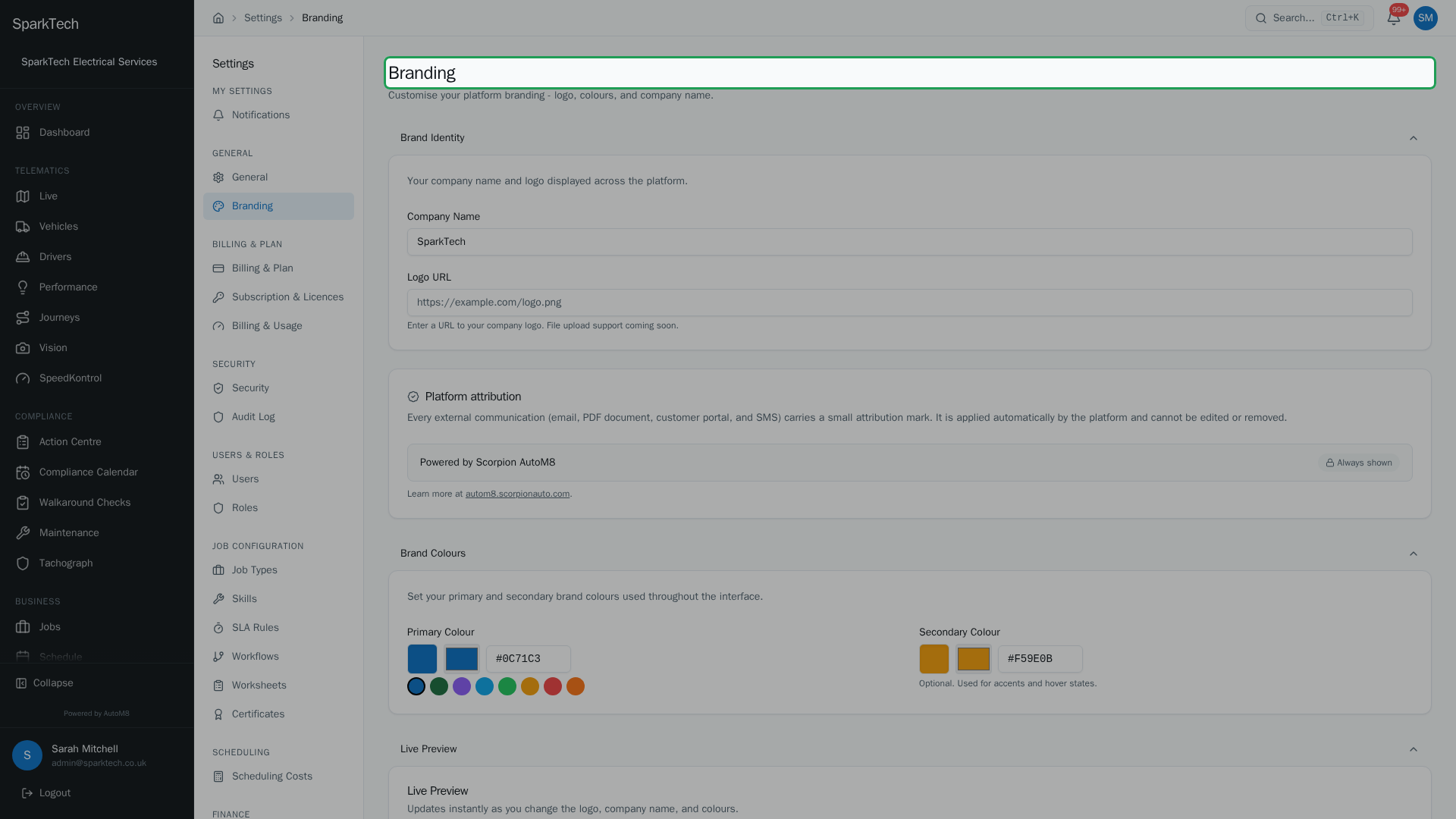
Open Settings then Branding. Set your company name and accent colours, with a live preview, and they carry through the app and onto the customer portal and the documents you send.
General settings and branding set up the basics of your account - who you are, how dates and money are shown, and how AutoM8 looks. You normally set these once when you start.
Permissions. General settings and branding are administrator areas under Settings > General and Settings > Branding.
Company details
At Settings > General you set:
- Company Name - your organisation’s name, shown across the platform and on the things your customers see. Required.
- Address - your company’s postal address, used on documents and records.
- Company Logo - upload your logo by dragging a file in or clicking to browse. Accepts PNG, JPEG, WebP or SVG, up to 2MB. This is the logo used across the app and on customer-facing documents and the portal.
Regional settings
Also at Settings > General, these control how AutoM8 shows dates, times and money for everyone in your account:
| Setting | Options | Default |
|---|---|---|
| Timezone | Any world timezone | Europe/London |
| Currency | A broad list of 14 - GBP, USD, EUR, AUD, CAD, NZD, CHF, JPY, SEK, NOK, DKK, SGD, HKD, ZAR | GBP - British Pound |
| Date Format | DD/MM/YYYY, MM/DD/YYYY or YYYY-MM-DD | DD/MM/YYYY |
Set these to match where your business operates. They affect how times appear on the map and reports, and how amounts are shown on invoices and quotes.
Menu preferences
The Feature Visibility setting controls what happens to features that are not in your current plan:
- Show with an upgrade prompt - locked features still appear in the menus, with a prompt to upgrade.
- Hide from the menus - locked features are hidden entirely.
This only changes what you see in the menus. It never changes what your plan includes.
Branding
At Settings > Branding you set the name and colours that carry your brand through the app and onto the things your customers see:
- Company Name - the name shown across the platform alongside your logo. This is on the Branding page as well as General; set it in either place.
- Primary Colour - the main accent colour used through the app. Pick from the presets or enter your own hex value.
- Secondary Colour - an optional accent used for highlights and hover states.
You get a live preview of how the app will look as you change the colours.
Your logo (set on the General page above) and these colours are also applied to the things your customers see, such as the customer portal and the documents you send.
Platform attribution
The Branding page has a read-only Platform attribution card. Every external communication - email, PDF document, customer portal and SMS - carries a small “Powered by Scorpion AutoM8” mark. It is added automatically by the platform, is marked Always shown, and cannot be edited or removed. There is nothing to configure here; the card simply tells you the mark is present.
Related
- Settings overview.
- Notifications.
- The customer portal.
- Your brand carries across the whole platform: see AutoM8’s field service and fleet software.