Users and roles
Managing users
Manage users in AutoM8 - invite your team, assign each person a role and visibility scope, link them to a driver, and deactivate or remove access when they leave.
Walkthrough Managing users1 screenshots
- Invite your team and set what each can do
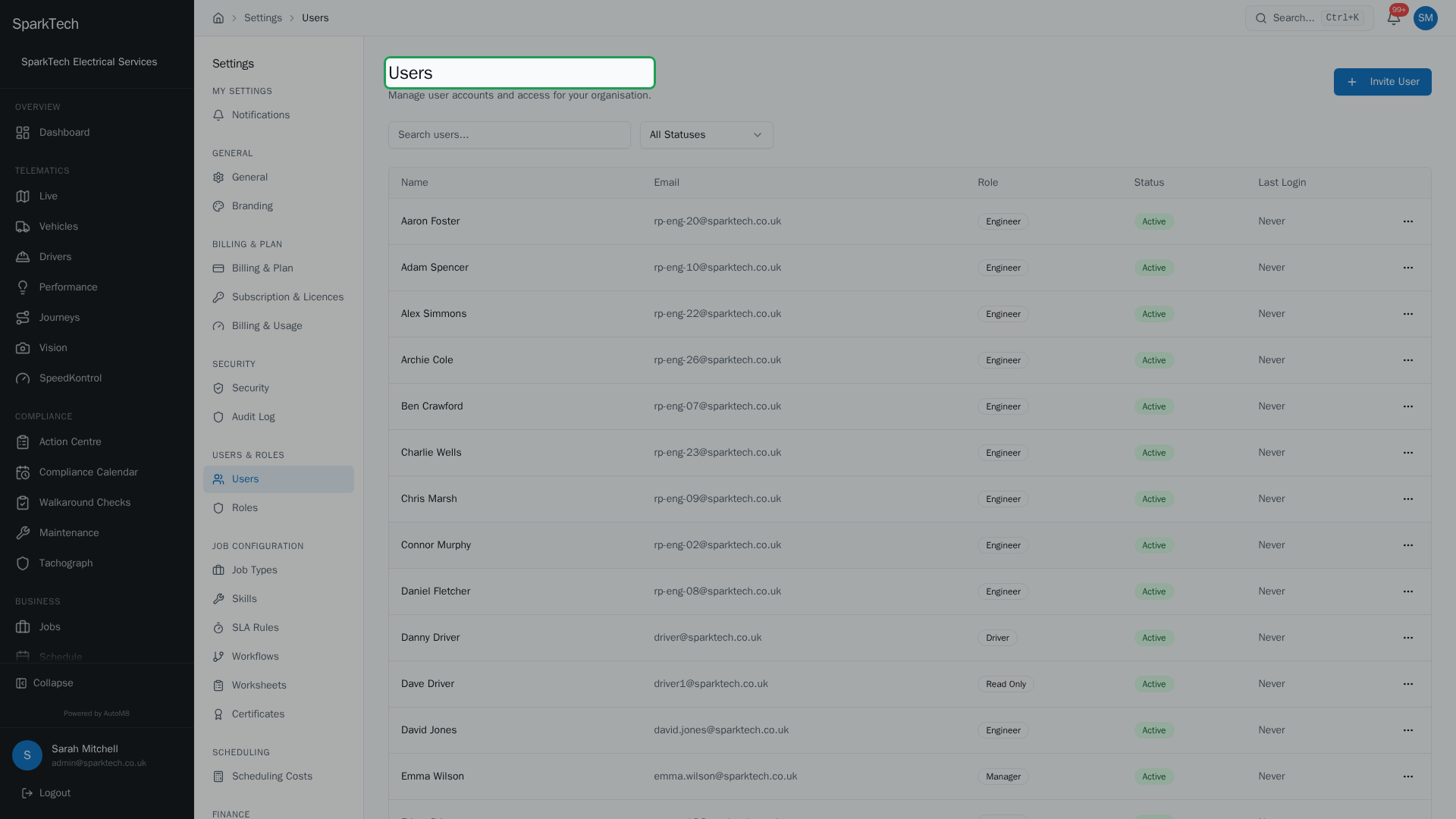
Open Settings then Users. Each person has a name, email, role, status and last login. Invite a user, give them a role that decides what they can do, and deactivate access when they leave.
A user is a person who logs in to AutoM8. This is where you invite your team, set what each person can do, and remove access when someone leaves.
Permissions. Managing users is an administrator task under Settings > Users, controlled by the Settings permissions (View to see, Manage to change). It is available on every plan.
You reach it at Settings > Users.
The users list
The list has a column for each user’s Name, Email, Role, Status and Last Login. The status is one of:
- Active - signed up and able to log in,
- Invited - invited but not yet accepted, or
- Deactivated - access switched off.
Search by name or email, and use the status filter to show only Active, Invited or Deactivated users.
Inviting a user
Who can do this: an administrator (Settings Manage).
- Go to Settings > Users.
- Choose Invite User.
- Enter their Full name and Email, and choose their Role. All three are required.
- Send the invite - they get an email to set their own password.
They show as Invited until they accept. Each user has one role, which decides what they can do. See Roles and permissions.
Editing a user
Who can do this: an administrator (Settings Manage).
Open a user to change their name, email or role. You can also:
- Set their visibility scope - either All groups (they see the whole fleet) or specific vehicle groups (they see only the vehicles in the groups you choose). See Roles and permissions for how groups control who sees what.
- Link them to a driver record - connecting the login to a person in your driver list. This unlocks that driver’s own self-service view, so they can see their jobs, schedule and details from their account. One driver per user.
Keeping access tidy
Who can do this: an administrator (Settings Manage).
- Deactivate a user to switch off their access while keeping their history; Reactivate them later.
- Resend Invite re-sends the invitation email. This action only appears for users who are still Invited.
- Remove a user you no longer need. You are asked to confirm, as it cannot be undone.
Troubleshooting
Why can’t a new user log in? Their invite may still be pending - a user shows as Invited until they accept the email and set a password. Resend Invite if they never received it. If they show as Deactivated, their access is switched off - Reactivate them to let them back in.
Why does a user see fewer vehicles than expected? Their visibility scope is limited to certain vehicle groups, so they only see the vehicles in those groups. Open the user and set their scope to All groups, or add the groups they need.
If a new user signs in but cannot see what they should, work through Why can’t I see something?.
Related
- Roles and permissions.
- Two-factor authentication and security.
- Give your team access to AutoM8, the field service and fleet software that runs your whole operation.