CRM
Customers, sites and contacts
Use the AutoM8 CRM to manage customers, their sites and contacts in one place, log communications, import records and merge duplicates.
Walkthrough Customers, sites and contacts5 screenshots
- Every customer, supplier and partner
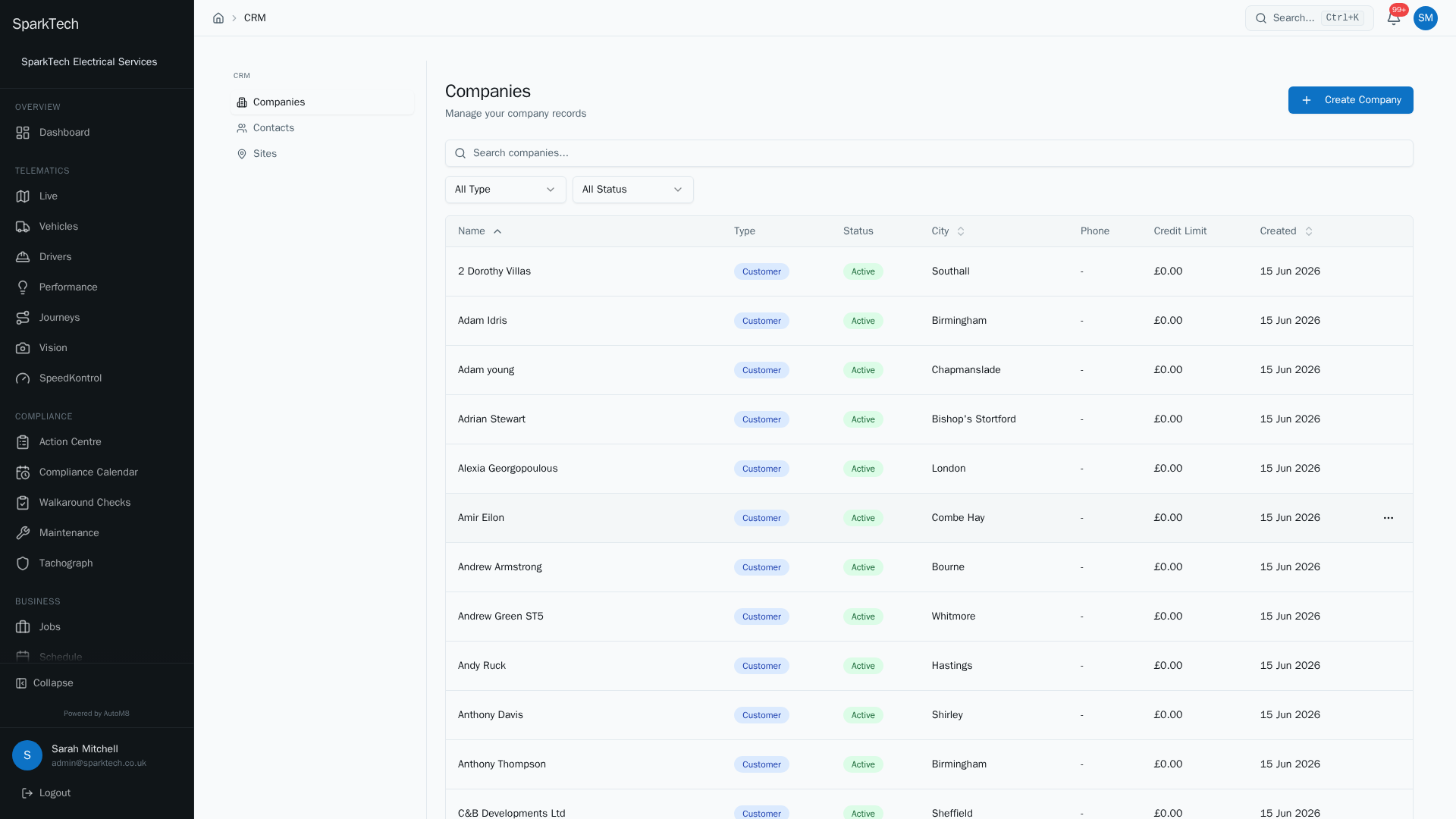
Open CRM then Companies. Every company you work with lives here - customers, suppliers and partners - with its type, status and location.
- The customer record
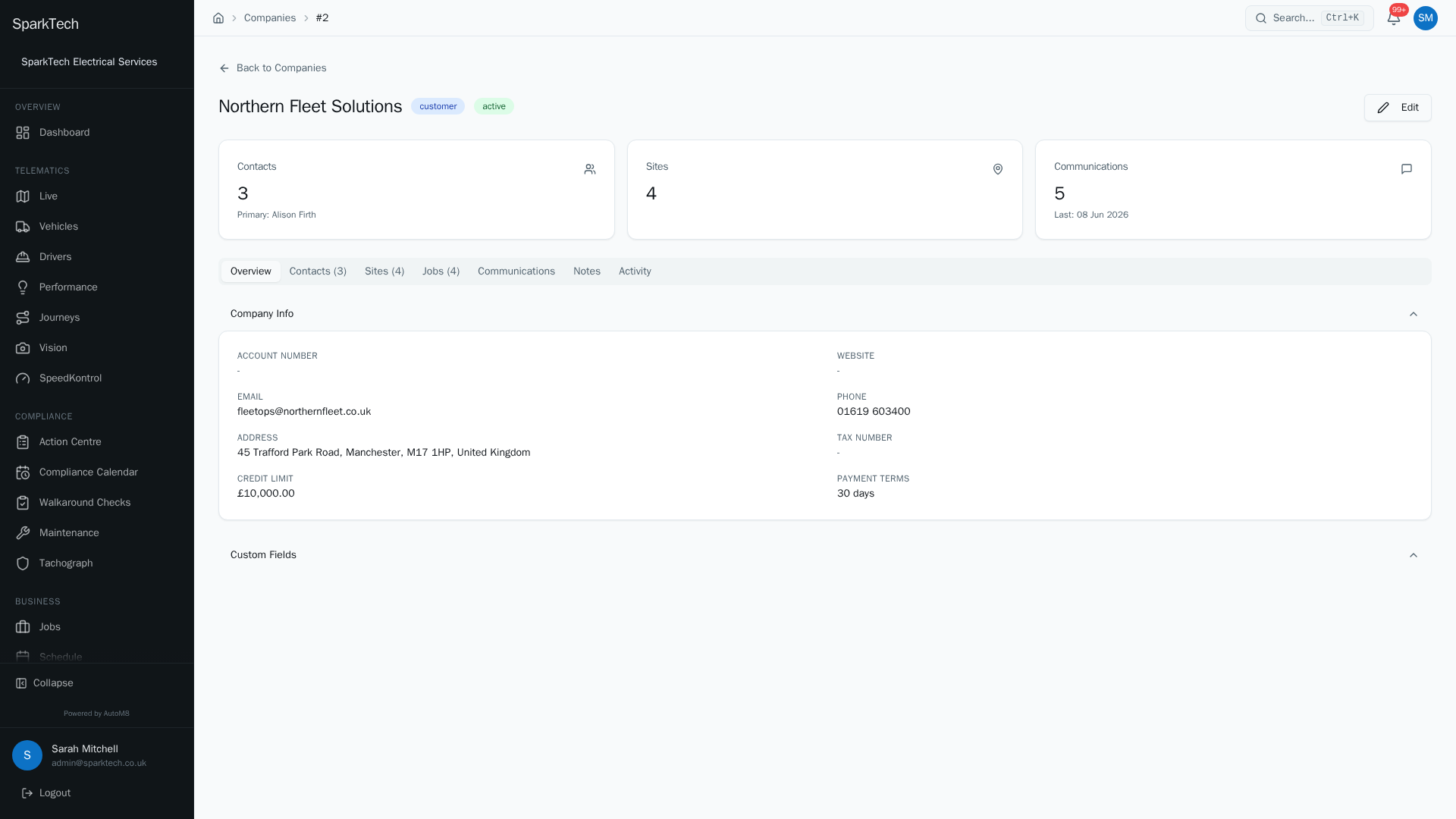
Open a company to see its record: its details, the sites where you work for them, and the people you deal with.
- The sites you work at
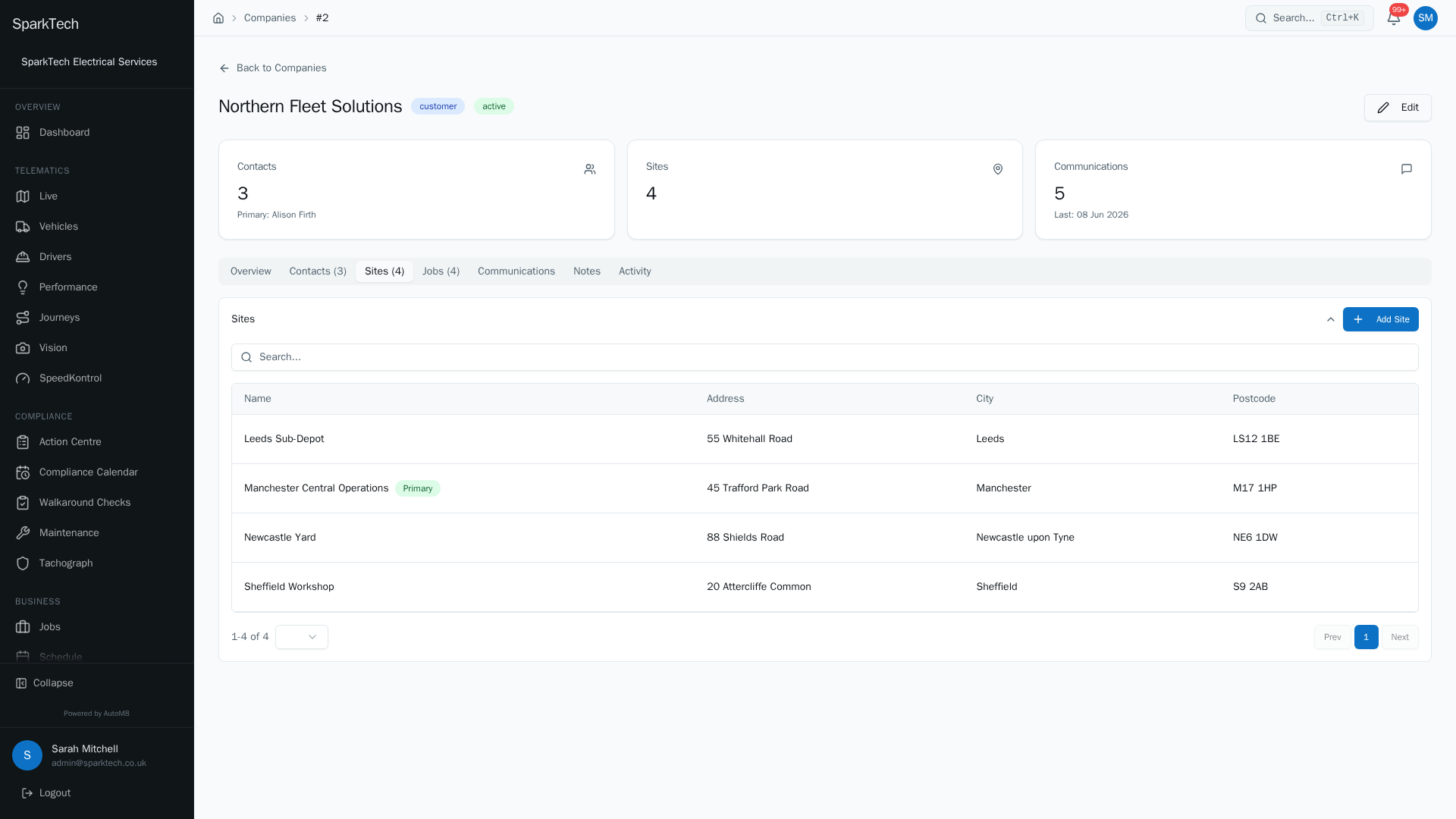
The Sites tab lists every location for this customer, each with its own address that AutoM8 uses to schedule and route jobs.
- The people you deal with
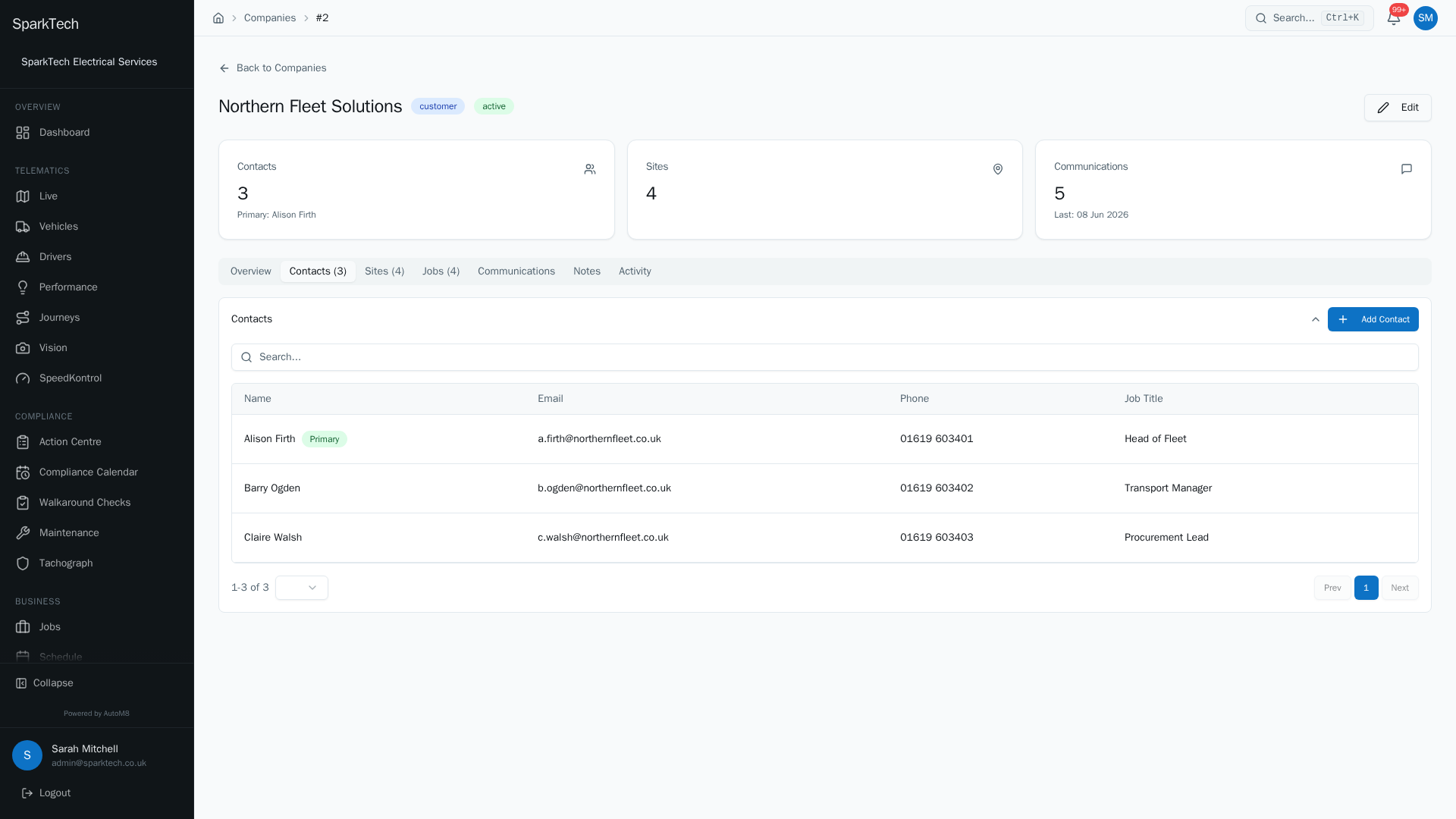
The Contacts tab holds the people at this customer - names, roles, phone and email - so anyone on your team can reach the right person.
- Adding a new customer
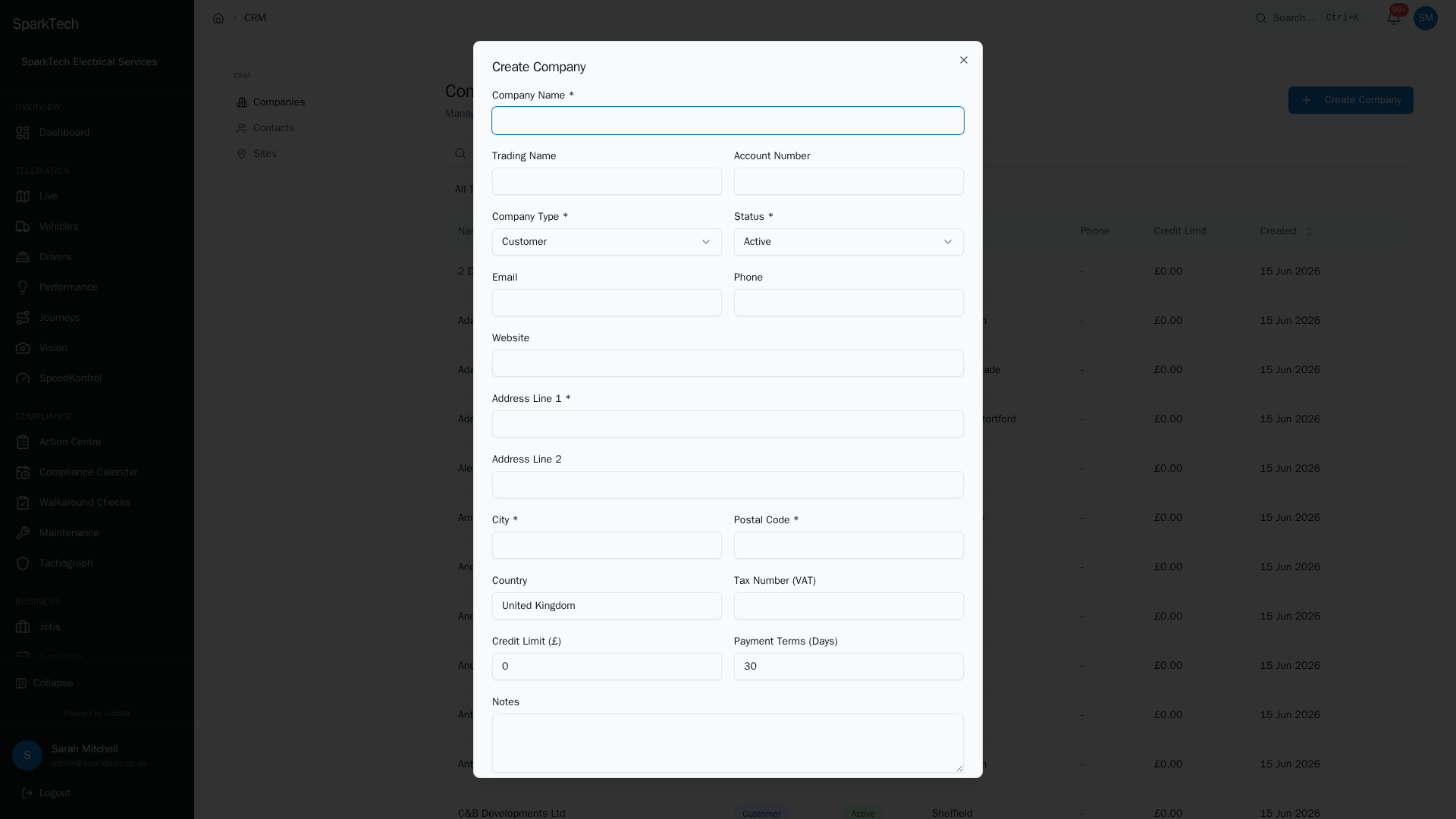
Select Create Company to add a new record. The type defaults to Customer; add their contact details and address and save.
The CRM is where you keep your customers - each company, the sites they operate from, and the people you deal with. In AutoM8 a customer is stored as a company - the CRM holds companies of all kinds (customers, suppliers, partners, internal entities), so Add Company is how you add a customer.
Permissions. CRM records live under Business > CRM. In the CRM group: View to see records, Create to add a company, contact or site, Edit to change or merge them, and Delete to remove them. The same permissions cover companies, contacts and sites. Administrator and Manager include them by default.
You reach it at Business > CRM, which opens with three tabs: Companies, Contacts and Sites.
Adding a company
Who can do this: anyone with Create in the CRM group.
A company is any organisation you deal with - a customer, a supplier, a partner, or an internal entity. Open the Companies tab and choose Add Company. Only the name and a first line of address (with city and postcode) are required; everything else is optional and can be filled in later.
| Field | What it is |
|---|---|
| Company Name | The legal or trading name. Required. |
| Company Type | Customer, Supplier, Partner or Internal. This is what the company is to you. |
| Status | Active, Prospect, Inactive or Archived. This is where the relationship stands - separate from the type, so you can keep a prospect on file before they become a customer. |
| Trading Name | An “also known as” name, shown under the company name. |
| Account Number | Your own reference for the account. |
| Email and Phone | The main contact details for the company. |
| Website | Shown as a clickable link on the company page. |
| Address | Address lines, city, postcode and country. |
| Tax Number (VAT) | The company’s VAT or tax registration number. |
| Credit Limit and Payment Terms (Days) | Used when you quote and invoice - the terms drive an invoice’s due date. |
| Notes | Free text for anything else. |
The company page
Open a company to reach its hub. The header shows its name, its type and its status as coloured badges, and a trading name if set. Along the top are tabs:
| Tab | What it holds |
|---|---|
| Overview | The company details above, plus any custom fields. Choose Edit to change them. |
| Contacts | The people at this company. Add, view or remove them here. |
| Sites | The places you do work for this company. |
| Jobs | Every job raised for this company, with its reference, title, status and scheduled date. Read-only here - open a job to work on it. |
| Communications | A log of your dealings with the company (see below). |
| Notes | Internal notes about the company. |
Three cards at the top count the contacts, sites and communications at a glance.
Contacts and sites
Who can do this: Create in the CRM group to add, Delete to remove.
A company can have many contacts (the people) and many sites (the addresses where work happens).
- To add a contact you need a first and last name; email, phone, mobile and job title are optional. Mark one as Primary to flag your main point of contact.
- To add a site (an address where your team does work - for example a client’s office or depot) you need its name and address. Mark one as Primary for the main location. Sites can carry access, parking and hazard notes so a driver knows what to expect on arrival.
Logging communications
Who can do this: Create in the CRM group. You need at least one contact on the company first.
The Communications tab is a running record of your dealings with a customer. Choose Log Communication and record:
- the Channel - Phone Call, Email, SMS or Meeting,
- the Direction - Outbound (you contacted them) or Inbound (they contacted you),
- an optional Subject and Notes,
- the Duration in minutes (useful for calls and meetings), and
- the Date and Time it happened.
Each entry shows its channel icon, direction, when it happened and how long it took, so you can see the whole history of the relationship in one place.
Importing records in bulk
Who can do this: the matching create permission for each record type (for example Create in the CRM group for companies, contacts and sites).
If you are moving in from another system, you do not have to type everything again. The Import Data wizard (in the Business area) brings records in from a CSV file. It walks through four steps:
- Upload File - pick the record type (Companies, Contacts, Sites and more) and drop in your CSV.
- Map Columns - AutoM8 matches your column headings to its fields automatically; you can adjust the mapping.
- Preview - a dry run that validates every row and shows how many will import, how many will be skipped (already present) and how many have errors, before anything is saved.
- Complete - the real import runs and tells you how many records were added.
Nothing is written until you confirm at the preview step, so you can check the result first. You only see the record types you have permission to create.
Duplicates
Who can do this: Edit in the CRM group to merge.
When you add a company that looks like one you already have, AutoM8 warns you and lets you merge the two, so your data stays clean. A banner appears on a company page when a likely duplicate is found. You can also review all potential duplicates in one place and merge them from there.
Custom fields
Add your own custom fields to companies and sites to capture the details that matter to your business - shown on the Overview tab.
Troubleshooting
Why can’t I see a customer? Seeing CRM records needs the View permission in the CRM group, and your visibility scope may only show you some of them. See the general troubleshooting page.
Why can’t I delete a customer? Removing a company, contact or site needs the Delete permission in the CRM group. Deleting a company also removes its contacts and sites, so make sure you mean to before you confirm.
Why did AutoM8 warn about a duplicate? When a new company looks like one you already have, a banner offers to merge the two - merging needs the Edit permission. You can also review all likely duplicates in one place.
Related
- Creating and managing jobs.
- The customer portal.
- Your CRM connects to the rest of AutoM8’s field service software.