Users and roles
Two-factor authentication and security
Turn on two-factor authentication, set your password policy, control sessions, restrict access by IP, and review the audit log.
Walkthrough Two-factor authentication and security1 screenshots
- Set your security policy once
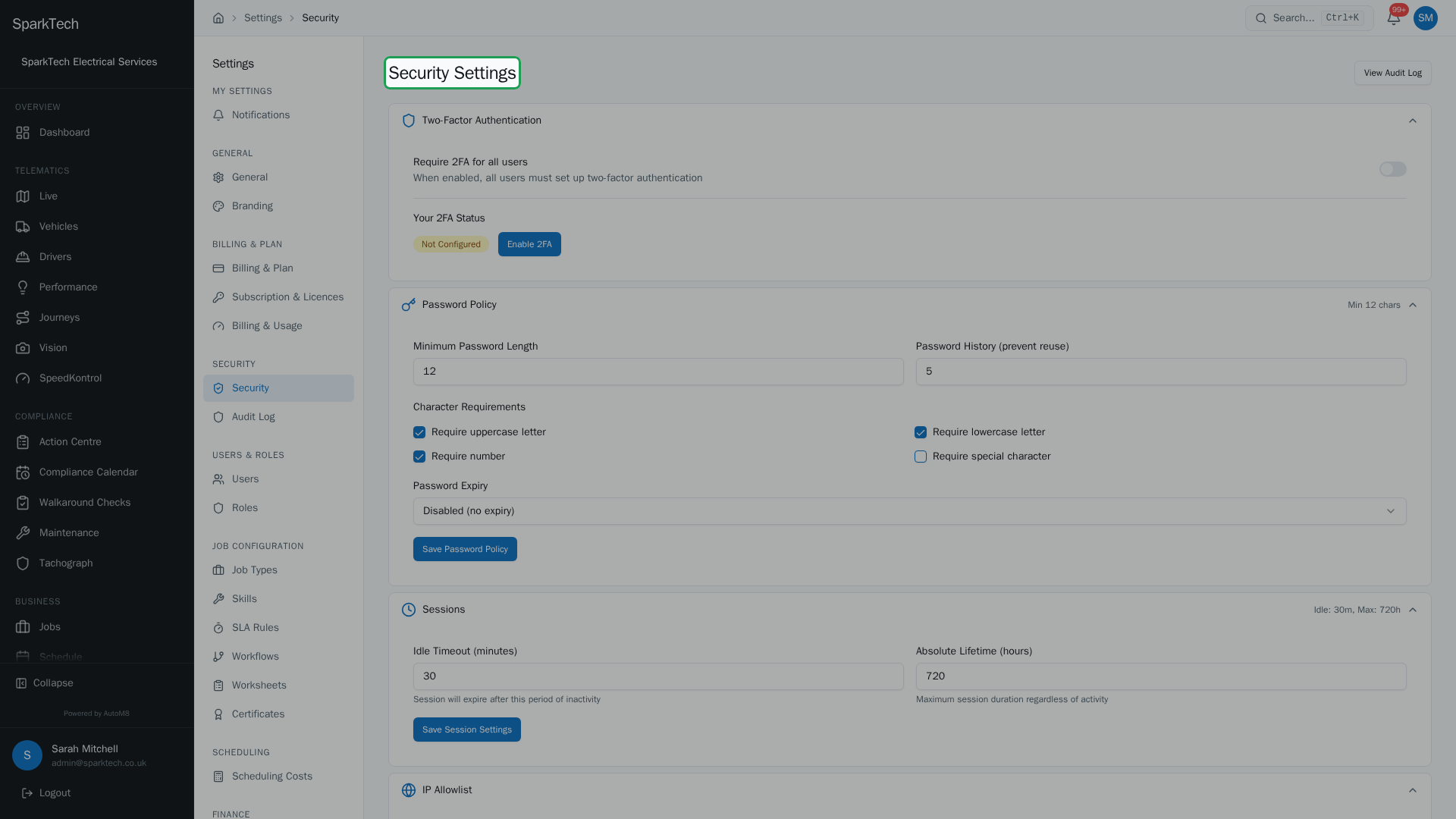
Open Settings then Security. Turn on two-factor authentication, set the password rules, control how long sessions last, and restrict access to trusted networks. A full audit log records logins, 2FA and password changes, role changes and more.
AutoM8 gives you the controls to keep your account secure: two-factor authentication, password rules, session limits, an IP allowlist and an audit trail. You set these once to match your security policy.
Permissions. The security settings are an administrator area, controlled by the Manage permission in the Settings group. You reach them at Settings > Security.
Two-factor authentication
Two-factor authentication (2FA) asks for a code from an authenticator app as well as a password.
What you need before you start. Install a free authenticator app on your phone - for example Google Authenticator, Microsoft Authenticator or Authy. Once you have that, AutoM8 will show you a QR code to scan with it, which sets up the link.
- For yourself: choose Enable 2FA and scan the code with an authenticator app. Your status (enabled, and when) is shown on the page.
- For everyone: turn on Require 2FA for all users. Once on, no one in your account can log in without setting up 2FA. Use this for any account holding customer or vehicle data.
Password policy
Set the rules new passwords must meet:
| Setting | What it does |
|---|---|
| Minimum Password Length | The shortest allowed password - from 8 up to 128 characters. |
| Password History | How many previous passwords cannot be reused - up to 24. |
| Character Requirements | Require an uppercase letter, a lowercase letter, a number and/or a special character. |
| Password Expiry | Force a change every 30, 60, 90 or 180 days - or leave it disabled. |
Set these to match your own security policy or any standard you have to meet.
Sessions
Control how long a login stays valid:
- Idle Timeout - log a user out after a period of inactivity (in minutes).
- Absolute Lifetime - the maximum a session can last regardless of activity (in hours).
Shorter timeouts are safer on shared or public devices; longer ones are more convenient for office staff.
IP allowlist
Restrict access to a list of trusted networks. Add an IP address or a CIDR range (a notation like 192.168.1.0/24 that covers a whole network - ask your IT contact if you are unsure what to enter; for example your office network) with an optional description. Once any address is listed, requests from anywhere else are blocked.
Take care. Turning on IP restrictions blocks every request from an address that is not listed - including yours. Make sure your own current IP is on the list before you save, or you can lock yourself out.
API keys
The Security page has an API Keys section for external applications that need to reach your account programmatically. It carries a short explanation and a Manage API Keys button that opens the full API keys screen, where you create and revoke keys. Managing keys is covered on that screen.
Audit log
The audit log (a button on the Security page, or Settings > Security > Audit Log) records the important actions in your account - logins and failures, 2FA changes, password changes, session revocations, IP allowlist changes, API key and role changes, user invites and deactivations, and settings changes. You can filter it by event type and date range, expand any entry to see the detail, and export it to CSV for your records or an audit.
Related
- Managing users.
- Roles and permissions.
- Settings overview.
- Secure the whole platform: AutoM8 is field service and fleet software in one account.