Tracking
Journeys and replay
Review every trip, filter and classify journeys in bulk, and replay the route with camera footage in step.
Walkthrough Journeys and replay2 screenshots
- Every trip, replayed on the map
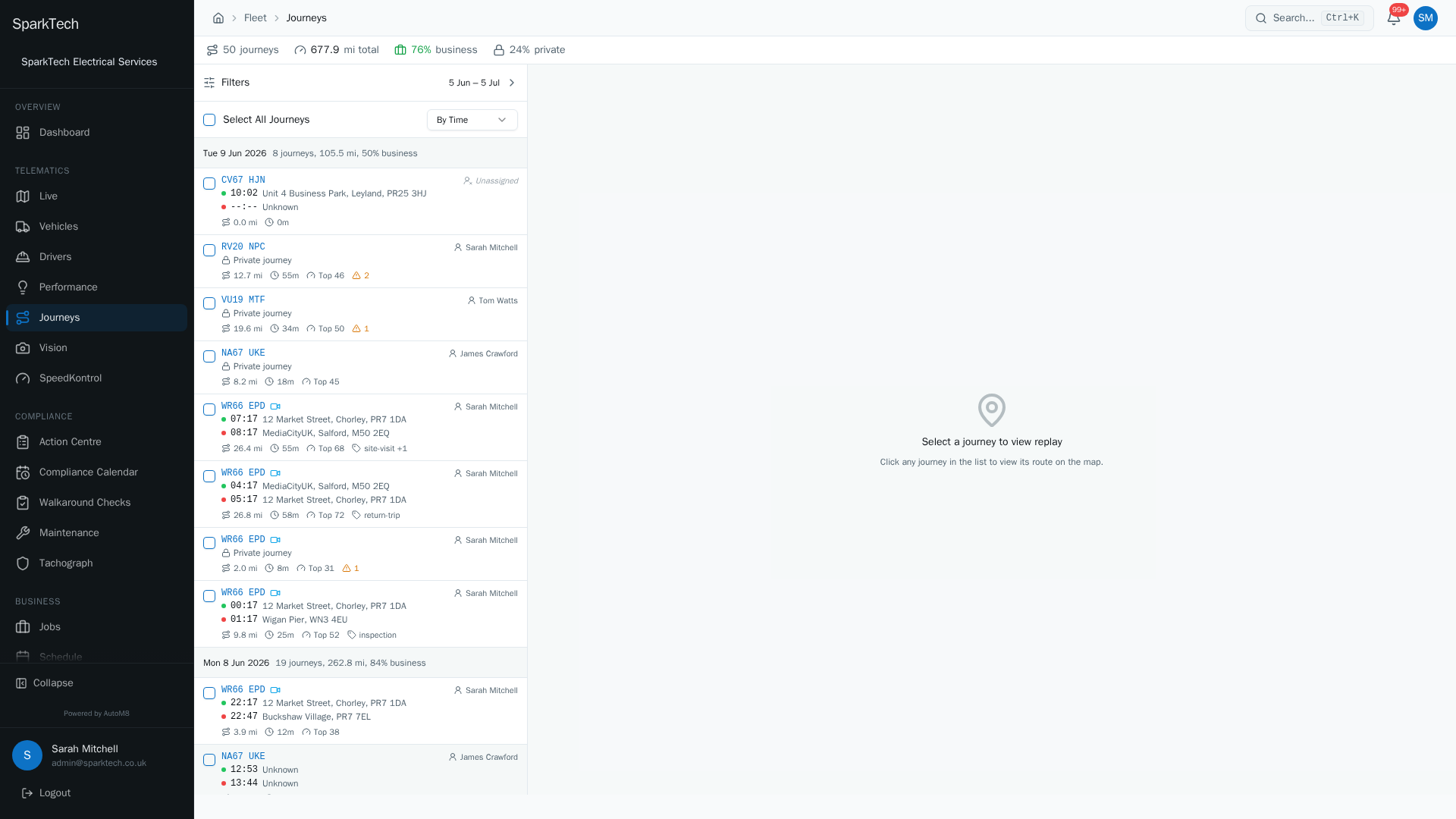
Open Telematics then Journeys. Each trip is listed with its date, distance, driver and duration. Adjust the date range and filters to find the trips you want.
- Replay the exact route
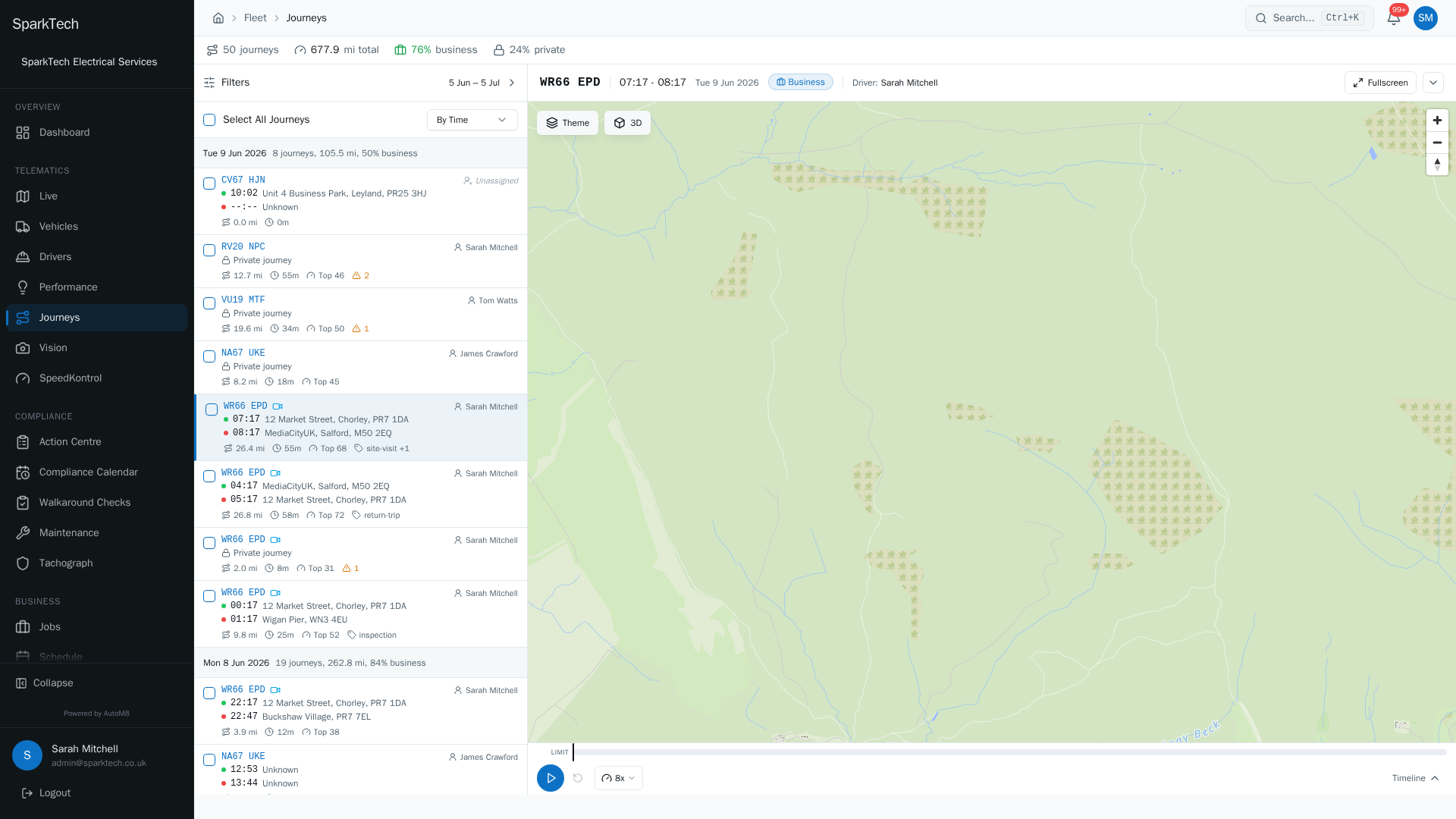
Select a journey to replay its exact route on the map, with the stops, speeds and any driving events along the way.
Every trip a tracked vehicle makes is recorded as a journey. The Journeys page is a split view: a filterable list of journeys on the left, and a replay map on the right that plays back whichever journey you select.
Permissions. Permissions live in Settings > Roles and Permissions. Seeing journeys needs Journeys View (in the FMS (Fleet Management) group). Reclassifying, tagging or reassigning a journey needs Journeys Manage. Administrator and Manager include these by default.
The journeys list
Who can do this: anyone with the Journeys View permission.
Go to Telematics > Journeys. A KPI bar across the top shows the number of journeys, total distance (in miles) and the split between business and private mileage.
Each row shows the vehicle registration, start and end times, distance, duration, the driver and a journey score. A padlock marks a private journey.
A view-mode toggle above the list changes how the journeys are grouped:
| View | What it shows |
|---|---|
| By Time | Every journey individually, grouped under a header for each day. |
| By Day | One collapsed row per day with the day’s totals; expand a day to see its journeys. |
| By Vehicle | Journeys grouped under each vehicle. |
| By Driver | Journeys grouped under each driver. |
Filtering
Who can do this: anyone with the Journeys View permission.
Open the filter panel to narrow the list. Your changes apply when you press Apply filters, and the filtered view has a shareable web address.
| Filter | Options |
|---|---|
| Date range | Presets Today, Last 7 days and Last 30 days, or your own from/to dates. |
| Vehicles | Pick one or more vehicles. |
| Drivers | Pick one or more drivers. |
| Classification | Business, private, or both. |
| Has camera footage | Only journeys with camera footage. |
| Min distance | Hide short trips below a distance you set (in miles). |
| Min duration | Hide short trips below a time you set (in minutes). |
| Sort by | Newest first, oldest first, distance or duration. |
Business or private journeys
Who can do this: a driver can classify their own journeys up to 7 days after the trip; a manager with Journeys Manage can reclassify any journey.
Journeys are classified as business or private. A journey marked private has its route hidden - it shows a “this journey is marked private” note with no map data, which protects the driver’s privacy on personal trips.
You can act on many journeys at once. Tick journeys in the list and use the toolbar to:
- Classify them all business or private, or
- Tag them (for example “fuel run” or “customer visit”).
Reassigning a journey’s driver
Who can do this: a manager with the Journeys Manage permission.
When you open a journey, the summary bar shows its driver. Click the driver name (or “No driver assigned”) to pick the correct person. Read-only users see the driver but cannot change it.
Replaying a journey
Who can do this: anyone with the Journeys View permission.
Select a journey to replay it on the right-hand map:
- The map draws the route, coloured by speed, with markers for any driving events (such as harsh braking or speeding).
- The summary shows the start and end addresses, distance, duration, maximum speed and the number of events. Click an address to jump the replay to the start or end.
- A timeline at the bottom lets you play, pause and scrub, change the playback speed, and jump to event and camera markers. Expand it for the full drawer with a speed graph and event lanes.
- Fullscreen opens a dedicated, full-window replay.
Camera vehicles
Who can do this: anyone with the Journeys View permission.
If the vehicle has a camera, the replay gains extra tools:
- A camera dock beside the map plays the footage in step with the route. Video plays at normal speed; speeding up the replay detaches the video, with a one-tap way to resume in sync.
- A route tint toggle colours the route by Speed (against the limit) or by Footage coverage (where video exists).
- Save clip lets you cut a clip around the current point and keep it against the journey.
- The footage itself is exported as an MP4 from the vehicle’s footage library, with a status while it prepares. See Cameras and video.
Camera events also line up with the route on the timeline.
Troubleshooting
Why are no journeys showing? A journey only appears once the vehicle’s device has reported the trip, so a vehicle that is not tracking (no device, or the device is offline) records nothing. It can also be that the vehicle is outside your visibility scope, or that the journeys you are looking for are marked private - a private journey still lists but hides its route. Check your filters (especially the date range and classification), and check the device on Managing devices and trackers.
Why does a journey have no camera footage? Footage only exists for journeys made by a vehicle with a camera fitted, and only where a clip was actually kept. A journey with no camera, or one where the clip has aged out of the footage library, replays the route without video. See Cameras and video.
For permission, scope or licence causes, see Troubleshooting.
Related
- Driving events.
- Live map.
- Cameras and video.
- Driver scoring and coaching.
- Journey history is part of AutoM8 vehicle tracking.