Scheduling and dispatch
The schedule board
Plan and track jobs across seven scheduling views - a Kanban board, driver timeline, route map, dashboard, live map, route planning and recurring.
Walkthrough The schedule board2 screenshots
- Plan the week on the board
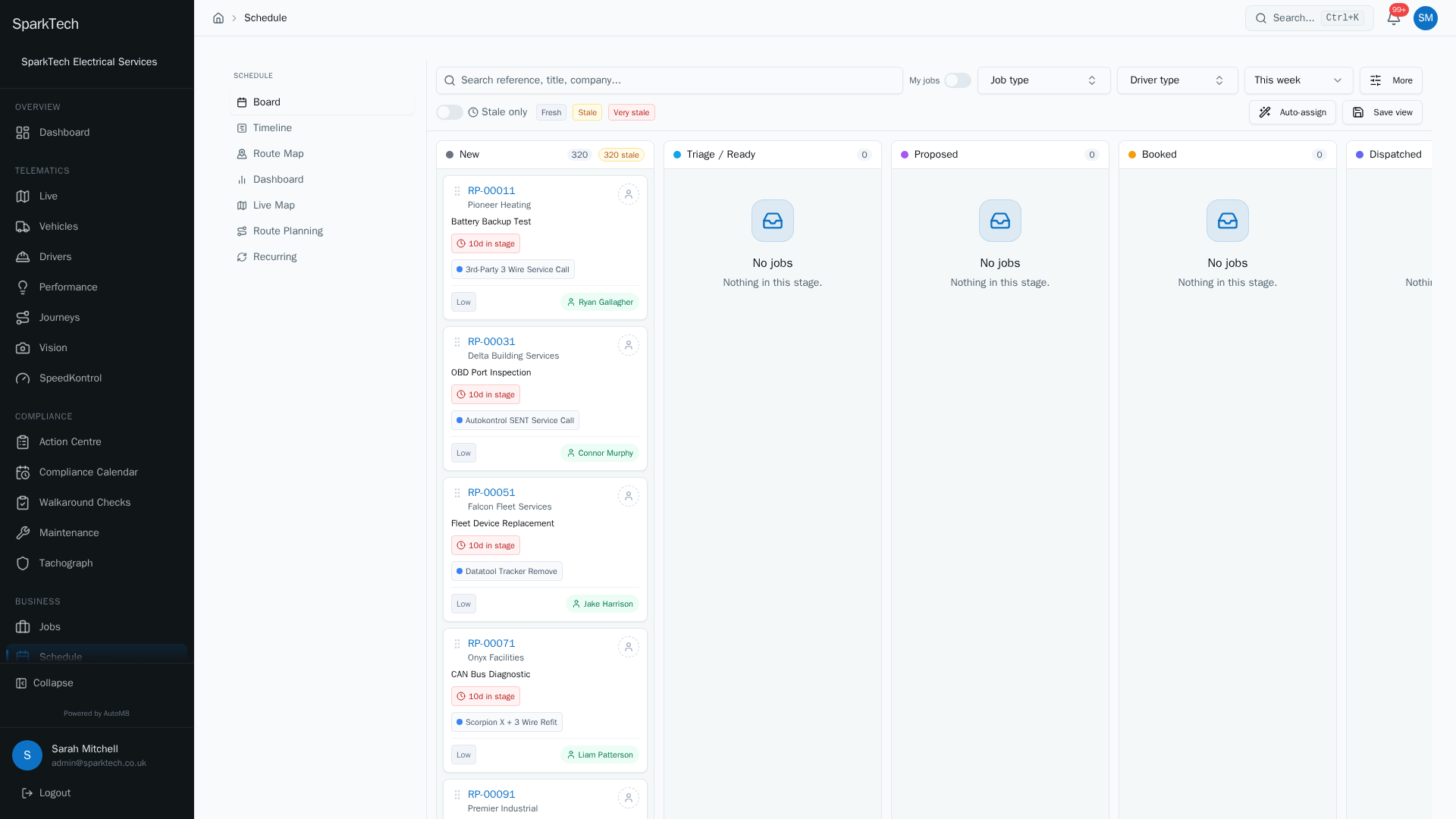
Open Business then Schedule. Jobs move across the columns as they progress - New, Ready, Booked and Dispatched - and you can drag a job to change its stage.
- A column for every stage
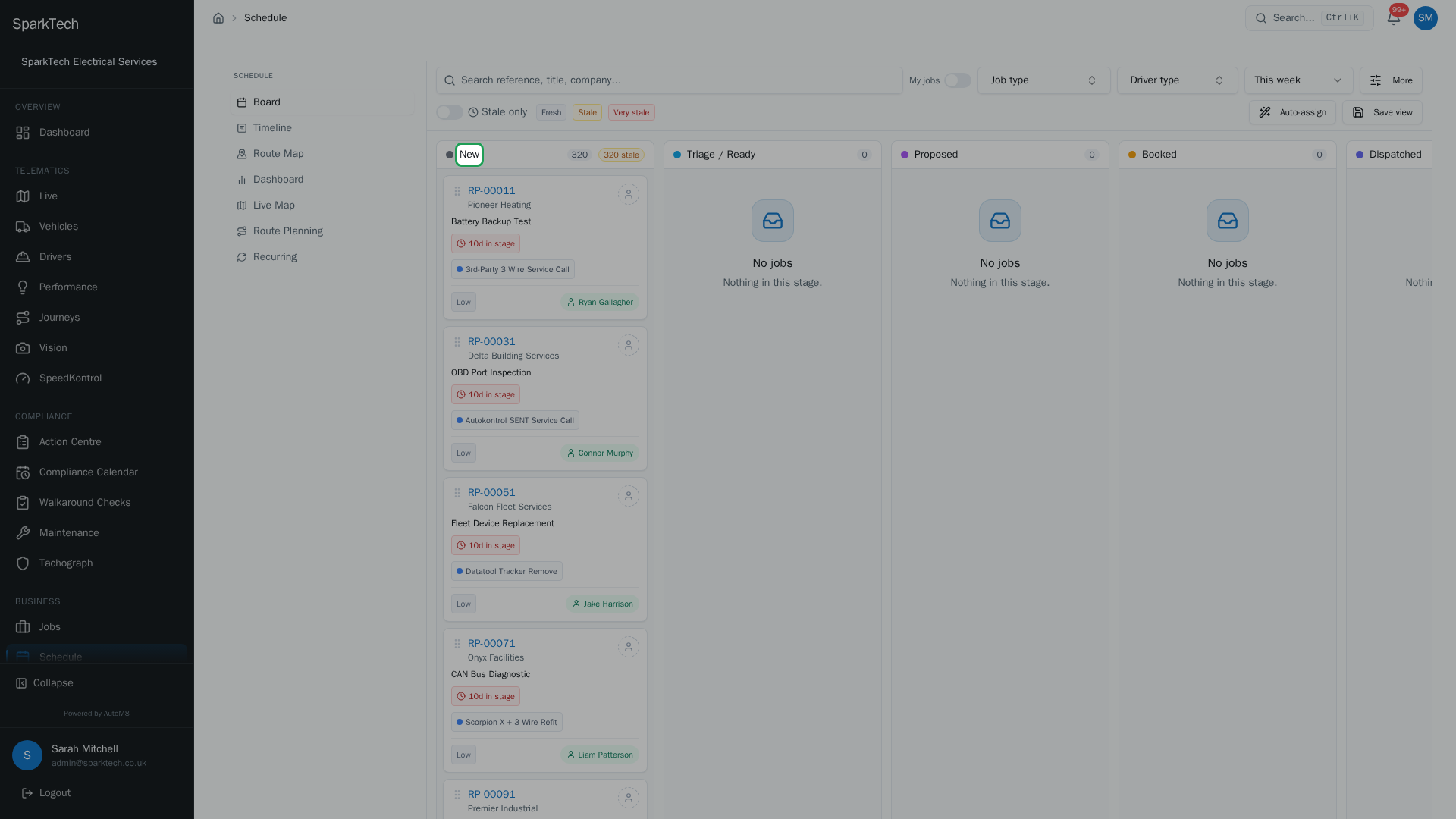
Each column is a stage in your workflow. A stale job that has waited too long in a stage is flagged, so nothing slips through the cracks.
The schedule brings all your jobs together so you can plan the day, see each driver’s workload, and track progress.
Permissions. These live under Settings > Roles and Permissions, in the Schedule group. Seeing the schedule needs Schedule View; moving jobs, assigning work and bulk auto-assign need Schedule Manage. Administrator and Manager include them by default.
Go to Business > Schedule. The schedule is a hub with seven tabs:
| Tab | What it is for |
|---|---|
| Board | The Kanban board (jobs shown as cards in columns, one column per stage - drag a card to move the job on) - jobs in columns by workflow stage. The main planning view (below). |
| Timeline | Each selected driver’s day laid out as lanes on a shared time axis. |
| Route Map | Each driver’s routed day drawn on a map, with live vehicle positions. |
| Dashboard | Driver utilisation and performance analytics for the schedule. |
| Live Map | The live positions of your drivers’ vehicles. |
| Route Planning | Optimise a day’s jobs into efficient routes. See Route planning. |
| Recurring | Jobs that repeat on a schedule. See Recurring jobs. |
The board (Kanban)
The Board tab is a full Kanban board. The columns are your workflow stages (Not Started, Assigned, In Progress and so on), and each job is a card in the column for its current stage.
Who can do this: viewing needs Schedule View; dragging cards and assigning need Schedule Manage.
- Move a job’s stage by dragging its card to another column. This changes the job’s status, the same as moving it on the job page.
- Open a job card to reach the slot finder (AutoM8’s tool that picks the best driver and time - see Dispatching jobs), which ranks the best driver and time and books them in one step. See Dispatching jobs.
Column headers show a live count, so you can see at a glance where work is piling up.
Filters
A filter bar sits above the board. The main row has:
- a search box (matches reference, title or company),
- a My jobs toggle (show only jobs owned by you),
- a Job type picker,
- a Driver type picker (a category of driver, set on the driver record), and
- a date range preset: Today, This week, Next 2 weeks, This month, or Custom (pick your own from/to dates).
A More button opens a popover with extra filters: Priority, Stage, the custom date fields, and a not progressed in more than N days cut to surface jobs that have been sitting in a stage too long.
Job aging
Cards are shaded by how long they have been waiting, with a legend on the bar: Fresh, Stale and Very stale. A card turns stale after it has not progressed for a set number of days (configurable via the not progressed in more than N days filter above). The colour is always paired with the label, so it reads at a glance. Turn on Stale only to hide fresh cards and focus on what is stuck.
Bulk auto-assign
Who can do this: Schedule Manage.
Use Auto-assign on the filter bar to assign many unassigned jobs at once. AutoM8 first shows a preview - for each unassigned job it names the driver it would assign, and lists any jobs it would skip with the reason. Nothing is changed until you confirm; then it assigns them all in one go. It is a deliberate action, not something that happens on its own.
Timeline
The Timeline tab lays out each selected driver’s day as a lane on a shared time axis, so you can see who is busy and where the gaps are. Pick the date and the drivers you want to see.
Route Map
The Route Map tab draws each driver’s routed day on a map, with their live vehicle position, so you can see where everyone is and how the day is running.
Troubleshooting
Why is a job not on the board? The board only shows jobs inside the current date range and matching your filters. Check the date range preset and clear any search, My jobs, Job type, Driver type or Priority filters, and look in the columns for unscheduled or unassigned work.
Why can’t I drag a job? Moving cards between columns needs Schedule Manage. With only Schedule View the board is read-only - ask an Administrator or Manager to check your role, see Troubleshooting.
Why don’t I see all drivers as lanes? The Timeline and Route Map only show active drivers that fall within your visibility scope, so drivers outside your groups, or those not currently active, will not appear. See Troubleshooting.
Related
- Dispatching jobs.
- Route planning.
- Creating and managing jobs.
- Recurring jobs.
- Scheduling is one part of AutoM8’s wider field service software.