Finance
Invoices and payments
Raise and send invoices in AutoM8, bill completed jobs automatically, and record the payments you receive to keep balances up to date.
Walkthrough Invoices and payments2 screenshots
- Invoices and what is still owed
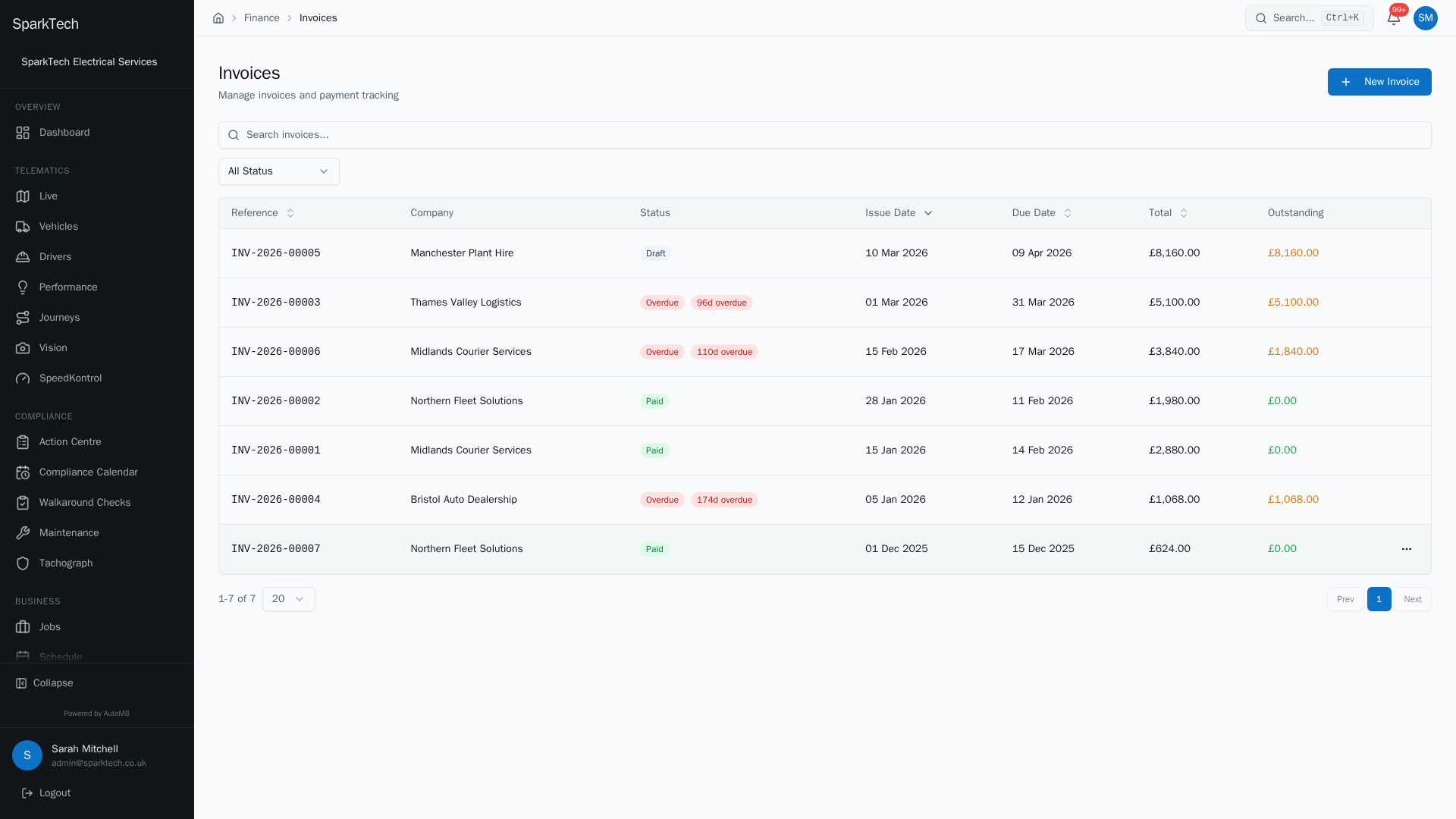
Open Business then Invoices. Each invoice shows the customer, its status, the issue and due dates, the total and what is still outstanding, with overdue invoices flagged.
- The invoice, with its line items and payments
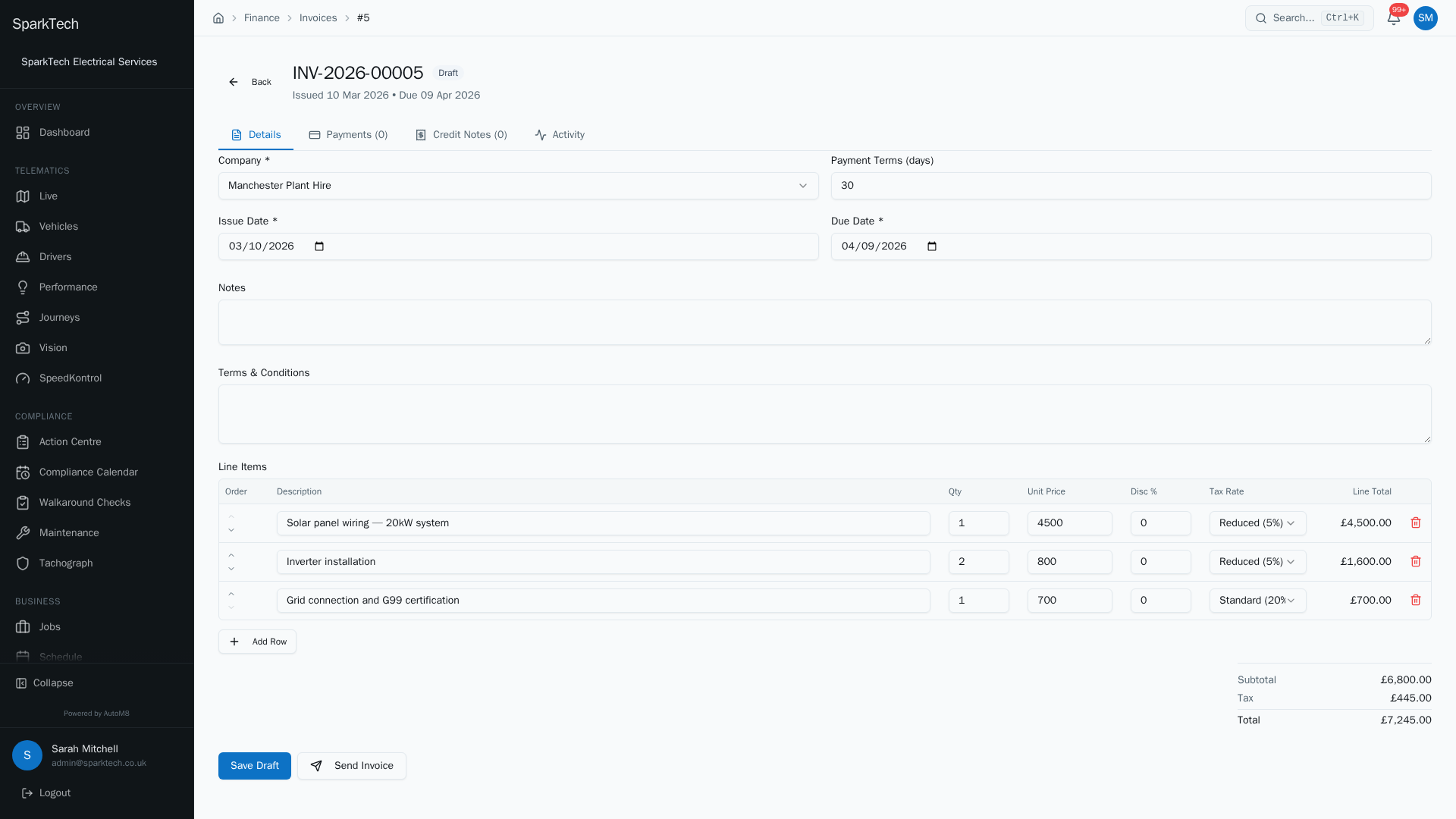
Open an invoice to see its line items, totals, the customer, and the payments recorded against it. Payments are recorded by hand as they come in.
Raise invoices, send them to customers, and record payments as they come in.
Permissions. Invoices live under Business > Invoices. Creating, editing, sending and voiding an invoice need the Invoices permission, and recording a payment needs the Payments permission - both in the Financial group. Administrator and Manager include them by default.
You reach it at Business > Invoices. The list shows each invoice’s reference, company, status, dates, total and outstanding balance, with a Status filter.
The invoice lifecycle
An invoice carries one of these statuses:
| Status | What it means |
|---|---|
| Draft | Being written. Only a draft can be edited. |
| Sent | Issued to the customer. |
| Partial | Part-paid - some payment recorded, a balance still outstanding. |
| Paid | Settled in full. |
| Overdue | Past its due date with money still owed. |
| Void | Cancelled and struck through - it no longer counts. |
On the list, an overdue invoice also shows an ageing badge (“Nd overdue”) that turns from amber to orange to red as it ages past 30 and 60 days, so the oldest debts stand out.
Raising an invoice
Who can do this: anyone with the Invoices permission.
Before you start: the customer must already exist in your CRM. If the Company list is empty, add the customer first (see Customers, sites and contacts). You can also raise an invoice directly from a completed job - see “Billing a completed job” below.
- From the invoices list choose New Invoice.
- Pick the Company, set the Issue Date and Due Date, and add Notes, Terms and line items (each with a quantity, unit price, optional discount % and tax rate).
- The Payment Terms (days) field drives the due date - the number of days you give the customer to pay.
- Save Draft, then Send Invoice.
You can Void an invoice that should not stand (any status except draft or already void), which asks you to confirm first.
Billing a completed job
Who can do this: set up once by an administrator in Settings > Automations.
The core billing loop turns finished work into an invoice automatically. Using an automation (Settings > Automations) with the Create Invoice action, a completed job raises an invoice built from the time your drivers logged against it (at the job type’s billing rate) plus any expenses. The job’s invoiced figure is filled in, tying the two together.
This is safe if a job is processed more than once: if an invoice already exists for that job, AutoM8 reuses it rather than raising a duplicate.
Recording payments
Who can do this: anyone with the Payments permission.
Open an invoice and go to its Payments tab. Three figures sit at the top - Total, Paid and Outstanding - so you always know where the invoice stands. Choose Record Payment and enter:
- the Amount (a “fill outstanding amount” shortcut sets it to the balance),
- the Payment Method - Bank Transfer, Card, Cash, Cheque, Credit Note or Other,
- the Payment Date, and
- an optional Reference and notes.
As payments come in, the invoice moves from Sent to Partial to Paid, and the outstanding balance updates. The Payment History below lists every payment recorded.
Any credit notes raised against an invoice are listed, read-only, on its Credit Notes tab.
The financial dashboard
Business > Financial Dashboard gives you the headline numbers - money in, what is outstanding and overdue, your top debtors, an ageing chart, and how jobs are performing - at a glance.
Troubleshooting
Why can’t I edit this invoice? Only a Draft invoice can be edited. Once you send it, the invoice is locked; if it needs to change, Void it and raise a fresh one.
Why can’t I void it? A Draft invoice and an already-Void invoice cannot be voided - voiding only applies to an invoice that has been issued.
Why can’t I record a payment? Recording a payment needs the Payments permission, separate from the Invoices permission. Recording a payment here is manual bookkeeping - you enter what you have received; the invoice moves from Sent to Partial to Paid as you do.
Why can’t I see or act on an invoice? Start with your role’s permissions and visibility scope, then your plan tier. The general troubleshooting page explains how to check each.
Related
- Quotes.
- Purchase orders and suppliers.
- Getting paid is part of running jobs with AutoM8’s field service software.