Finance
Purchase orders and suppliers
Raise purchase orders, get them approved, and receive what you order.
Walkthrough Purchase orders2 screenshots
- Order parts and track what you spend
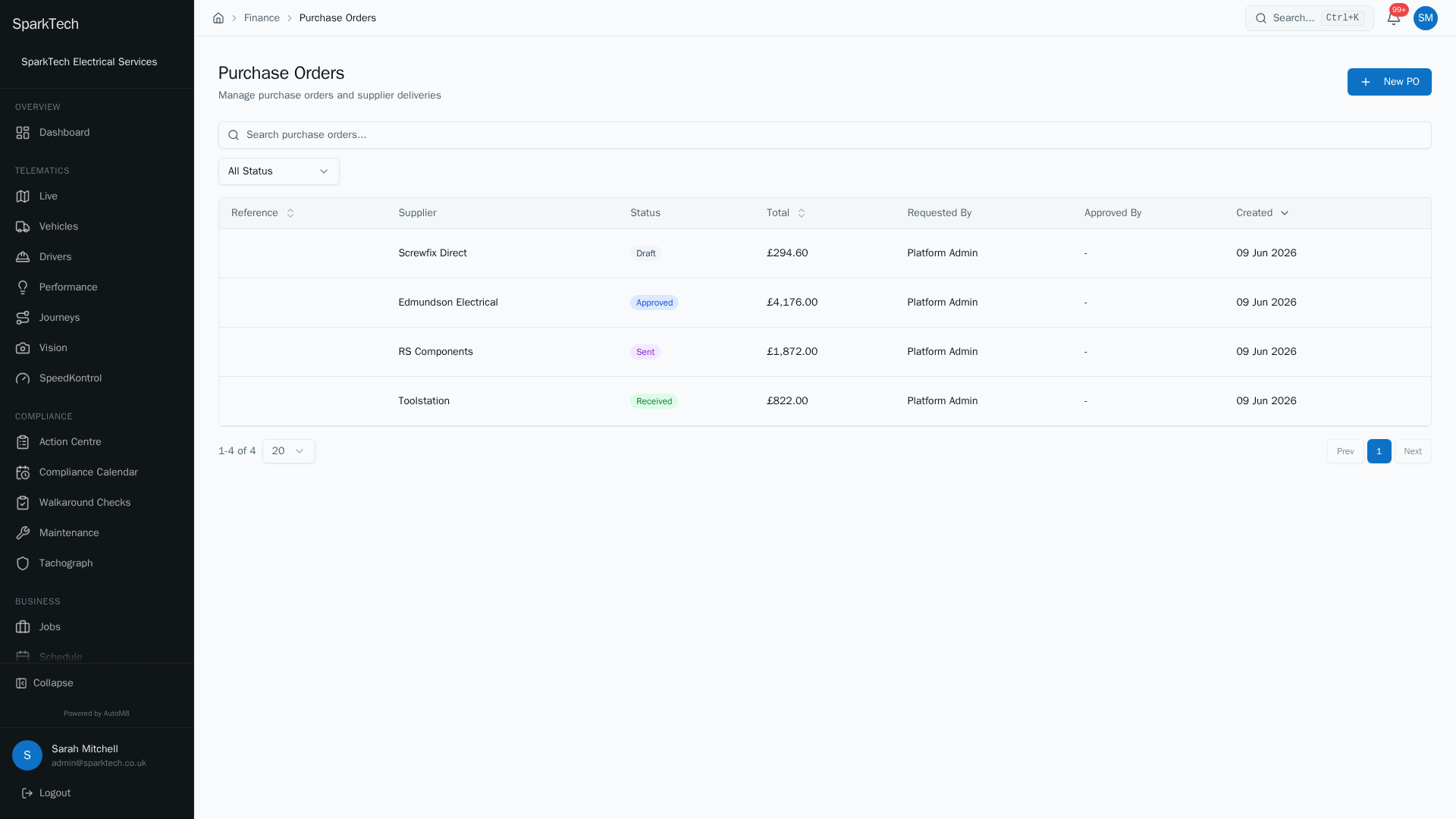
Open Business then Purchase Orders. Each order shows the supplier, its status and total, so you can track what is on order and what it costs.
- The order, and where it is up to
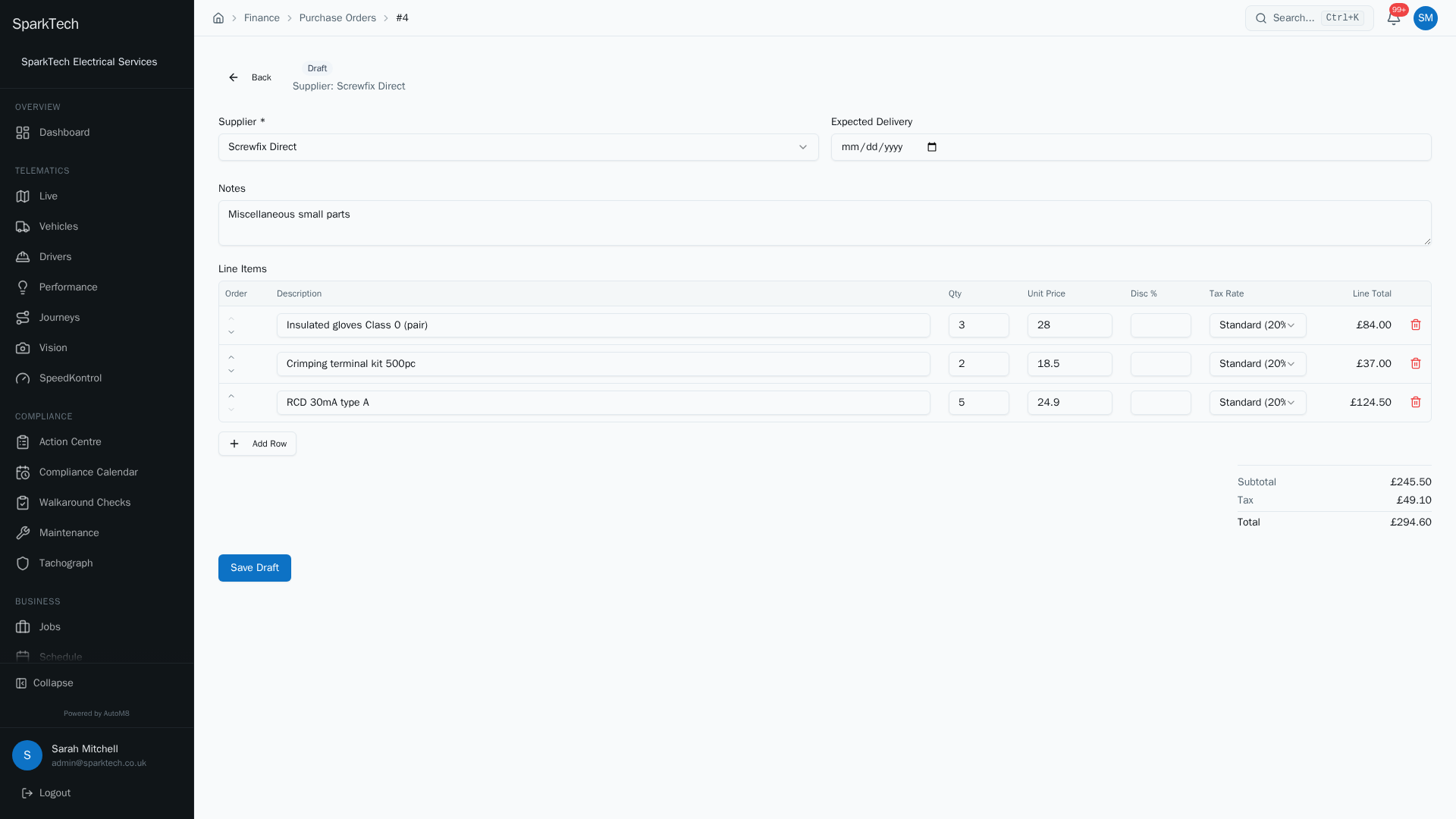
Open a purchase order to see its line items and supplier, approve it, send it, and receive the goods against it when they arrive.
Order goods and services from your suppliers with purchase orders, with approval and receiving built in.
Permissions. Purchase orders live under Business > Purchase Orders. Raising, editing and sending one needs the Purchase Orders permission; approving or rejecting one needs the separate Approve permission; suppliers need the Suppliers permission - all in the Financial group. Administrator and Manager include them by default.
You reach it at Business > Purchase Orders. The list shows each purchase order (PO)’s reference, supplier, status, total, who requested it and who approved it, with a Status filter.
The purchase order lifecycle
A purchase order moves through these states:
| Status | What it means |
|---|---|
| Draft | Being written. Only a draft can be edited. |
| Pending Approval | Waiting for someone with the Approve permission to sign it off. |
| Approved | Signed off; it can now be sent. |
| Sent | Issued to the supplier. |
| Partially Received | Some, but not all, of the ordered goods have arrived. |
| Received | Everything has arrived. |
| Rejected | Turned down at approval, with a reason. |
Small orders under your approval threshold are approved automatically on save; larger ones go to Pending Approval for a second person to check. The approval threshold is set in your finance settings by an administrator.
Raising a purchase order
Who can do this: anyone with the Purchase Orders permission.
Before you start: the supplier must already exist. If the Supplier list is empty, add the supplier first (managed under Business > Suppliers).
- From the list choose New PO.
- Pick the Supplier, set an Expected Delivery date, and add Notes.
- Add line items (description, quantity, unit price, optional discount % and tax rate). A line can be linked to a stock item, so that receiving it later tops up your inventory automatically.
- Save Draft. Depending on the total, the PO is either approved straight away or sent for approval.
Approval
Who can do this: anyone with the Approve permission.
So that the person who raises an order is not the one who signs it off, approving or rejecting a purchase order needs the separate Approve permission. On a PO that is Pending Approval, an approver sees Approve and Reject buttons.
- Approve moves the PO to Approved, so it can be sent. The approver’s name and the time are recorded on the PO.
- Reject lets you add a reason, which is shown on the PO so everyone can see why it was turned down.
An approved PO then shows Send to Supplier.
Receiving goods
Who can do this: anyone with the Purchase Orders permission.
Once a PO is Sent (or Partially Received), a Receive Lines table appears. For each line it shows the quantity Ordered against the quantity Received so far. Enter how many have just arrived and choose Receive. AutoM8 updates the received figure and moves the PO to Partially Received or Received as appropriate. Where a line is linked to a stock item, receiving it also records a stock receipt, so your inventory stays right without a second step.
Suppliers
Who can do this: anyone with the Suppliers permission.
Manage your suppliers under Business > Suppliers.