Compliance
Service and maintenance scheduling
Schedule services and maintenance, work through what is due from one reminders list, and roll standard schedules out to a whole vehicle group with templates.
Walkthrough Maintenance scheduling2 screenshots
- Every service and renewal, scheduled
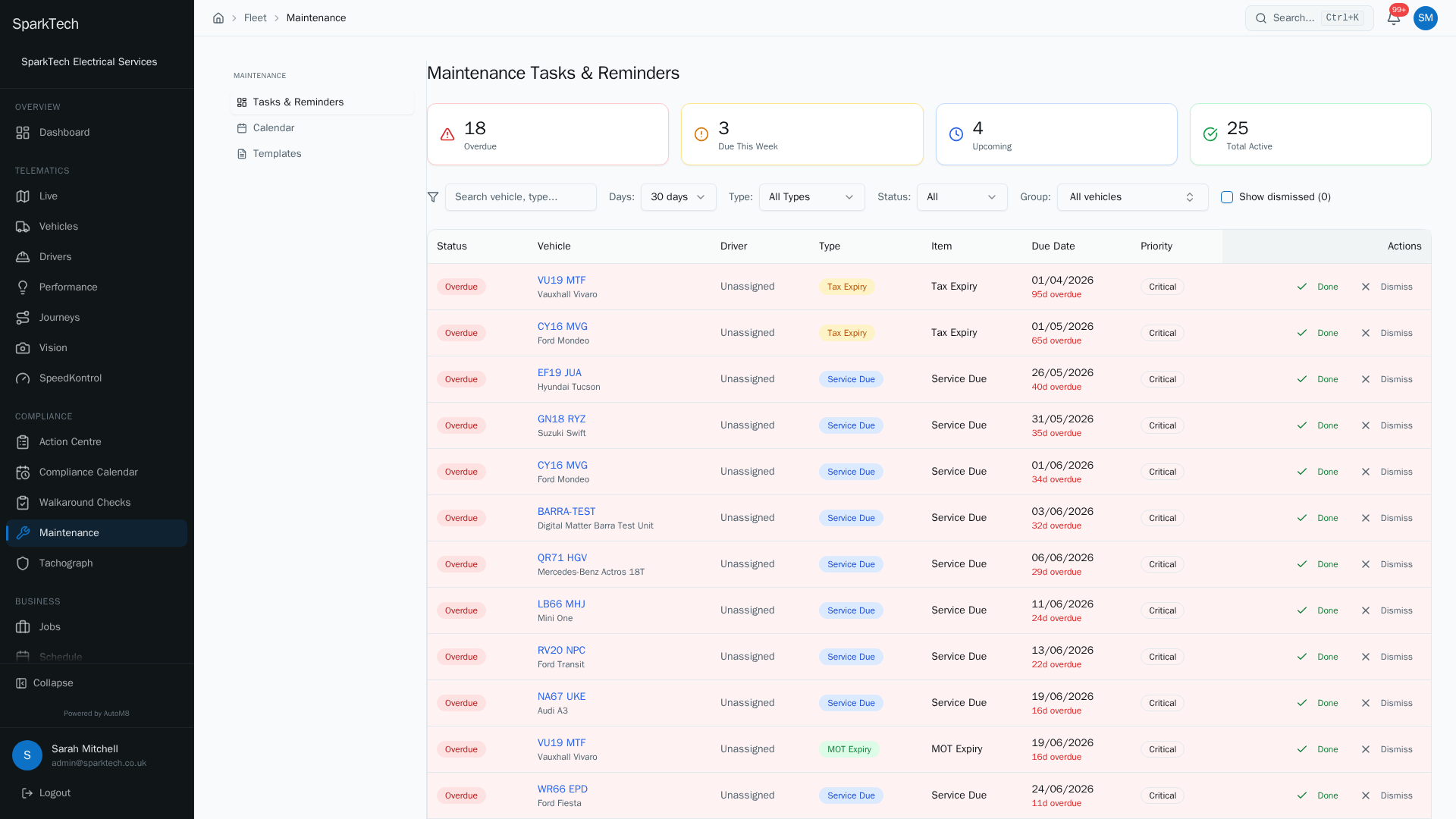
Open Compliance then Maintenance. Service intervals, MOT, tax and inspection reminders are tracked per vehicle, with cards for what is overdue, due this week and coming up.
- Plan the maintenance schedule
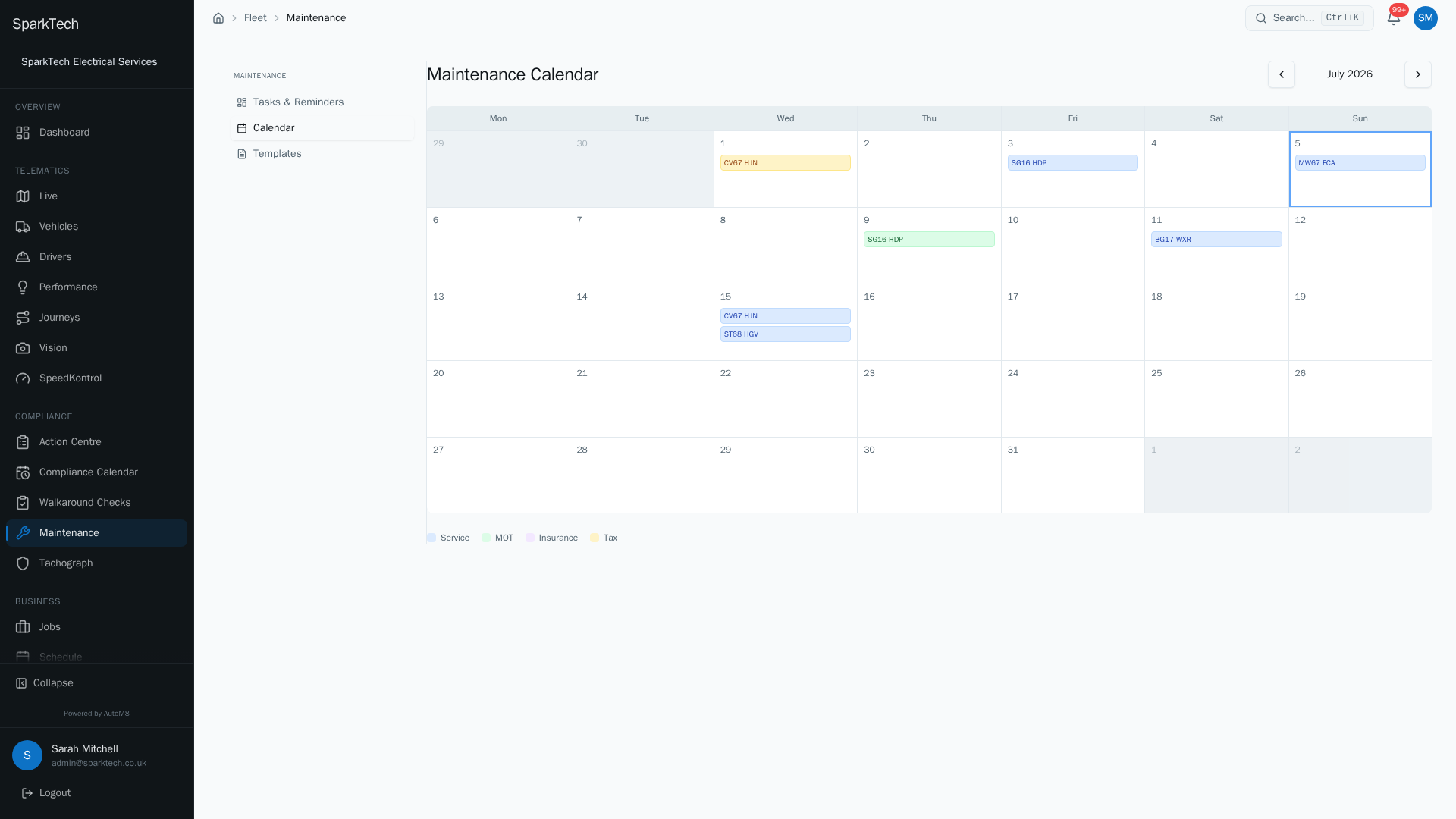
The Calendar view lays the schedule out by date so you can spread the work and book vehicles in without clashing with jobs.
AutoM8 keeps on top of servicing and maintenance - scheduling work before it falls due and giving you one list of everything coming up.
Permissions. Seeing maintenance needs Maintenance View; creating schedules and completing, dismissing or applying templates needs Maintenance Manage (both in the FMS (Fleet Management) group). A view-only role sees the lists read-only.
You reach it at Compliance > Maintenance. The hub has three tabs: Tasks & Reminders, Calendar and Templates.
Tasks & Reminders
Who can do this: Maintenance View to see; Maintenance Manage to complete or dismiss.
The Tasks & Reminders tab is your single view of what is due, with KPI cards for Overdue, Due This Week, Upcoming and Total Active. It pulls together service due dates, MOT, insurance and tax expiry, and your maintenance schedules.
Maintenance dates first appear here from two sources: the dates entered on the vehicle record (MOT date, service date, insurance expiry, and so on - see Creating and managing vehicles) and the trigger intervals set on any templates you assign. If a vehicle is missing a reminder, check its vehicle record and its assigned schedules first.
Filter the list by search, days ahead (7 up to 90), type (Service, MOT, Insurance, Tax or Maintenance Schedule), status (Overdue, Due Soon or Upcoming) and vehicle group. You can also Show dismissed to see items you have set aside.
For each item you can:
- mark it Done - recording the completion date, the next due date (auto-calculated if you leave it blank), the odometer reading for a service, and any notes. The schedule then advances to its next due date; or
- Dismiss it, with a required reason (for audit) and optional notes. A dismissed item is hidden from the active view but stays recorded, and remains overdue until it is completed or its date is updated.
Calendar
Who can do this: anyone with Maintenance View.
The Calendar tab lays the same maintenance information out by date, so you can see the month ahead.
Templates
Who can do this: Maintenance View to see; Maintenance Manage to create, edit, delete or assign.
A maintenance template is a reusable set of rules you can apply to many vehicles at once. Each rule has a name, a trigger (Mileage, Engine Hours (total running time logged from the vehicle’s tracker) or Time in days), an interval, and a priority (Low, Medium, High or Critical). Build the template once, then use Assign to apply it to a single vehicle or to a whole vehicle group - every vehicle in the group gets the schedules. You can expand any template to see its rules, and edit or delete it.
On the vehicle itself
The same maintenance also appears on the vehicle’s own page. A vehicle detail page has a Schedules view (its maintenance schedules, where you can add rules or apply a template to just that vehicle) and a Tasks & Reminders view (that vehicle’s due items), under the Maintenance section of the vehicle menu.
Troubleshooting
Why is a maintenance task still overdue after I dismissed it? Dismissing records a reason and hides the item from the active view, but by design it stays recorded and remains overdue for the audit trail. An item only clears once you mark it Done or update its due date.
Why did a service reminder not appear? The template rule or interval is not set for that vehicle - check the vehicle has the schedule (or an applied template) under its Schedules view, and that a trigger and interval are set on the rule.
Why can’t I complete, dismiss or apply a template? Those actions need Maintenance Manage; a view-only role sees the lists read-only. If maintenance is missing entirely, this is usually a missing permission, visibility scope, a frozen licence or your plan tier - see the general troubleshooting page.
Related
- MOT, tax and reminders - the automatic MOT and tax checks, available on any plan.
- Compliance calendar and action centre.
- Planned maintenance is one way AutoM8’s fleet management software keeps vehicles on the road.