Drivers
Working hours, availability and regions
Set a driver's working pattern, holidays, start location and coverage regions so the scheduler knows when and where they work.
Walkthrough Working hours, availability and regions1 screenshots
- Set when and where each driver works
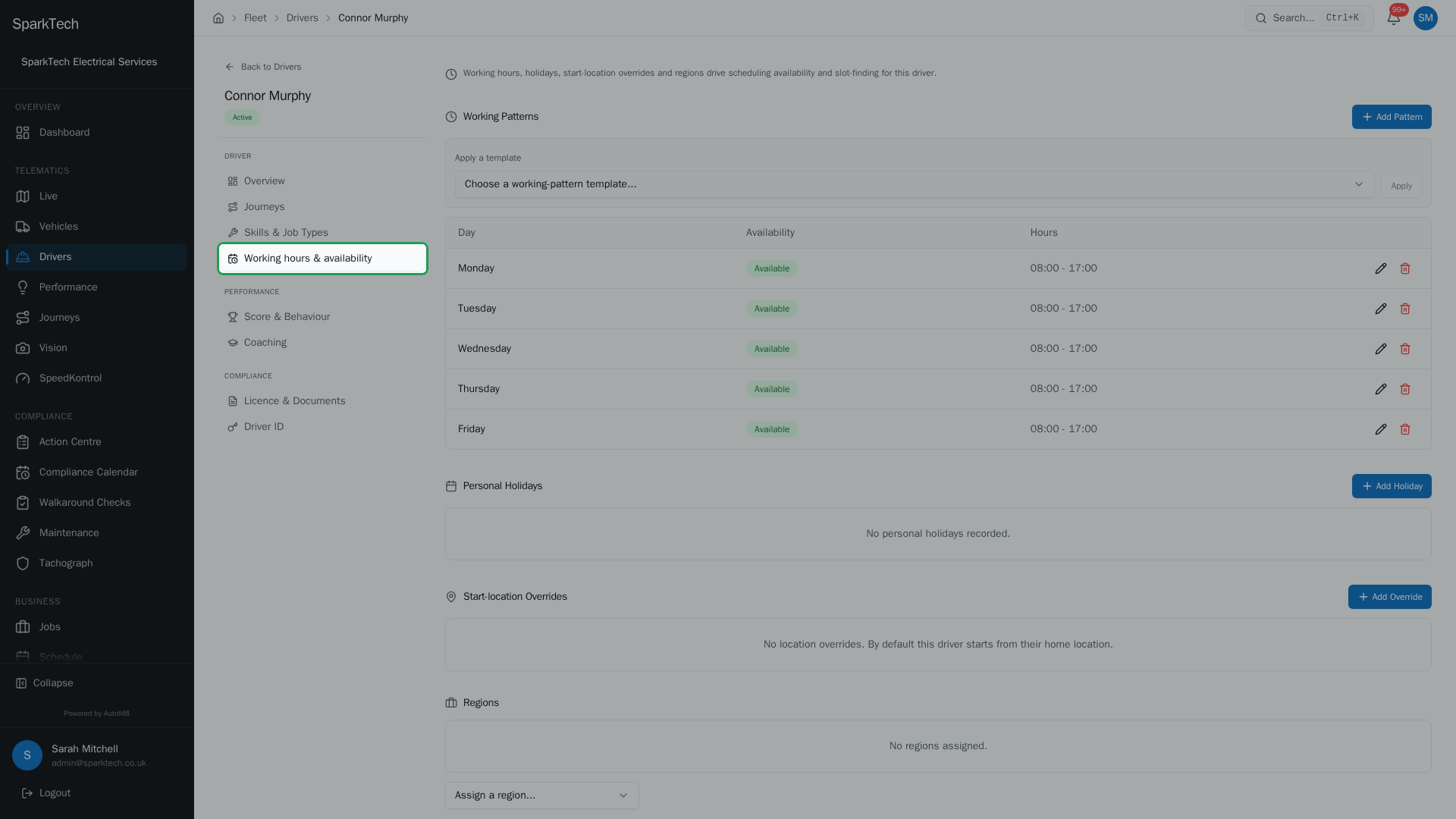
On a driver, open Working hours and availability to set their working pattern day by day, their holidays, a start location and the regions they cover - so the scheduler knows when and where to send them.
For scheduling, AutoM8 needs to know when each driver works, when they are off, where they start, and the areas they cover. All of this lives on the driver’s Working hours & availability tab.
Permissions. Everything on this page is read with Drivers View and changed with Drivers Manage (FMS group).
These settings drive the scheduler. to use scheduling and dispatch, but you can record them on any plan.
The tab has four sections: Working Patterns, Personal Holidays, Start-location Overrides and Regions.
Working patterns
Who can do this: a role with Drivers Manage (Administrator and Manager have it by default).
A working pattern is the driver’s normal hours, set one day at a time - not a pre-filled week you edit.
- Click Add Pattern. The day picker only offers days that do not already have a pattern, so you build the week up day by day.
- Set a Start Time and End Time, and use the Available this day switch to say whether the driver works that day at all.
- Save. Repeat for each day you want to define. Days you do not add simply have no pattern.
You can edit or remove any day later. Once every day has a pattern, Add Pattern is greyed out - edit an existing day instead.
To set a standard week quickly, use Apply a template. Built-in templates carry a (system) marker; there is a standard Monday-to-Friday, 08:00-17:00 pattern with weekends off. Applying a template replaces the driver’s current pattern.
Personal holidays
Who can do this: a role with Drivers Manage (Administrator and Manager have it by default).
Under Personal Holidays, add the dates a driver is away. Each holiday is a single date and takes an optional reason (for example “Annual leave”). Holidays make the driver unavailable to the scheduler on those dates.
Start-location overrides
Who can do this: a role with Drivers Manage (Administrator and Manager have it by default).
By default a driver starts from their home location. A start-location override sets a different start point for a period. Each override needs:
- a date range (From and To),
- a location name (for example “Manchester depot”), and
- the coordinates - a latitude and a longitude (to get these, right-click a point in Google Maps and copy the two numbers shown at the top of the menu).
A note is optional. Use this when a driver is working out of another site for a while.
Regions
Who can do this: a role with Drivers Manage (Administrator and Manager have it by default).
Assign the regions (a geographic coverage area defined for your account, for example “North West”) a driver works in from the region picker. The scheduler uses regions to decide which drivers can cover a job’s location. The list of regions is managed centrally for your account.