Jobs
Creating and managing jobs
Create jobs in AutoM8, work the job detail page - KPIs, status pipeline and SLA - assign a driver, and move each job through its workflow.
Walkthrough Creating and managing jobs4 screenshots
- Every job, with its status at a glance
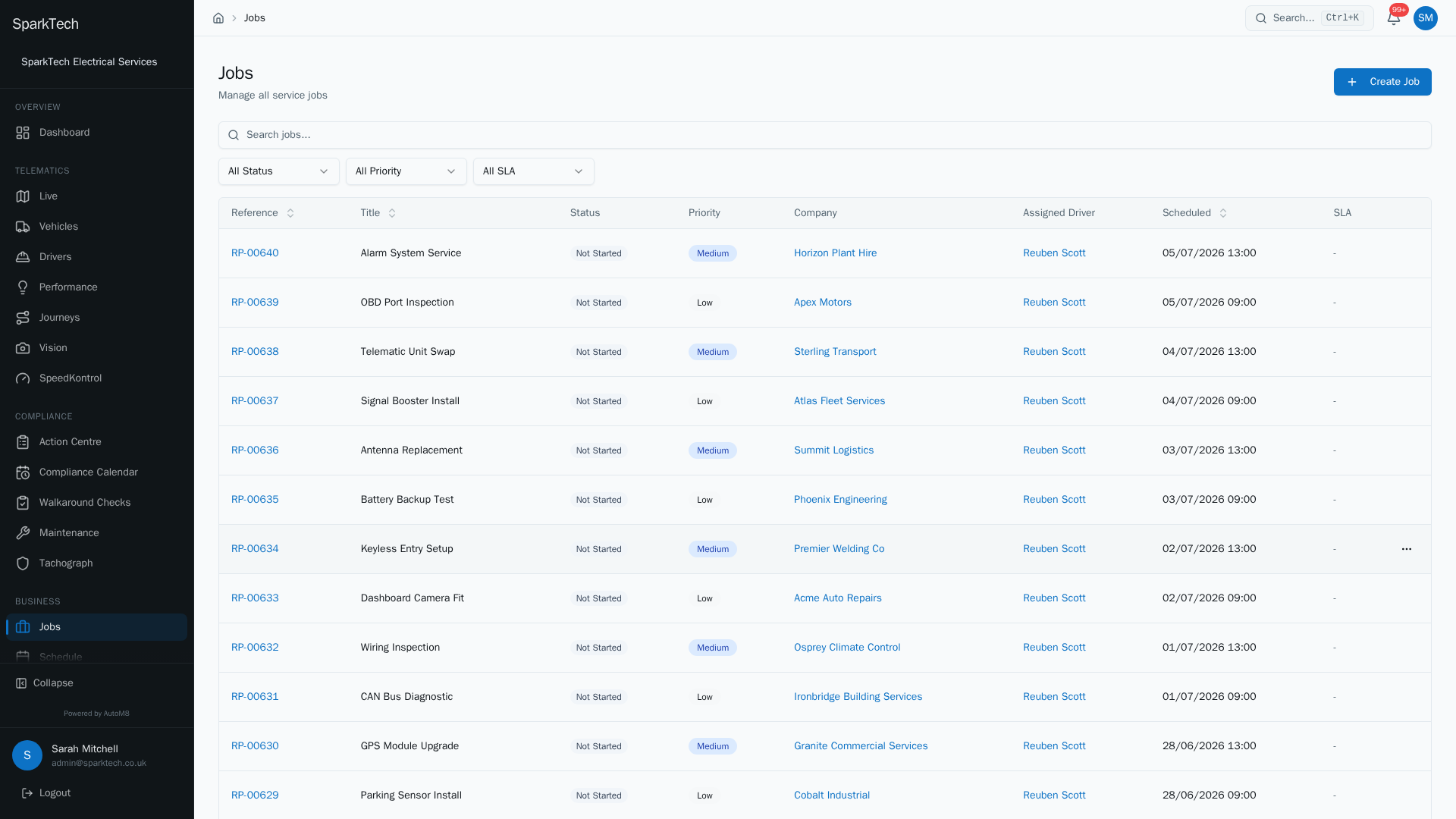
Open Business then Jobs. Each job shows its reference, title, status, priority, customer, assigned driver and schedule. Filter by status, priority or SLA to focus.
- Select "Create Job" to raise one
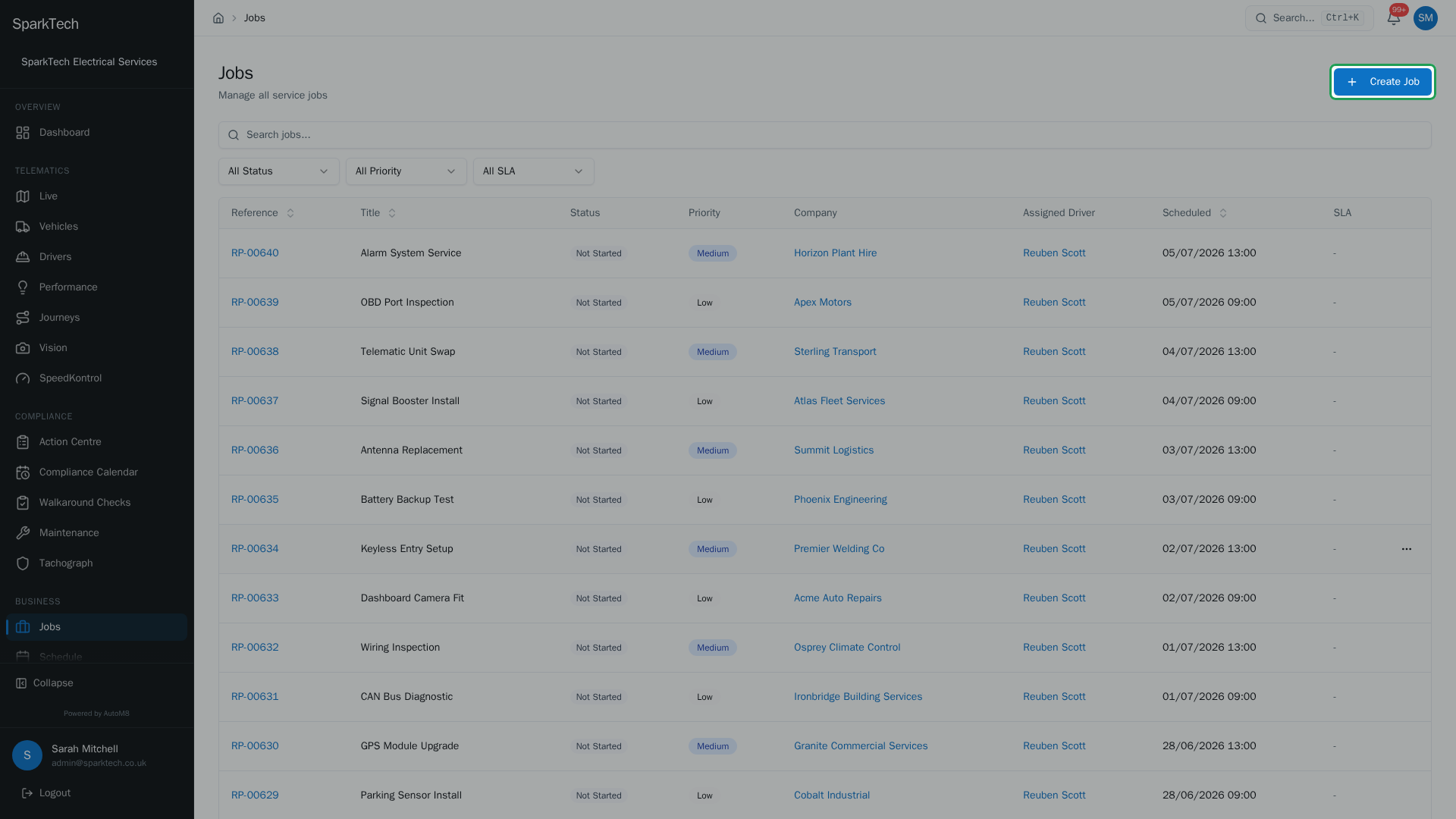
To raise a new job, select Create Job. You need the Jobs Create permission.
- Describe the work
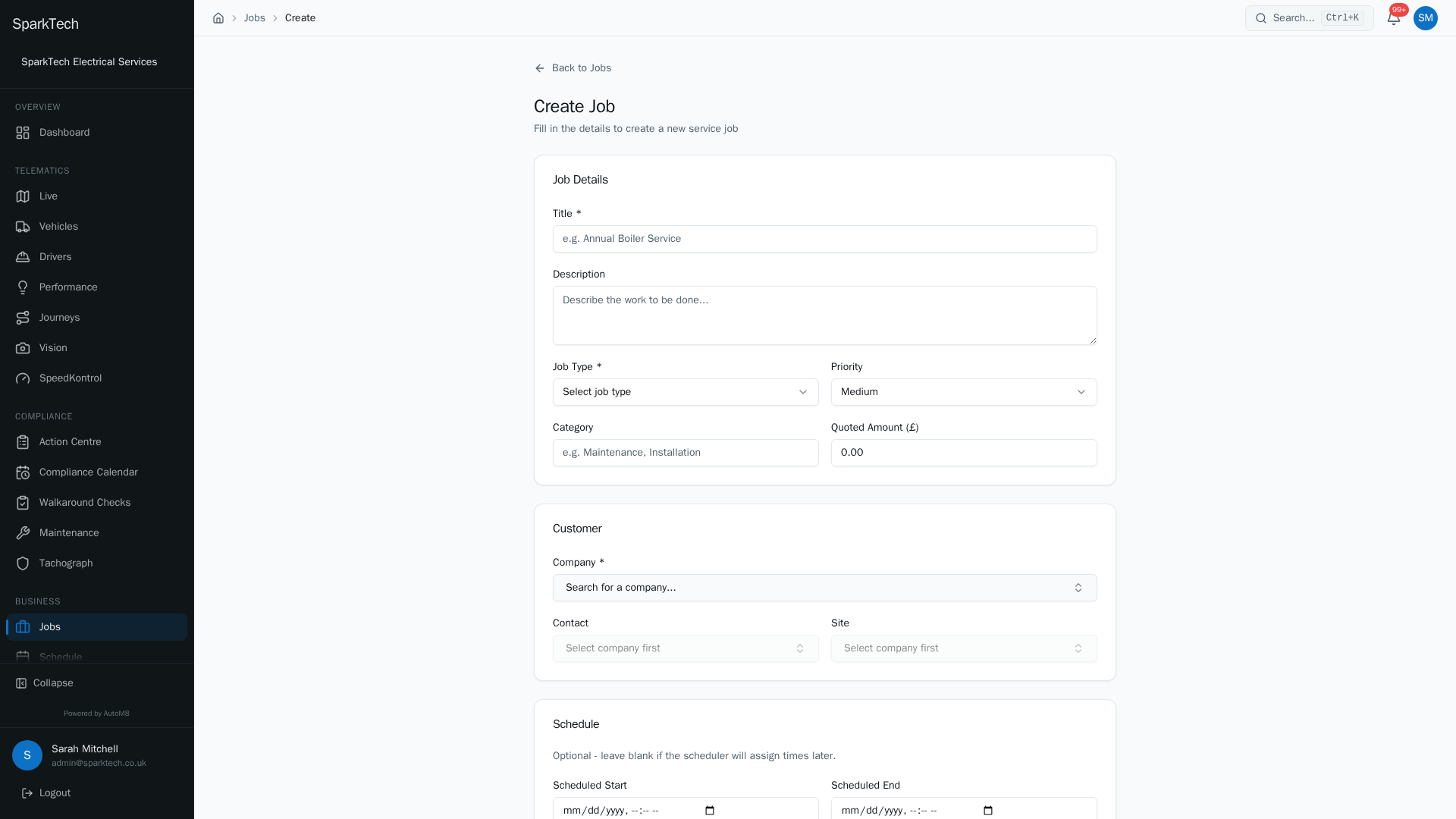
Give the job a title, pick the customer and site, set the priority and job type, and schedule it. Then save to add it to the board.
- The job detail
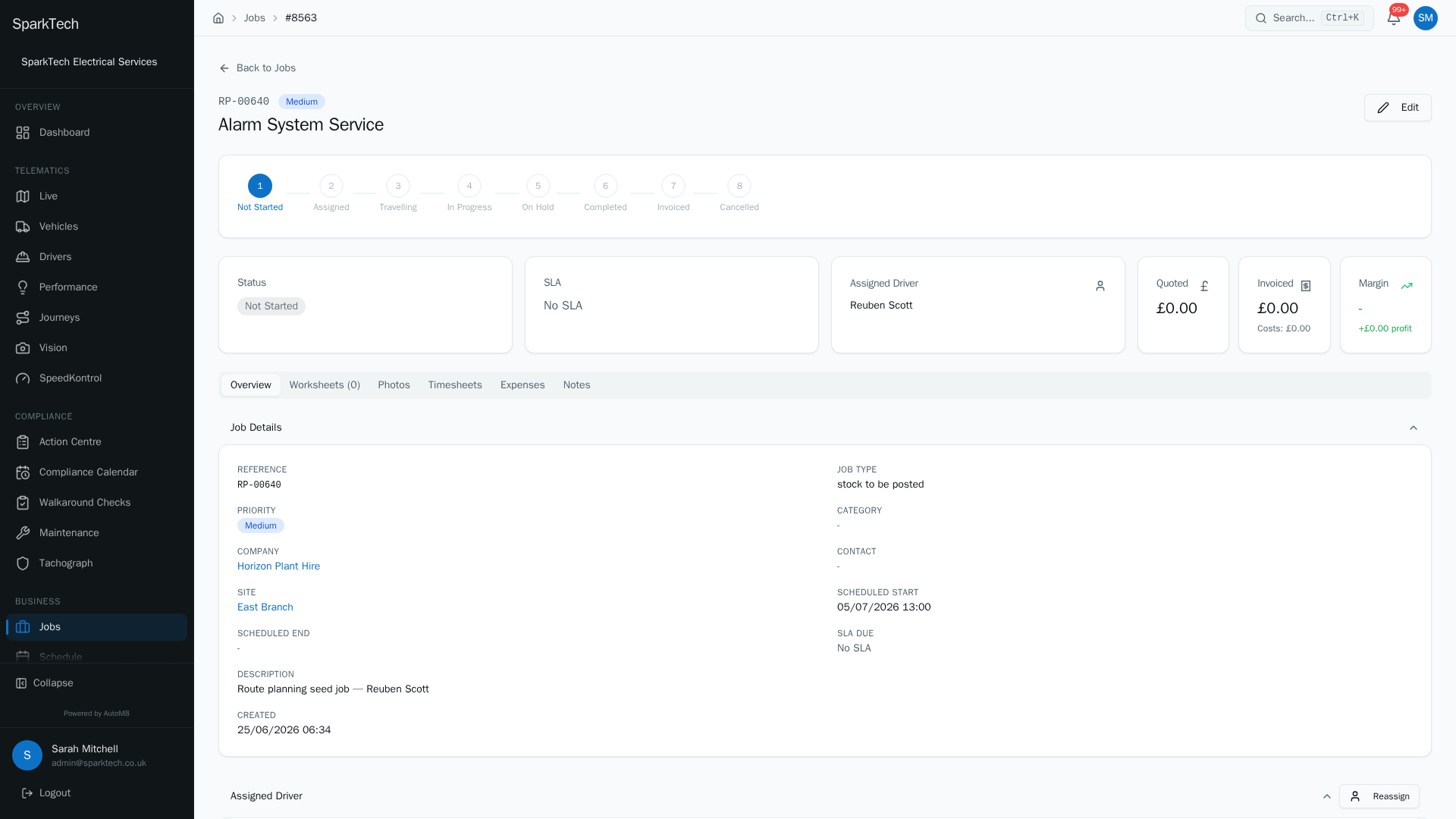
Open a job to see everything about it: the customer and site, the schedule and assigned driver, the worksheet, timesheets and its full history.
A job is a piece of work for a customer - a service call, an installation, an inspection. This page covers raising a job, and the job detail page where you run it.
Permissions. These live under Settings > Roles and Permissions, in the Jobs group. Seeing jobs needs Jobs View, creating needs Jobs Create, editing needs Jobs Edit, assigning a driver needs Jobs Assign, and removing a job needs Jobs Delete. Administrator and Manager include them by default. Each task below names the one it needs.
Creating a job
Before you start: a job needs a customer and a job type. If those lists are empty, add a customer first (see Customers, sites and contacts) and set up your job types (see Work and job setup).
Who can do this: anyone with Jobs Create.
- Go to Business > Jobs and click Create Job.
- Enter a Title, and choose the Job Type and the Company (the customer). These three are required.
- Optionally add a Description, a Priority (Low, Medium, High or Emergency - Medium by default), a Category, and a Quoted Amount.
- Pick the Contact and Site. These only become available once you have chosen a company - they are that company’s own contacts and sites.
- Optionally set a Scheduled Start and Scheduled End. Leave them blank if the scheduler will assign times later.
- Click Create Job - you land on the new job’s detail page.
The jobs list
Who can do this: anyone with Jobs View.
Business > Jobs lists every job. Each row shows the reference, title, status, priority, company, assigned driver, scheduled time and an SLA (service level agreement - the deadline your customer expects) column. The SLA column is a live countdown: a coloured dot and the time left (green, then amber as the deadline nears, then a pulsing red OVERDUE once it passes), plus a Critical flag on jobs that are close to breaching. You can:
- Search by reference, title or company.
- Filter by Status, Priority, and SLA (an SLA Critical Only filter to show just the jobs that need attention now).
- Sort by reference, title or scheduled time.
Click a row to open the job.
The job detail page
Opening a job shows everything about it in one place. Across the top you get:
- a status pipeline bar - the workflow stages laid out in order, with the current stage marked. If you have Jobs Edit, clicking a stage you are allowed to move to opens the status-change dialog (see below);
- KPI cards - Status, SLA, Assigned Driver, and the financials: Quoted, Invoiced (with costs) and Margin;
- the reference, title and a Priority badge;
- an Edit button (with Jobs Edit) to change the title, description, priority and category.
Below that, tabs organise the rest of the job:
| Tab | What it holds |
|---|---|
| Overview | The full job details (type, company, contact, site, scheduled times, tags, description), the assigned driver, and the customer signature panel. |
| Worksheets | The forms filled in on this job. See Worksheets, photos and signatures. |
| Photos | Before / During / After / Defect photos. See Worksheets, photos and signatures. |
| Timesheets | Labour time logged against the job. See Timesheets and expenses. |
| Expenses | Costs incurred on the job. See Timesheets and expenses. |
| Notes | Free-text notes against the job. |
The SLA panel
If the job has a target time, the SLA card shows the Response due and Fix due deadlines. Each shows the time remaining, or an Overdue badge with how long it is late. A job that has already breached shows an SLA Breached warning. This is the same deadline that drives the countdown in the jobs list.
Tags and priority
Tags are short labels shown on the Overview tab for your own grouping and searching. Priority is one of Low, Medium, High or Emergency, shown as a coloured badge on the list and the job, and used by the scheduler and route planner when ranking work.
The job workflow
Who can do this: moving a job’s status needs Jobs Edit.
Every job moves through a set of statuses:
Not Started -> Assigned -> Travelling -> In Progress -> Completed -> Invoiced, with On Hold and Cancelled available along the way.
You move a job one step at a time. AutoM8 only offers the statuses the job can actually move to next from where it is now, so steps are not skipped. You set up your job types, their required skills, and their workflow stages and transitions in Settings > Job Types and Settings > Job Workflows.
When you change status, a dialog confirms the move and lets you add a note. Two things can happen here:
- Required photos can block the move. If the job type requires certain photos (for example an “After” photo) before a stage, and they are missing, the dialog shows a Missing required photos warning and will not let you confirm until they are captured.
- A transition can fire auto-actions. Some moves are set up to do something automatically. The dialog lists what will happen before you confirm. The available auto-actions are: send a notification, create a follow-on job, generate a certificate, and generate an invoice.
Assigning a driver
Who can do this: anyone with Jobs Assign.
Open a job and use Assign Driver (or Reassign if one is already set) on the Overview tab, or the Assign link on the Assigned Driver KPI card. Assigning a driver to a not-started job moves it to Assigned automatically. You can also assign jobs from the schedule board and its slot finder - see Dispatching jobs.
Troubleshooting
Why can’t I edit this job’s details? Editing needs Jobs Edit, and some fields lock once the job has moved past an early stage so its record stays consistent. If the fields are simply greyed out, ask an Administrator or Manager to check your role - see Troubleshooting.
Why can’t I assign the job? Assigning needs Jobs Assign, and the job must already hold the details it needs (a company, and the type and skills the scheduler matches on). Fill those in first, then assign.
Why can’t I move a job to the next status? AutoM8 only offers the statuses the job can move to next, so a step cannot be skipped. If a move is blocked, the job type’s workflow may require something first - most often a required photo - which the status dialog will name.
Related
- The schedule board.
- Dispatching jobs.
- Worksheets, photos and signatures.
- Timesheets and expenses.
- Recurring jobs.
- Jobs are at the heart of AutoM8’s field service software.