Compliance
Tachograph and drivers' hours
Work the tachograph hub - drivers' hours, the driver timeline, infringements, downloads and the download schedule - plus claim driver cards and read DDD files.
Walkthrough Tachograph and drivers hours2 screenshots
- Drivers hours, watched for you
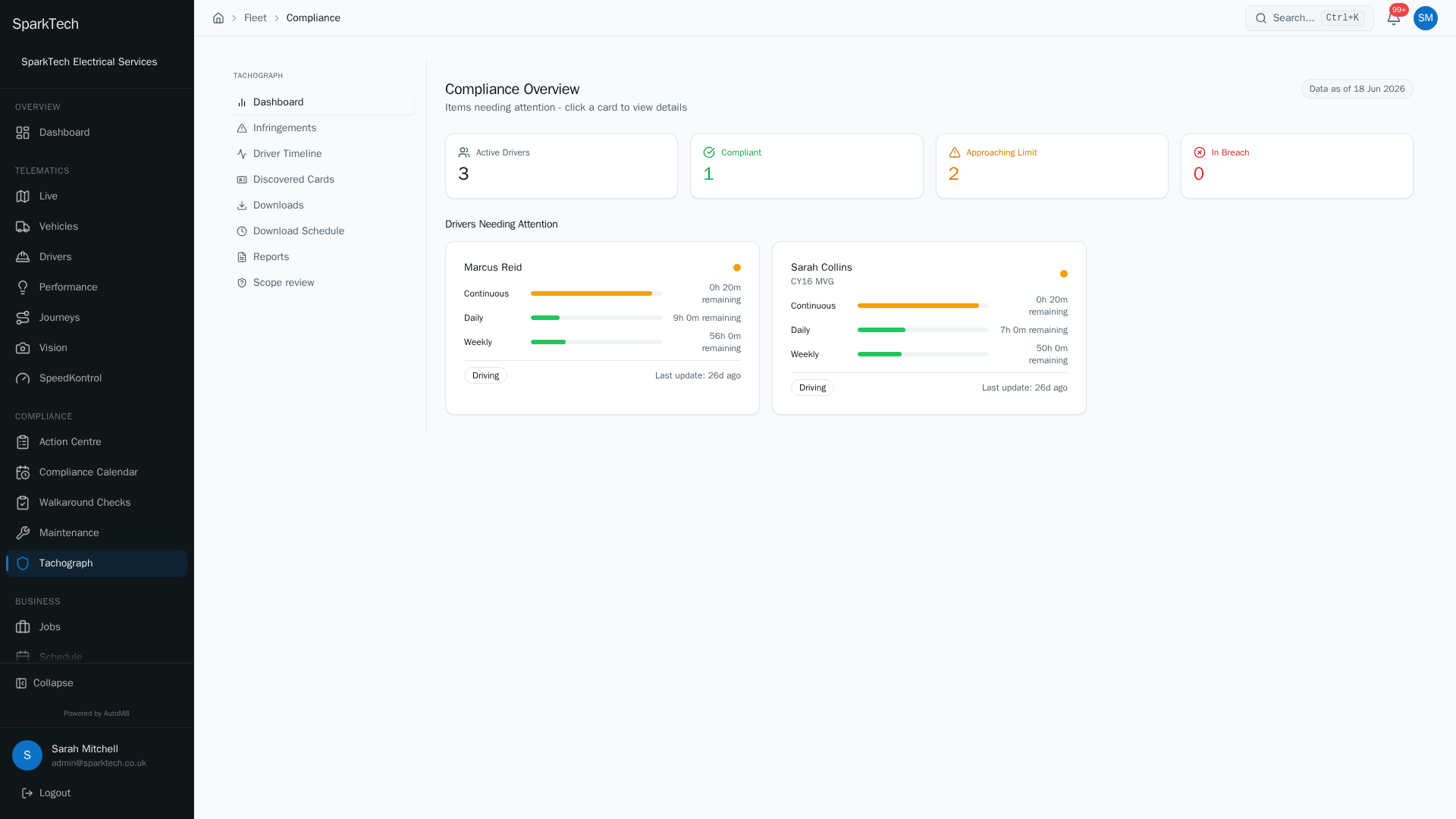
Open Compliance then Tachograph. AutoM8 reads the tachograph data and tracks each driver against their continuous, daily and weekly limits, flagging anyone approaching or in breach.
- Every download, recorded
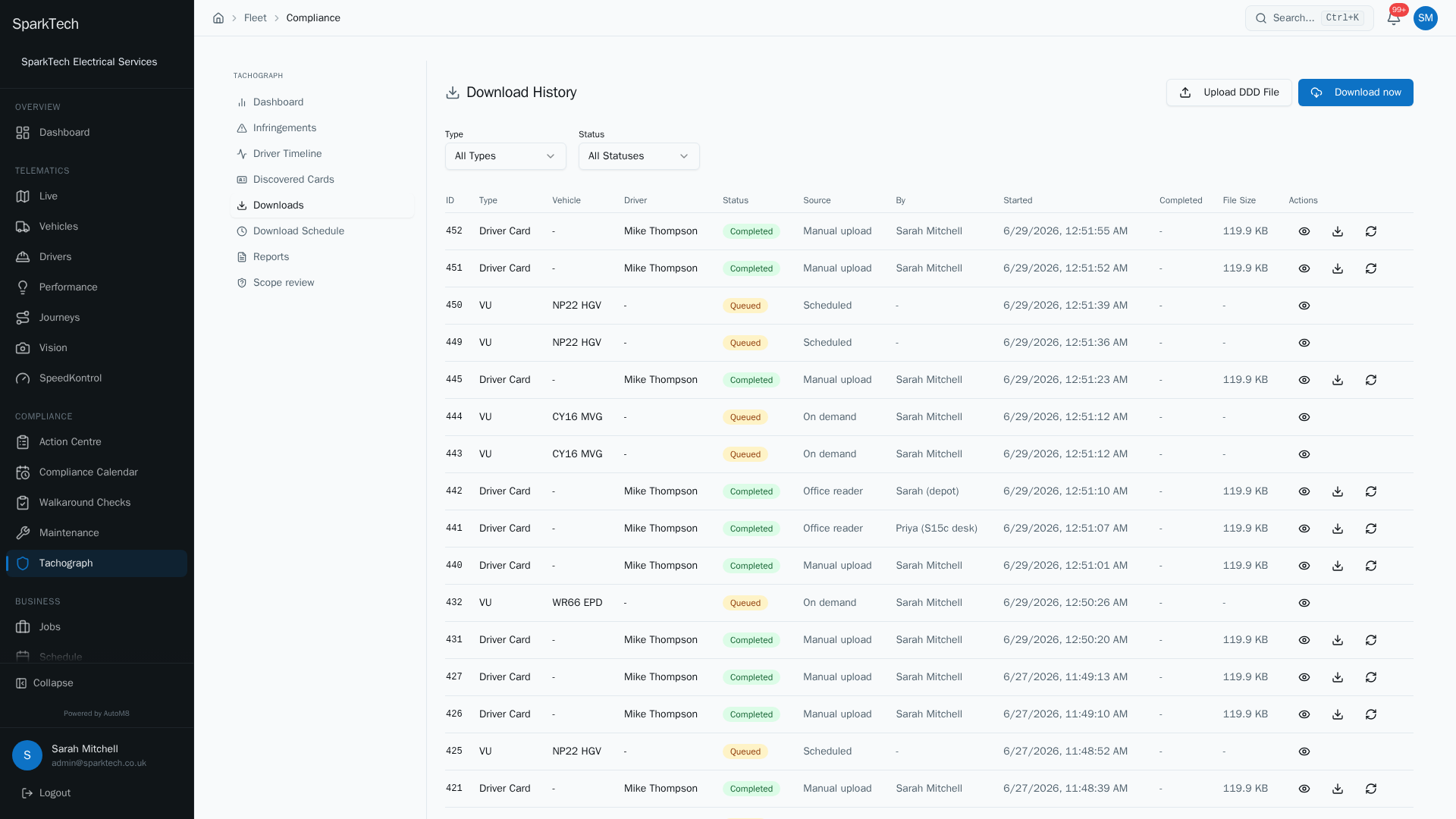
The Downloads view records every vehicle-unit and driver-card download, so you have a clean audit trail of your tachograph data.
A tachograph is a legally required recording device fitted to most lorries and coaches that logs driving time and rest. If you do not run those vehicles, this section does not apply.
For operators running tachograph vehicles, the tachograph hub brings drivers’ hours (the legal limits on how long a professional driver may drive before resting), infringements, driver cards, downloads and the download schedule together in one place.
Permissions. Seeing the tachograph hub needs Tachograph View; acting on it - claiming cards, reviewing infringements, setting up the download schedule - needs Tachograph Manage (both in the FMS (Fleet Management) group). Uploading, re-analysing or pulling a raw tachograph file needs the Download permission (in the Compliance group). Administrator and Manager include these by default.
You reach the hub at Compliance > Tachograph. It has a left menu with these tabs: Dashboard, Infringements, Driver Timeline, Discovered Cards, Downloads, Download Schedule, Reports and Scope review.
The admin screens - tacho settings, the company card, and the desktop card-reader “agents” - are not in this hub. They live under Settings > Tachograph. See The admin screens below.
Dashboard (drivers’ hours)
The Dashboard tab is your drivers’ hours overview. Four cards count your Active Drivers, and how many are Compliant, Approaching Limit or In Breach. Below them, a “Drivers Needing Attention” list shows only the drivers who are amber or red, so you can go straight to them.
A Data as of badge tells you how current the figures are. Hours come from the latest tachograph data available for each driver - a card recorded in the past, or a vehicle unit that has gone quiet - so the newest day shown is not always today. Click a card to jump to the related tab.
Driver Timeline
Who can do this: anyone with Tachograph View.
The Driver Timeline tab draws each driver’s day as a coloured bar - Driving, Work, POA (period of availability) and Rest - so you can read a day or a week at a glance.
- Switch between Day and Week.
- Jump with the Today, Yesterday, This week and Last week buttons, or step through days with the arrows.
- On first open it anchors to the most recent day that actually has data, not today (uploads are dated to the days they recorded). If a day is empty, a Jump to latest data button takes you to the newest day with activity.
Activity comes from connected tachographs or from uploaded driver-card and vehicle-unit files.
Infringements
Who can do this: Tachograph View to see; Tachograph Manage to review.
The Infringements tab lists EC 561/2006 (the European rules on drivers’ hours and rest) driving-hours and rest-period violations - infringements (breaches of the drivers’ hours rules) - by severity. A manager reviews each one - marking it reviewed or disputed and adding notes - so you have a clear record of what was actioned.
Discovered Cards
Who can do this: Tachograph Manage to claim or ignore.
When a tachograph card is seen in one of your vehicles but is not yet linked to a driver, it appears under Discovered Cards as pending. Cards are found automatically - the system reads the card number from the vehicle’s telemetry. Three summary tiles count how many Need assigning, are Claimed, or were Ignored. Filter by All, Pending, Claimed or Ignored.
For each pending card you can:
- Claim it - either link it to an existing driver, or create a new driver from the card (the name is prefilled from the card), or
- Ignore it - it is hidden from the pending list, will not re-alert, but you can still find it under the Ignored filter and claim it later.
If the card’s name matches a driver you already have, a green “Name match found” note points that out and preselects that driver, so you can link them in one step. Claiming wires the card to the driver so their hours roll up from then on.
Downloads
Who can do this: Tachograph View to read the history; the Download permission to upload, pull or re-analyse.
The Downloads tab is the download history, one row per download, showing the type (VU or Driver Card), the vehicle, the driver, the status, the source, who did it, the times and the file size. Filter by Type and Status. There are four ways data gets here:
| Source | What it is |
|---|---|
| Manual upload | You upload a .ddd file (the standard download file a tachograph produces) from a card reader (see below). |
| On demand | You pull files now from a connected vehicle with Download now. |
| Scheduled | The download schedule pulls files automatically on a recurring basis. |
| Office reader | A desktop card-reader “agent” reads a card at your office and sends the file in. |
Upload a DDD file. Choose Upload DDD File, then drag in or browse for a .ddd file (up to 10MB). AutoM8 analyses it into activities, hours and infringements. Tick Store only to archive the file without analysing it, and re-analyse it later.
Download now (remote pull). Choose Download now, pick a vehicle (only vehicles with a tacho-capable device fitted are listed - this is a hardware dependency, so the vehicle needs a tachograph-capable tracker physically fitted), choose the activity period (7, 14, 30, 60 or 90 days, or a custom range), tick which vehicle unit (VU) files - the VU is the tachograph hardware in the vehicle - you want (Overview, Activities, Events and faults, Detailed speed, Technical data - leave all unticked to pull everything), and choose which driver-card slots to pull (driver in slot 1, co-driver in slot 2). Where a card is inserted, its holder’s name shows next to the slot. The pull uses the vehicle’s assigned company card (a smart card that authorises your business to download tachograph data - ask your account manager if you do not have one).
On each history row you can view the parsed file, and (with the Download permission) download the raw .ddd file or re-analyse it. Re-analysing replaces the existing parsed activities, events and infringements for that download.
The built-in DDD file viewer
Choose view on any download to open the file viewer - a side panel showing the parsed tachograph data without leaving the page. It has a per-day activity timeline (coloured Driving / Work / Rest / POA bars), a tabular activity log (date, slot, start, end, duration, activity, whether a card was inserted), and any events and faults recorded in the file.
Download Schedule
Who can do this: Tachograph View to see; the Download permission to set it up.
The Download Schedule tab is a calendar of automated, recurring downloads for your tacho vehicle units and driver cards. Filter by Overdue, Due Soon or Completed, and see an Upcoming Downloads table for the next 14 days with each item’s last download, next due date, days until due and status.
Scheduling is set up automatically for tacho-capable vehicles (vehicles with a tachograph-capable tracker fitted) and active driver cards - driver cards are pulled daily, vehicle units weekly. If nothing appears, use Set up now to provision it.
Reports
Who can do this: anyone with Tachograph View.
The Reports tab is a compliance KPI summary: Overdue Downloads, Active Infringements (unreviewed, last 30 days), Download Compliance (the share of vehicles whose download is up to date - download timeliness only, not overall compliance) and Cards Expiring Soon (within 30 days). It also charts the 30-day infringement trend. View Full Reports takes you to the compliance section of the report library.
Scope review
Who can do this: anyone with Tachograph View.
Compliance rules only apply to vehicles and drivers that are actually in scope for them. The Scope review tab is a worklist of vehicles and drivers whose scope cannot be worked out yet (for example a vehicle with no weight or class set). Each row has a Set scope link that takes you to that vehicle or driver to fix it. Rows drop off the list as you set each one, so the list shrinks as the work is done.
The admin screens
The tachograph admin screens live under Settings > Tachograph, not in the hub:
- Tacho settings - how the tachograph area behaves for your account.
- Company card - the company card (a smart card that authorises your business to download tachograph data) AutoM8 uses to authorise a remote download from the vehicle unit (VU) - the tachograph hardware in the vehicle.
- Agents - the desktop card-reader “agents”. You onboard an office card reader here so a card read at your desk uploads straight into AutoM8 as an Office reader download.
Who can do this: Tachograph View or Tachograph Manage.
Troubleshooting
Why are a driver’s hours or infringements out of date? The figures are a snapshot “as of the latest download”, not live - the Data as of badge tells you how current they are. Run a download (or wait for the scheduled one) to bring a driver up to date.
Why is a driver card showing no activity? Either no file has been downloaded for that card yet, or a real file was stored without being analysed - re-analyse it from the Downloads history. On some newer Gen2 (second-generation tachograph) files the activities may not have decoded, in which case there is nothing to show until a fuller download is taken.
Why can’t I download from a vehicle? Remote download only lists vehicles with a tacho-capable device fitted (a hardware dependency - the vehicle needs a tachograph-capable tracker physically installed), and needs a company card set up under Settings > Tachograph. Pulling a file also needs the Download permission.
Why can’t I see the tachograph hub, or act on it? Look at your role’s permissions and visibility scope, and at whether the licence on the vehicle is still active. More causes are on the general troubleshooting page.
Related
- Compliance calendar and action centre.
- Creating and managing drivers.
- Tachograph and drivers’ hours are part of the compliance side of AutoM8’s fleet management software.