Settings
Integrations, webhooks and API keys
Connect AutoM8 to other systems, migrate from BigChange, and manage programmatic access with webhooks and API keys.
Walkthrough Integrations, webhooks and API keys1 screenshots
- Connect AutoM8 to the systems you use
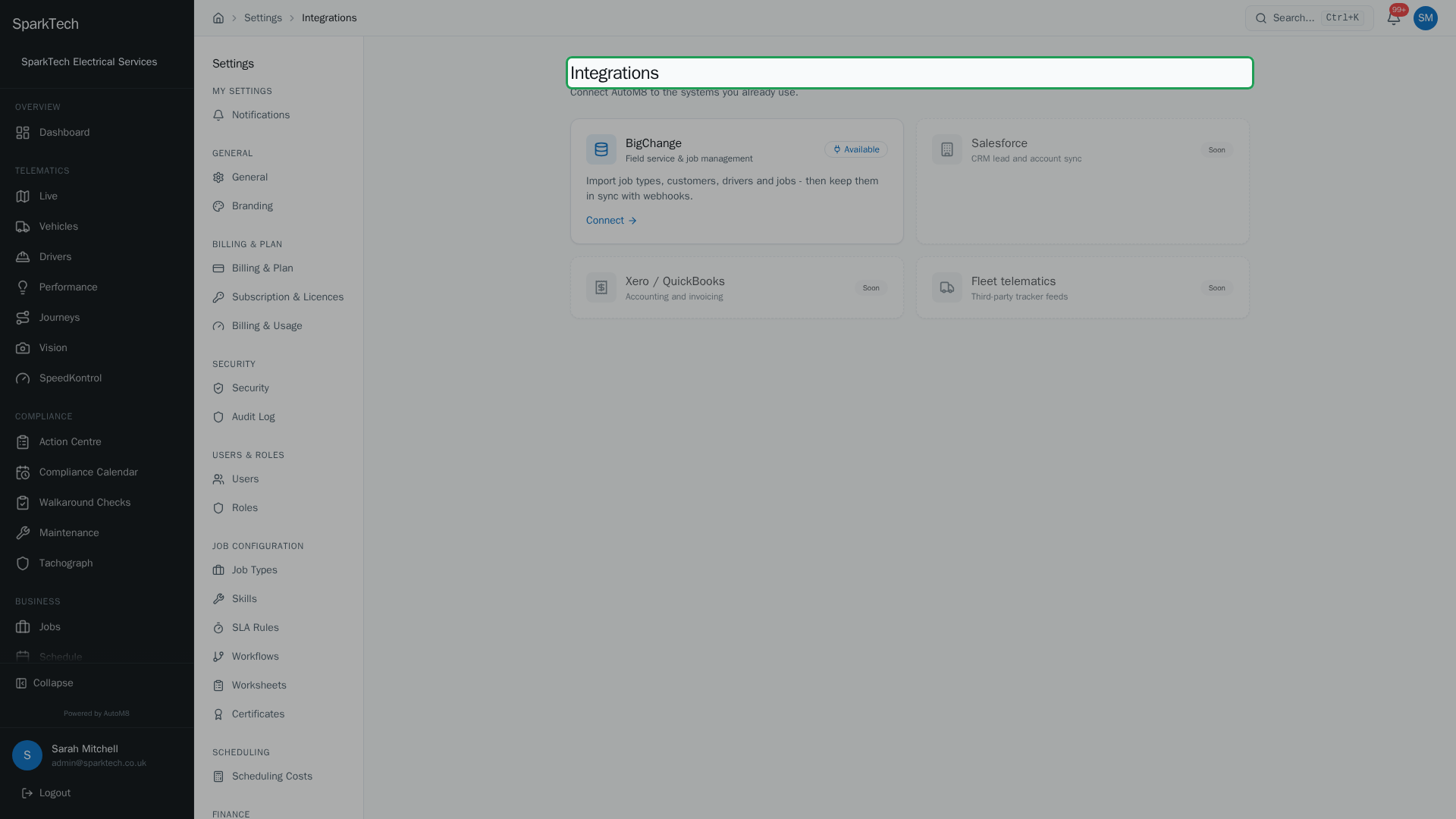
Open Settings then Integrations. Each system shows its status and a Connect button - including a guided BigChange migration that brings your job types, customers, drivers and jobs across.
AutoM8 connects to other systems you use, and gives developers secure access to build their own connections.
Permissions. These are each controlled by a Manage permission - in the Integrations group for integrations, the API Keys group for webhooks, and the Settings group for API keys. Administrator includes them by default.
Integrations
Settings > Integrations is a gallery of the systems AutoM8 can connect to. Each shows its status and a Connect or Manage button.
BigChange
If you are moving to AutoM8 from BigChange, Settings > Integrations > BigChange brings your data across and keeps it in step. A guided setup imports your job types, customers, drivers and jobs, and an ongoing sync keeps them current using webhooks, so you can move over without a hard cut.
Webhooks
Settings > Webhooks lets AutoM8 notify your own systems in real time when something happens, by sending an HTTP request to a URL you provide.
- Endpoint URL - where AutoM8 sends the request.
- Event Types - which events to send. You can subscribe to job created / status changed / completed, invoice created / paid / overdue, quote accepted / declined, and contact or company created.
- Signing Secret - shown once when you create the webhook. Save it - it is used to verify the requests really came from AutoM8, and it is not shown again (you can regenerate it later).
Each webhook shows a health indicator and a delivery log of recent attempts, so you can see whether your endpoint is receiving them. The indicator is green while deliveries are succeeding and turns amber once a few in a row fail. If deliveries keep failing, AutoM8 automatically disables the webhook after several consecutive failures (the health goes red and the subscription switches off), so a broken endpoint does not keep being retried forever. Fix your endpoint and re-enable the webhook to resume delivery.
API keys
Settings > API Keys gives programs secure, scoped access to your AutoM8 data. When you create a key you set:
- Name - what the key is for.
- Permissions - exactly what the key is allowed to do, chosen from the same permission list as roles.
- Rate limit and Daily limit - how many requests it may make per minute and per day.
The key is shown once for you to copy. You can Edit a key later - its name, permissions, rate limit and daily limit are all changeable from an Edit dialog - without having to issue a new one. Revoke a key to stop it working immediately; do this the moment a key is no longer needed or may have leaked.
Troubleshooting
Why did my webhook stop receiving events? It has been automatically disabled after several deliveries in a row failed, so a broken endpoint is not retried forever. Fix your endpoint so it responds successfully, then re-enable the webhook to resume delivery. The health indicator and delivery log show which attempts failed.
Why is my API key rejected? Most likely one of three things: the key has been revoked (create a new one), it is missing the permission for what it is trying to do (edit the key and add that permission), or it has hit its rate limit (per minute) or daily limit (raise the limit if the key legitimately needs more).
If an integration screen is missing for you, Why can’t I see something? lists the usual causes.
Related
- Settings overview.
- Managing users.
- Connect the rest of your stack to AutoM8, the all-in-one field service and fleet software platform.