Getting started
Signing in for the first time
How to get into AutoM8 - accepting your invite, setting your password, and signing in on the web and on your phone.
Walkthrough Signing in for the first time3 screenshots
- The AutoM8 sign-in screen
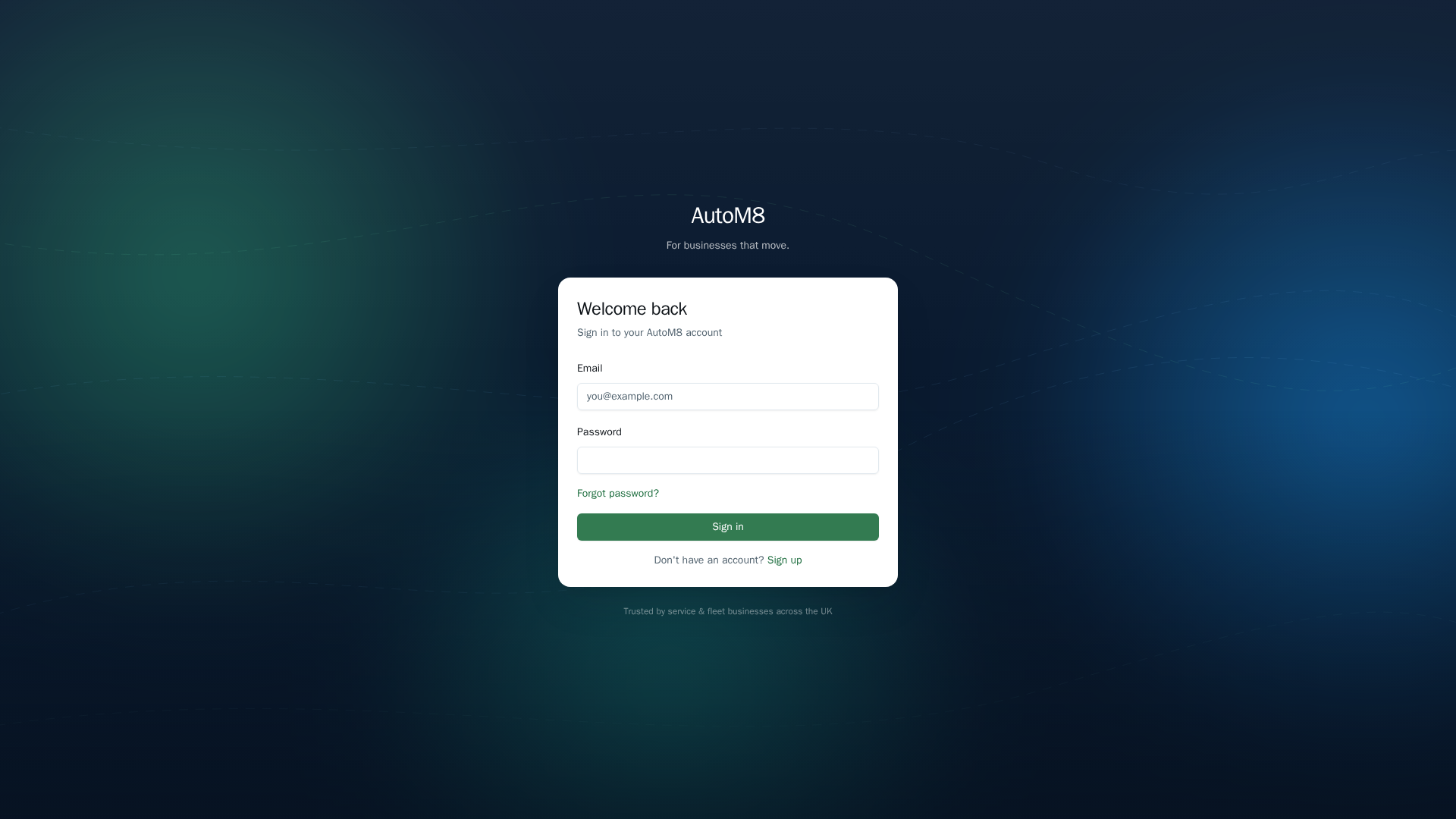
Go to your AutoM8 web address and you reach the sign-in screen. Enter the email and password your administrator set up for you.
- Enter your email and password
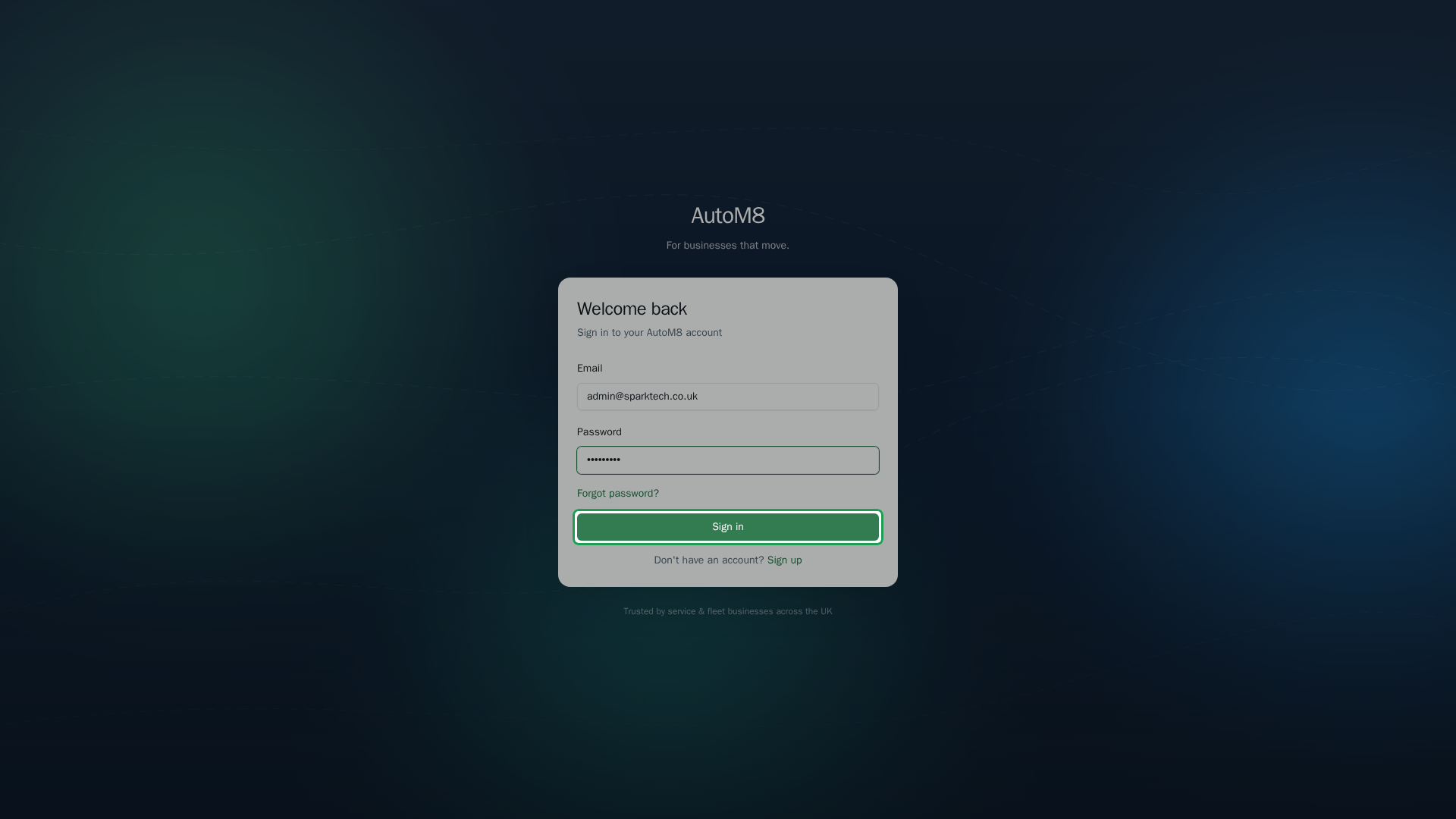
Type your email and password, then select Sign In. Passwords are case-sensitive; your email is not.
- You land on your dashboard
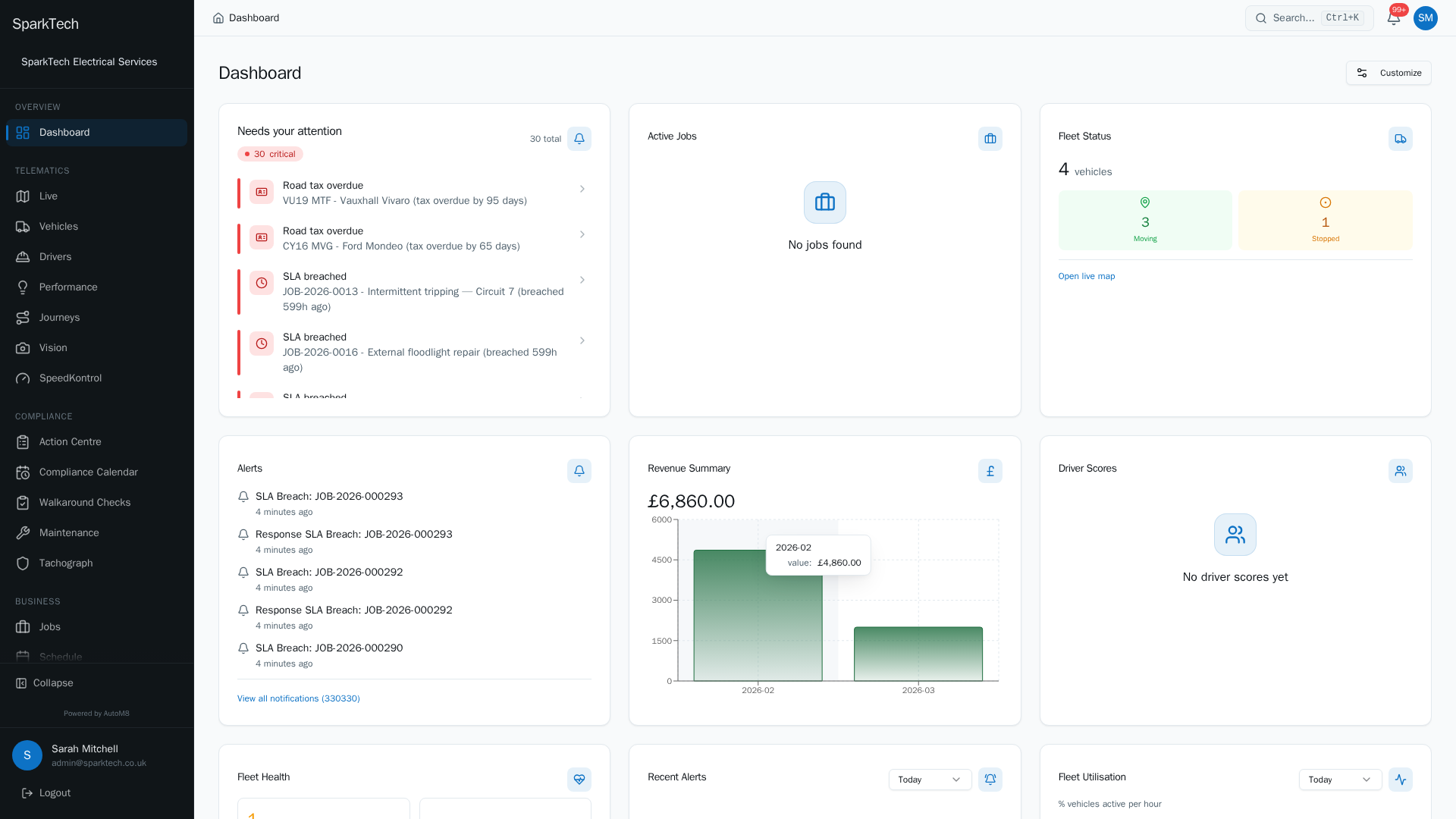
Office users land on the dashboard. It leads with what needs your attention - overdue tax, breached jobs and expiring documents - so you can act straight away.
Before you can do anything in AutoM8 you need to sign in. This page covers your very first sign-in: how to reach AutoM8, how to accept the invite your administrator sent you, and how to sign in day to day. If you have not been invited yet, ask whoever runs AutoM8 for your business to add you (see Managing users).
Getting to AutoM8
AutoM8 runs in your web browser. You reach it at the web address your team uses for AutoM8 - your administrator or account manager will give you this. Open it in Chrome, Edge, Safari or Firefox and you will see the sign-in screen. It is worth saving the address as a bookmark so you can get back to it easily.
There is also a mobile app for phones and tablets - see Getting the app. It uses the same account, so set up your password here first.
Accepting your invite
You do not create your own account. An administrator invites you, and you set your own password from the invite.
- Look for an email from AutoM8 inviting you to join. Check your junk or spam folder if it is not in your inbox.
- Open the email and select the join / set password link.
- Choose a password and confirm it. Your password has to meet your company’s rules (for example a minimum length) - the screen tells you if it is not strong enough.
- Save it. You are now signed in for the first time.
The invite link expires. If it has been a while and the link no longer works, ask your administrator to Resend Invite from Settings > Users. Until you accept, your account shows as Invited and you cannot sign in.
Signing in from then on
- Go to your AutoM8 web address.
- Enter your email and password.
- Select Sign In.
Where you land depends on your role. Office users land on the dashboard; drivers land in their own focused view. Your administrator sets this up when they create your account - see Driver logins and standard users.
If two-factor is turned on, you will be asked for a six-digit code from your authenticator app after your password. See Two-factor authentication and security for how to set this up and what an authenticator app is.
Signing in on your phone
The mobile app uses the same email and password as the website. Download it, open it, and sign in with your usual details. You can turn on Face ID or fingerprint unlock so you do not have to type your password each time. Full steps are in Getting the app.
Forgotten your password
- On the sign-in screen, select Forgot password?.
- Enter your email address.
- Follow the reset link in the email you receive and choose a new password.
This is the same reset on the website and in the app.
Troubleshooting
I never got my invite email. Check your junk or spam folder first. If it is not there, ask your administrator to Resend Invite from Settings > Users. Make sure they invited the right email address.
My invite link does not work. Invite links expire after a while. Ask your administrator to resend it.
It says my email or password is wrong. Passwords are case-sensitive, so check your caps lock. Use Forgot password? to reset it if you are not sure. Your email is not case-sensitive, so capitals there do not matter.
I set a password but still cannot get in. Your account may have been switched off. Ask your administrator to check you are Active (not Deactivated) in Settings > Users, and to reactivate you if needed.
I signed in but a lot is missing. That is usually about your role, your plan or what your account is allowed to see, not about signing in. See Why can’t I see something?.
Related
- Quick start - what to do once you are in.
- Key concepts and words worth knowing - the AutoM8 vocabulary in plain English.
- Getting the app - signing in on your phone.
- Two-factor authentication and security.
- Managing users - how people are invited in the first place.