Getting started
Your dashboard
The home screen of AutoM8 - the always-on "Needs your attention" panel plus a customisable grid of overview widgets across jobs, revenue and your fleet.
Walkthrough Your dashboard1 screenshots
- Everything that needs you, in one place
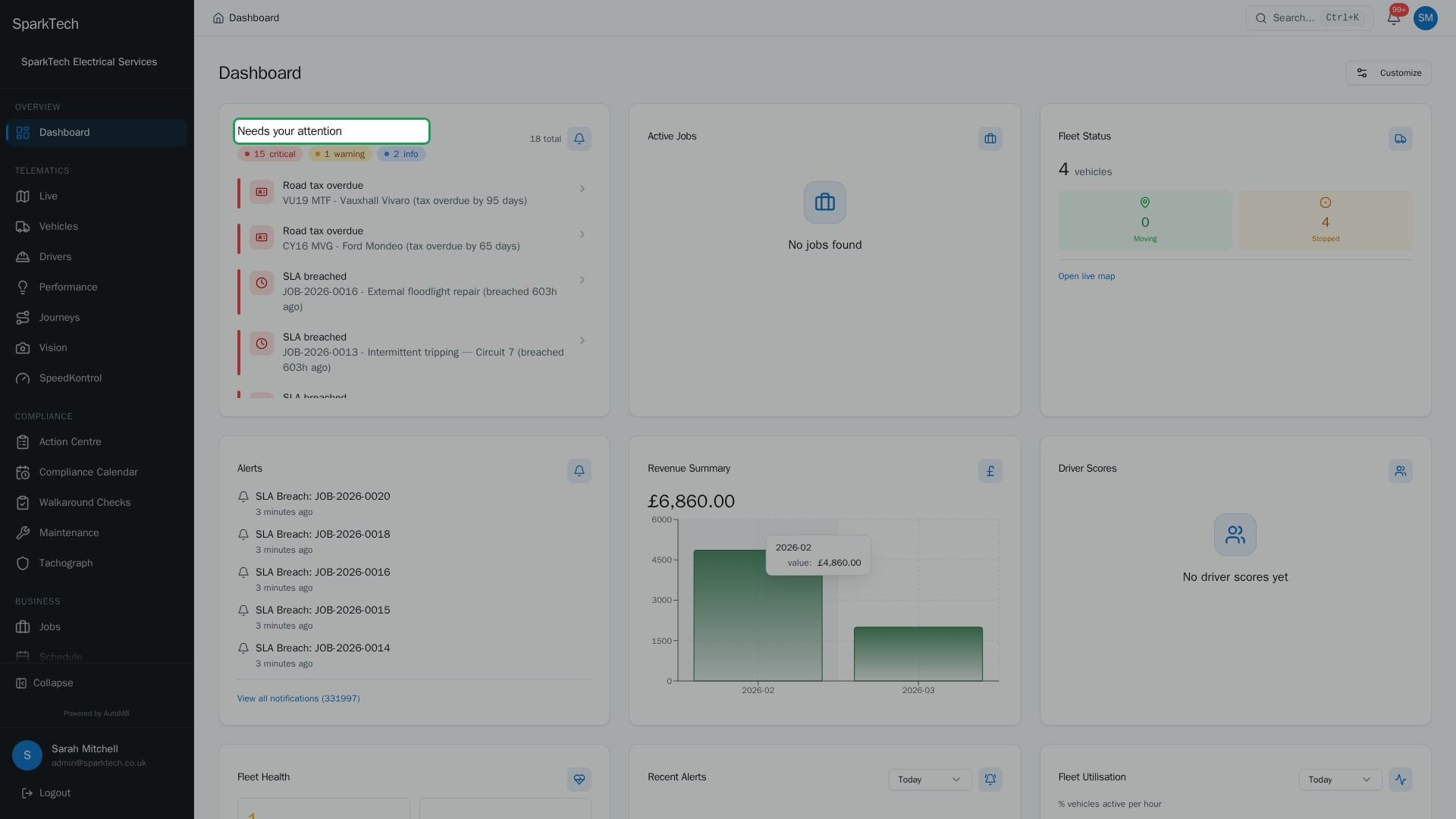
You land on your Dashboard. The Needs your attention panel is a prioritised list - critical first - of what to act on today, each row clicking straight to it, above a grid of overview widgets you can customise.
When you sign in to AutoM8 you land on your Dashboard - a single view that pulls together what needs your attention across the whole business. It is made of the always-on “Needs your attention” panel and a grid of overview widgets.
Permissions. The fleet widgets need the Vehicles View permission (in the FMS (Fleet Management) group) and depend on the telematics capability being switched on for your account. Choosing which widgets you see needs the Dashboard permission (in the Reports group).
Needs your attention
The Needs your attention panel is always shown at the top of the dashboard and cannot be hidden. It is a prioritised, scannable list of the things you should act on today, each row clickable straight to the relevant place. It surfaces insights such as:
- an MOT or road tax that is overdue or due soon,
- maintenance that is due,
- a driver whose score has dropped, and
- a driver licence check.
Items are sorted by urgency - critical, then warning, then info - with a count pill for each level. If there is nothing to do, it simply says “All clear”.
Overview widgets
Below the panel is a grid of overview widgets. Which ones you see, and in what order, is a personal preference (see below). The full set is:
| Widget | Shows | Needs telematics |
|---|---|---|
| Active Jobs | Job counts by status. | No |
| Revenue Summary | A monthly revenue chart. | No |
| Alerts | Recent notifications. | No |
| Fleet Status | A vehicle status overview. | Yes |
| Fleet Health | Repairs, average health, documents expiring and checks overdue. | Yes |
| Fleet Alerts | Recent driving events, linking to the live map. | Yes |
| Fleet Utilisation | The share of the fleet active through the day. | Yes |
| Vehicle Status | The active / repair / decommissioned mix. | Yes |
| Document Expiries | An upcoming document-expiry timeline. | Yes |
| Driver Scores | Top and bottom driver scores. | Yes |
| Driver Score Distribution | Driver scores by band. | Yes |
| Recent Coaching | Active driver-coaching sessions. | Yes |
The telematics widgets only appear when the telematics capability is on for your account, so a jobs-only account sees the jobs, revenue and alerts widgets and not the fleet ones.
Customising your dashboard
Who can do this: any role with the Dashboard permission (in the Reports group).
Use Customize to choose which overview widgets show and to reorder them, so the dashboard suits your role. Your choices are saved in your browser, so they follow you on that device. View-only roles see the dashboard read-only, without the Customize control. The “Needs your attention” panel is always shown and is not part of the customisable set.
Troubleshooting
Why is a widget empty? Usually there is no data for it yet - a brand-new account, or an area you have not started using, will show empty cards until work flows in. It can also be that your plan does not include that data, or your role does not have the permission the widget needs (see the Permissions note above). For the generic reasons a figure is missing, see Why can’t I see something?.
Why can’t I see the fleet map and other fleet widgets? The fleet widgets only appear when the telematics capability is switched on for your account, and they need the Vehicles View permission. A jobs-only account, or a user without Vehicles View, sees the jobs, revenue and alerts widgets but not the fleet ones. See Why can’t I see something?.
Related
- Why can’t I see something? - the common reasons a widget, vehicle or figure is missing.
- Live map - see where every vehicle is right now.
- Journeys and replay.
- The dashboard pulls from every part of AutoM8: field service and fleet software in one system.