Vehicles
Subscription and licences
The Subscription and Licences screen - what a vehicle licence is, the Active and Frozen states, and how a licence differs from a user account.
Walkthrough Subscription and licences1 screenshots
- Activate or freeze each vehicle
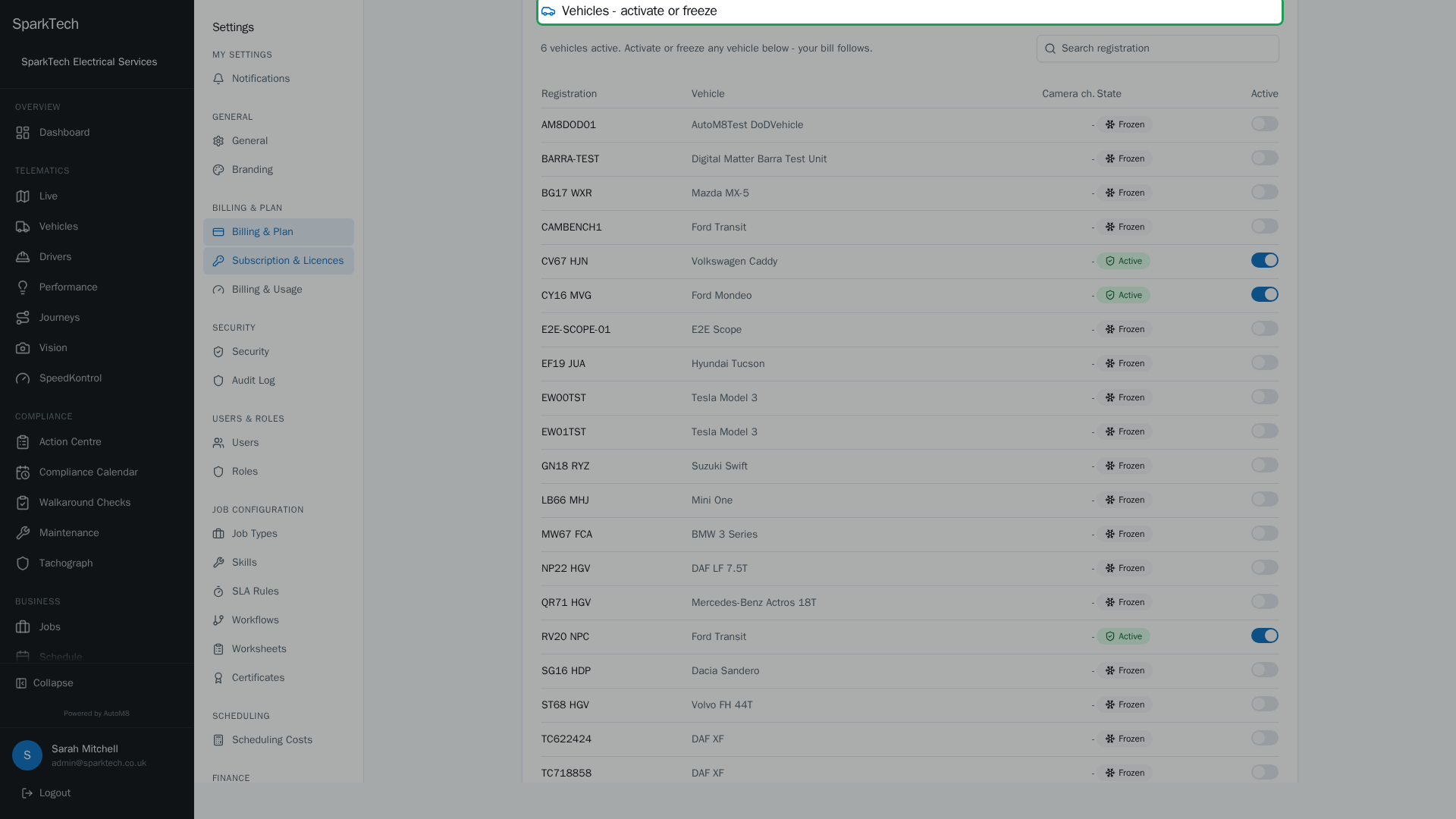
Open Settings then Subscription and Licences. Every vehicle is Active (licensed and tracking) or Frozen (paused, with all its history kept), and the toggle switches between the two.
This page explains what a vehicle licence is, the Subscription & Licences screen where you manage licences, the Active and Frozen states you will see on vehicles, and how a vehicle licence differs from a user account.
Permissions. The screen lives at Settings > Subscription & Licences. Reading it needs the View permission (in the Settings group); changing anything (the Active/Frozen toggle, logins) needs the Manage permission in the Settings group (Settings > Roles and Permissions), which the Administrator role includes by default. It is not a vehicle permission, so a Fleet Manager who can edit vehicles cannot licence one unless they also have Settings > Manage.
The Subscription & Licences screen
Who can do this: anyone with View (in the Settings group) to read it; the Manage permission in the Settings group to change anything.
Your subscription is managed in one place: Settings > Subscription & Licences. It covers both sides of your account:
- Vehicle licences - which vehicles are live (Active) or paused (Frozen).
- User logins - who can log in to AutoM8.
At the top is a live meter showing, in plain English, how many vehicles and logins your subscription covers, how many you are currently using, and how many you have free to use. Camera channels show as their own line, and tachograph data is included at no extra cost.
For anything to do with what your account covers or costs, speak to your administrator or account team - this guide does not cover pricing.
What is a vehicle licence
A vehicle licence is what makes a single vehicle live: licensed, and its telematics data flows into AutoM8. Your account is covered for a number of vehicles, and each tracked vehicle uses one of those slots.
Who can do this: Administrator - any role with the Manage permission in the Settings group.
- When you fit a device to a vehicle, AutoM8 automatically applies a licence if a free allocation is available, so installers do not have to think about it.
- You can also activate or freeze a vehicle by hand in the Vehicles table on Settings > Subscription & Licences. Each row shows the vehicle’s registration, its make and model, how many camera channels it has, its current state (Active or Frozen) and an Active toggle. The table is searchable by registration and paginated, so it stays usable on a large fleet.
- Freezing a vehicle frees its slot for another vehicle to use.
Activating a vehicle is confirmed first. When you switch a vehicle to Active, AutoM8 shows a short confirmation before anything changes - activating brings it live (tracking, scheduling and reminders start), and freezing keeps its history but stops tracking, scheduling and reminders and frees its slot. Freezing is always available.
Active and Frozen states
Every vehicle is either Active (licensed and live) or Frozen (unlicensed and paused). Frozen is not a deletion, and it does not lose any data.
| Active (licensed) | Frozen (unlicensed) | |
|---|---|---|
| Live map | Shows and updates in real time | Greyed out, not updating |
| New telematics | Ingested and scored | Not ingested |
| Scheduling and reminders | Run as normal | Stopped |
| Compliance sweeps | Included | Skipped |
| Historical data | Kept | Kept |
| The slot | In use | Freed for another vehicle |
| To resume | Already live | Apply a licence; tracking resumes immediately |
No data is lost while a vehicle is Frozen. AutoM8 keeps the raw device data safe, so when you re-licence a vehicle it comes straight back to life with nothing missing.
To bring a Frozen vehicle live, open Settings > Subscription & Licences and set its Active toggle on (you will get the confirmation described above first). To pause a vehicle, freeze it the same way.
When the Active/Frozen toggle is locked
Some accounts run on a fixed contract for a term. On those accounts the Active/Frozen toggle is locked - a note on the Vehicles table explains that vehicles cannot be activated, frozen or changed here, and that you should contact your account team to make any change. This is a property of your account, not something you switch on or off in the app.
If your toggles work normally, this does not apply to you.
Vehicles on a pilot account
A pilot account is set up for evaluation, and live tracking is not available on a vehicle until a tracker is fitted to it. The screen shows a notice explaining this. Once hardware is fitted, live tracking begins.
Users and logins
Who can do this: Administrator - any role with the Manage permission in the Settings group.
The same screen has a Users section for giving and removing logins. Anyone who logs in needs a login - drivers and office staff alike, though drivers who swap shifts can share one. Use Manage logins to choose who has one. See A vehicle licence is not the same as a user account below for the difference.
A vehicle licence is not the same as a user account
These are two separate things, and it is the point people most often mix up.
- A vehicle licence covers a vehicle - it makes the vehicle trackable.
- A user account covers a person - it lets someone log in to AutoM8.
A person can exist in AutoM8 as a driver (someone whose vehicle is tracked) without having a login at all, because a driver does not have to use the app. You only create a user account for people who actually use the dashboard or mobile app. See Creating drivers; creating a login is covered in the Users section.
Which plan do I need?
Everything on the Vehicles pages of this guide works on any plan. What each plan adds, and how the plan markers in this guide read, is explained in Key concepts. A marker in the app means the feature belongs to a higher plan, so speak to your administrator or account manager.
Quick reference
| I want to… | Go to | Permission |
|---|---|---|
| See what my subscription covers and what I am using | Settings > Subscription & Licences | View (Settings) |
| Activate a Frozen vehicle so it tracks | Settings > Subscription & Licences | Manage (Settings) |
| Freeze a vehicle so it stops tracking | Settings > Subscription & Licences | Manage (Settings) |
| See why a vehicle is greyed out on the map | It is Frozen - activate it (above) | Manage (Settings) |
| Give or remove a login | Settings > Subscription & Licences | Manage (Settings) |
| Change a locked (fixed-contract) toggle | Contact your account team | n/a |
| Add a driver who does not log in | Drivers > Creating Drivers | Drivers Manage |
Troubleshooting
Why can’t I change a vehicle between Active and Frozen? There are two common reasons. First, the account may be on a fixed contract, which locks the Active/Frozen toggle - a note on the Vehicles table explains this and you should contact your account team to make any change (see When the Active/Frozen toggle is locked above). Second, changing a licence needs the Manage permission in the Settings group; without it you can only view the screen. Ask an admin to grant it.
Why is a vehicle still not tracking after I set it Active? A licence makes a vehicle eligible to track, but it only actually tracks once a device is assigned to it and reporting. Check that a device is fitted, Active and reporting on the vehicle. See Managing devices and trackers and Why can’t I see something?.
Related
- Why can’t I see something? - the common reasons a vehicle is frozen or not tracking.
- Taking a vehicle live - how a licence fits into the full go-live sequence.
- Creating and managing vehicles.
- Licences are how you scale your fleet management software across the whole fleet.