Tracking
Driving events
See the risky driving and wired-input events AutoM8 flags, filter by review status, and coach where it is needed.
Walkthrough Driving events3 screenshots
- Every harsh event, scored automatically
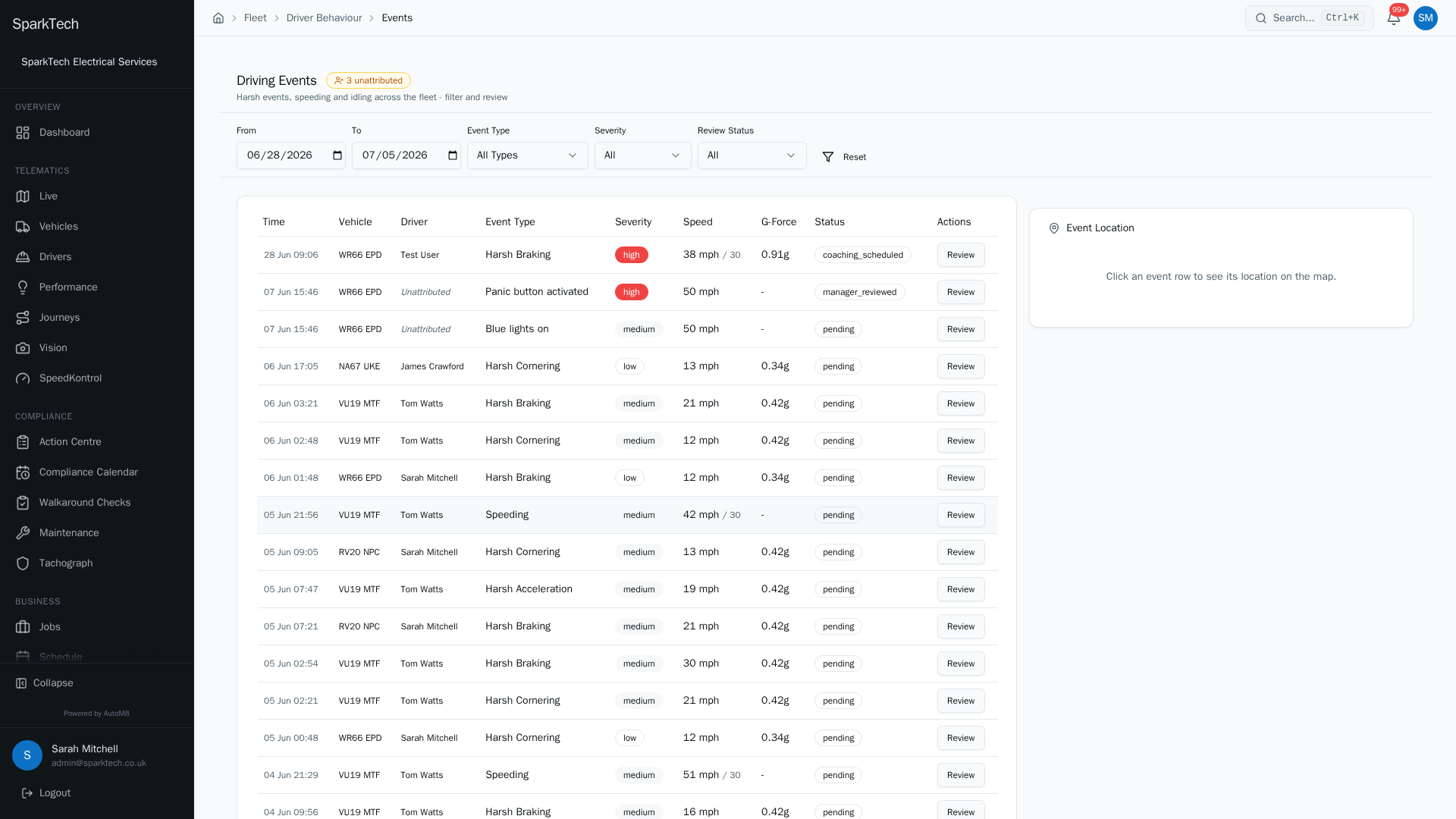
Open Telematics then Performance then the Events tab. Each harsh brake, acceleration, corner or speeding event is logged with the vehicle, driver, speed and severity.
- Filter by type, severity and review status
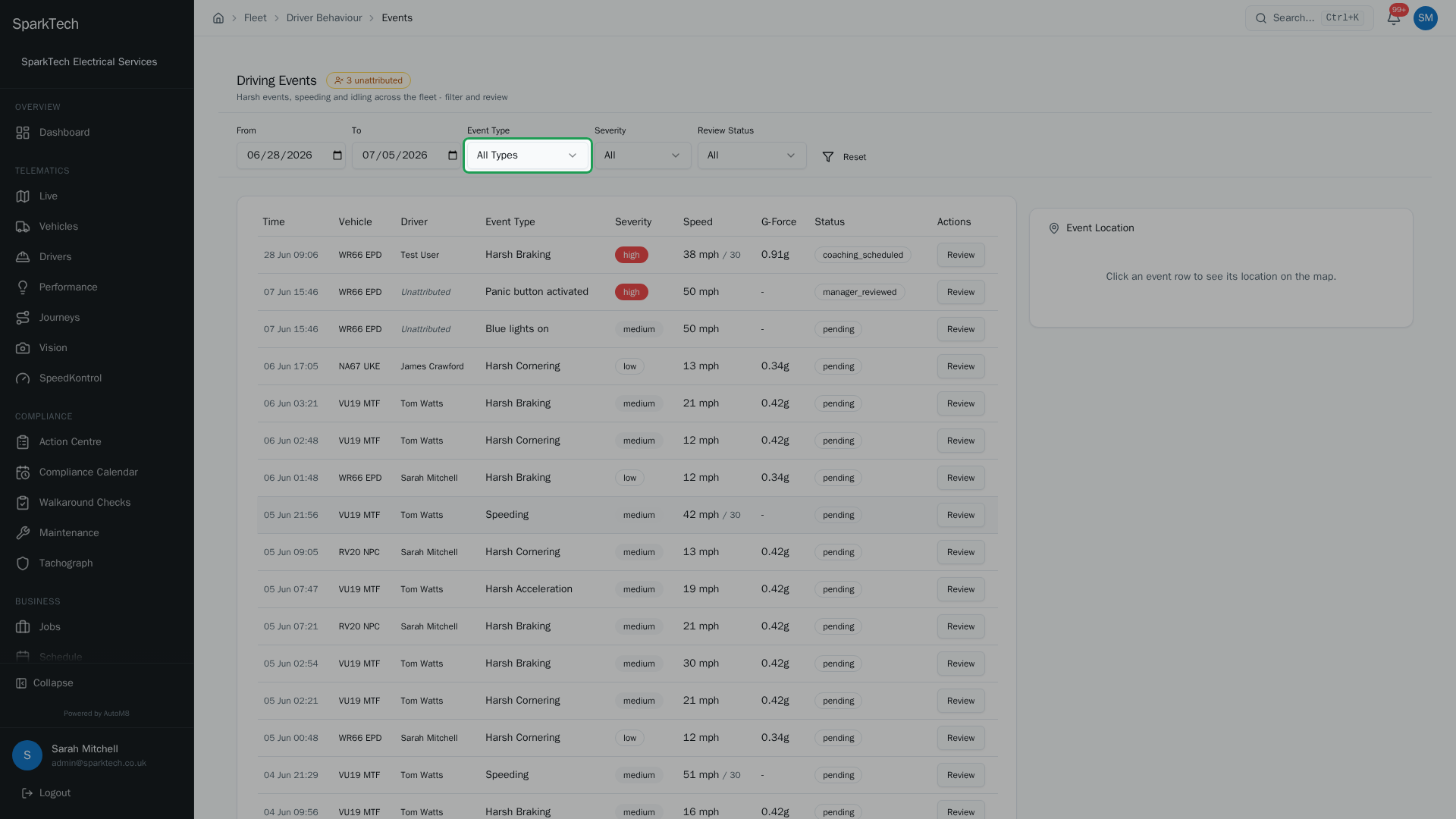
Narrow the list by date, event type, severity or review status so you can focus on the events that matter.
- See where an event happened
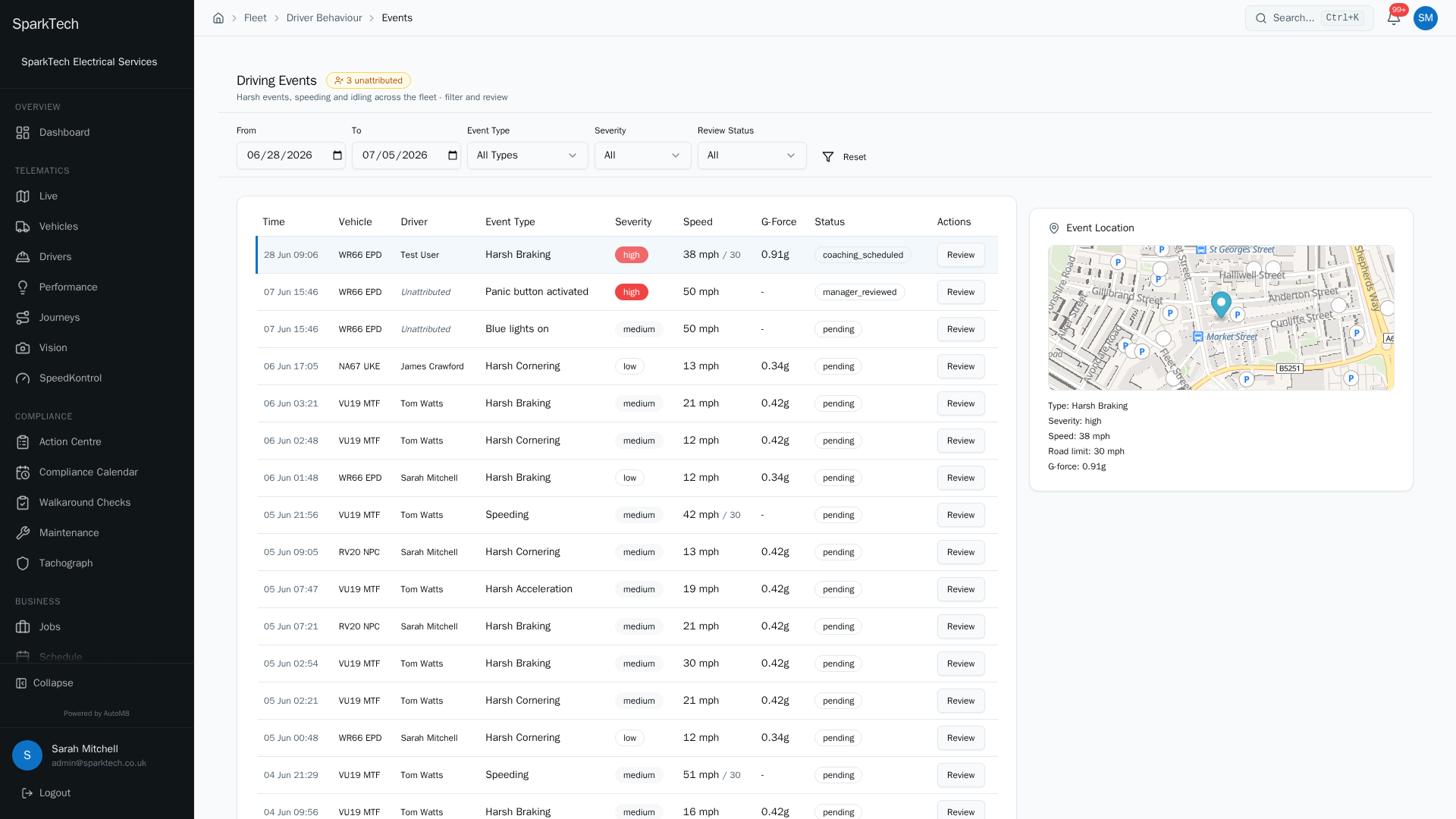
Select an event to see exactly where it happened on the map, so you can put it in context before you review it.
AutoM8 flags risky driving and other events straight from the vehicle so you can review them and coach where it is needed. The events list is the Driving Events tab of the Driver Performance hub.
Permissions. Seeing the driving events list needs the Driver Scores View permission (in the FMS (Fleet Management) group). Administrator and Manager include it by default.
What gets flagged
Driving-behaviour events come from real driving data (g-force - a measure of how sharply the vehicle brakes, accelerates or corners - and GPS):
- Speeding
- Harsh braking
- Harsh acceleration
- Harsh cornering
- Excessive idling
On vehicles with wired inputs, AutoM8 also surfaces input/output events from those wires. The label shown is the role each wire is set to, for example Panic button activated, Blue lights on, Siren on, PTO engaged, Door opened, Tail lift operated, Bin lift operated, Refrigeration alarm, Low fuel, High temperature, Beacon on, Auxiliary input and Immobiliser activated. Which of these exist depends on how each vehicle’s inputs are set up; the Event Type filter only lists the wired-input types your fleet actually reports. See Fleet settings.
Viewing driving events
Who can do this: anyone with the Driver Scores View permission.
Go to Telematics > Performance and open the Driving Events tab (the hub is titled “Driver Performance”).
Each event shows the time, vehicle, driver, event type, severity, speed and g-force, and its review status. For a speeding event you also see the road limit next to the actual speed; for an idle event you see the idle duration and the time window it covered.
You can filter by:
- Date range (a From and To date; the list opens on the last 7 days),
- Event Type (the driving types plus any wired-input types your vehicles report),
- Severity (Low, Medium, High, Critical), and
- Review Status (below).
Reset clears the type, severity and status filters. There is no driver filter on this page - use the filters above to narrow the list. To see events for one driver, go to that driver’s Score & Behaviour tab (see Driver scoring and coaching).
The list is paginated, 25 events to a page. When there is more than one page, a Page X of Y (N events) line and previous / next arrows appear at the bottom.
If any events could not be matched to a driver card (a personal smart card used in tachograph-fitted vehicles to identify the driver), an unattributed count is shown at the top so you can chase up missing driver-card coverage.
Seeing an event on the map
Click any event row to open the event location panel beside the list. It shows a mini-map pinned to where the event happened, plus the type, severity, duration and idle period (for idle events), speed, road limit and g-force. The row you clicked stays highlighted.
Driving events also appear as markers when you replay a journey.
Review statuses
Every event carries a review status:
| Status | Meaning |
|---|---|
| Pending | Not yet reviewed. |
| No Action | Reviewed and no action needed. |
| Reviewed | Looked at by a manager. |
| Coaching | A coaching session has been scheduled off the back of it. |
Reviewing an event
Who can do this: anyone with the Driver Scores View permission.
Use Review on a row to record a decision:
- No Action Required marks it as handled, or
- Create Coaching Session opens a coaching session: you pick the driver, and the event is marked coaching scheduled.
Reviewing an event records what you decided about it; it does not change the type of event.
Which events raise a live alert, and who is notified, is set separately under Settings > Fleet; see Fleet settings.
Related
- Driver scoring and coaching - how events feed each driver’s score.
- Journeys and replay.
- Fleet settings.
- Driving events come with AutoM8 vehicle tracking.